
Purpose: Get better answers from Ada and fix common problems.
Tips for better answers
- Be specific. Name the group, person, alert ID, or date range. "Who is on call for Platform Operations today?" works better than "Who's on call?"
- Give a date range for alerts. Ada looks at today by default.
- Ask follow-ups. Ada keeps the context of your conversation.
- Start fresh when switching topics. Use Clear chat history.
- Check important answers. Before acting on a roster or role detail, confirm it in the app.
Troubleshooting
| What you see | What to do |
|---|---|
| "Something went wrong. Please try again." | Click Ok and send your question again. |
| "Please try rephrasing the query or specifying more details." | Add the group, person, alert ID, or date range. |
| "There are no open ... alerts" when you know there are | Add a date range, for example "from the last 7 days." |
| An answer doesn't match what you see in the app | Trust the app. Rate the answer with thumbs down so it can be improved. |
| An approval card disappeared | Cards expire after about five minutes. Ask again. |
| Ada isn't in the header | Ada is available on Enterprise and with the OpsIQ add-on on Premium. Ask your admin. |
Example: checking an answer
When asked to list Platform Operations members and roles, Ada listed Maya Chen and Marcus Webb as Primary. On the group's Members tab, both are Secondary. Group and schedule roles can differ, so confirm roles on the group page before making changes.
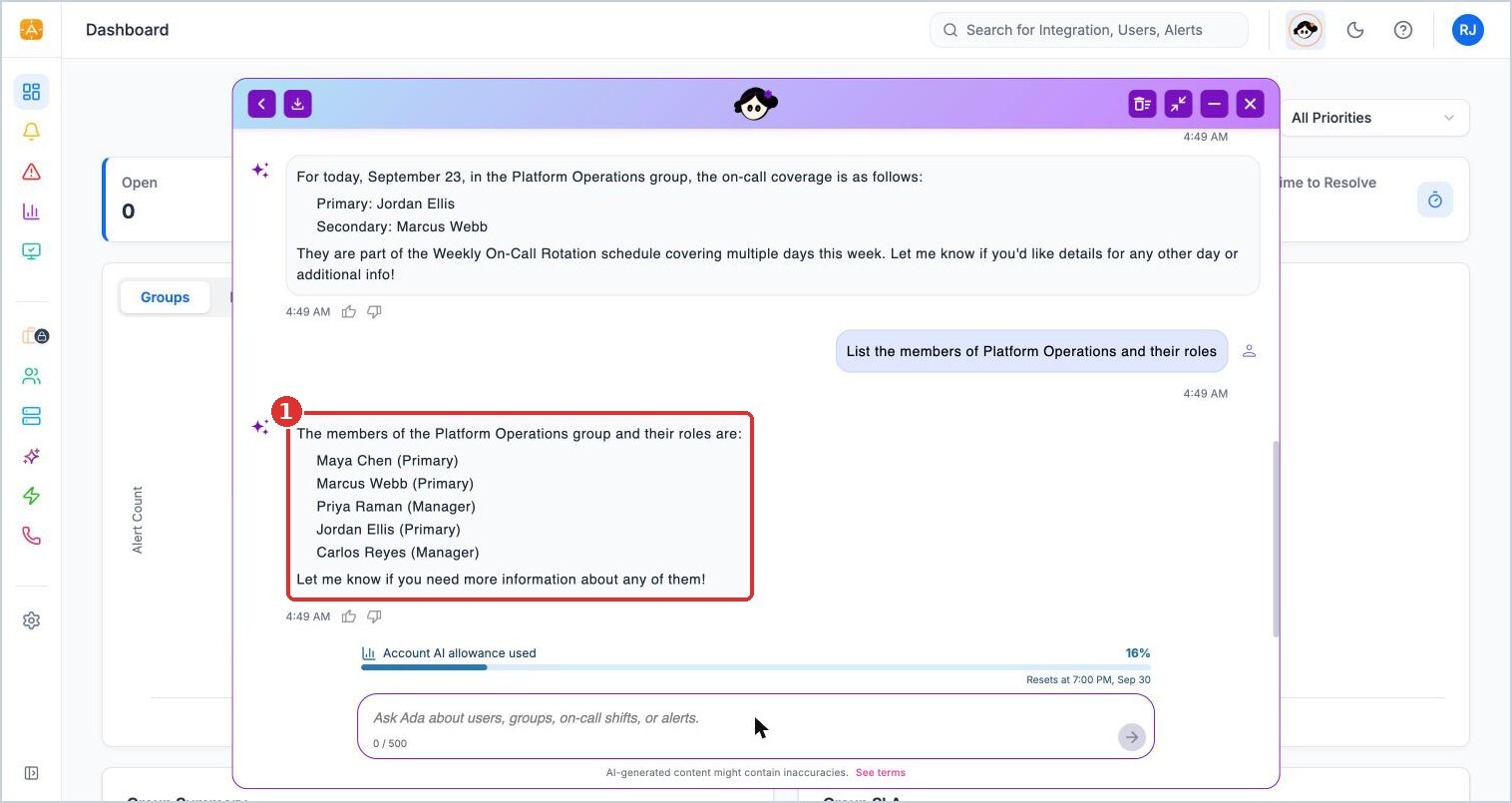
(1) Ada's list of members and roles. Confirm roles on the group's Members tab.