
Purpose
Get a brand-new AlertOps account to the point where it can route live alerts to the right people. By the end of this guide you will have added users, grouped them, optionally given them a schedule, and attached an escalation policy — the minimum setup needed before you plug in your first integration.
Audience
Relevant for Admins onboarding a new account or team
This article is written for AlertOps Account Owners and App Admins doing first-time configuration. Non-admins can read along but cannot perform most of these steps.
Prerequisites
- Account Owner or App Admin role on your AlertOps tenant.
- A list of team members you want to onboard (names and email addresses).
- A rough sense of the groups you need (for example, "Platform On-Call," "Database," "Payments").
- Roughly 20 to 30 minutes of focused time for a first pass.
What You Will Configure
- Users — people who can receive and respond to alerts.
- Contact methods — how each user is reached (email, SMS, phone, push).
- Groups — logical collections of users with shared ownership of a class of alerts.
- Schedules (optional) — on-call rotations for the groups.
- An escalation policy — the rules that escalate an alert if no one acknowledges in time.
Integration setup and manually triggering alerts are covered in separate articles once the foundation above is in place.
Step 1 — Create Users
Relevant for Admins
From the top-nav, click Configuration → Users.
- On the Users page, click + Add User at the top-right.
- Fill in the required fields:
- Email — the user's official email address (the login email will be sent here).
- Use Email as User Name — leave this checked to use the email as the username, or uncheck to set a custom username.
- First Name, Last Name
- User Type — leave on the default (Standard) unless a different type applies.
- User Role — the platform role (App Admin, Basic, Billing Admin, etc.). Pick the minimum role that lets them do their job.
- Click Submit to create the user, or Add Another to create one now and keep the form open for the next.
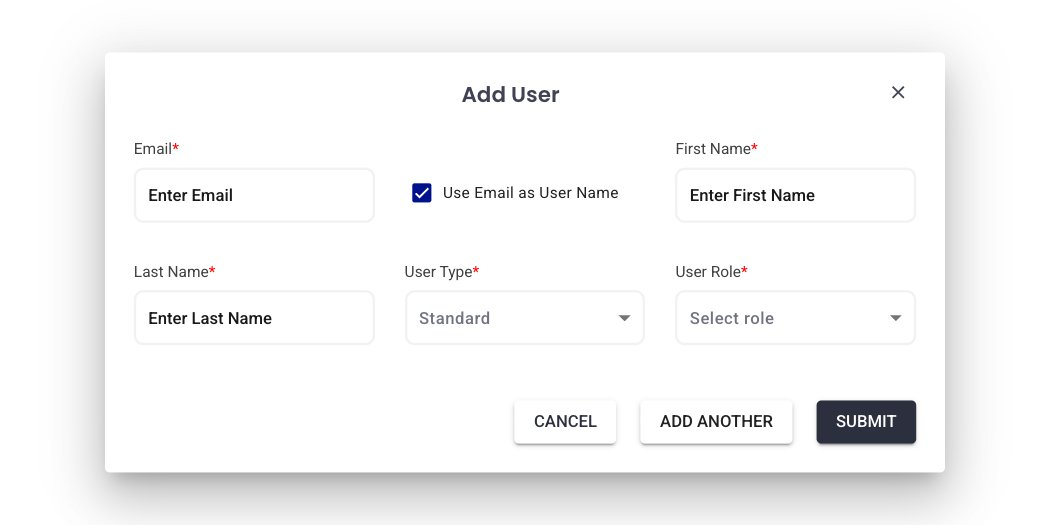
Figure 1. The Add User modal — email is the only required field beyond first/last name; the "Use Email as User Name" checkbox auto-fills the username.
Result. The user is created and AlertOps emails them a password-reset link. Log-in password is not set by the Admin.
Troubleshooting. If the user does not receive the email, check their spam folder and confirm the email address was typed correctly. Usernames must be unique — if the form rejects your submission, try a different username.
Edit an Existing User
To change a user's details, go to Configuration → Users, click the user's row, then click Edit on the Profile section. You can update name, group membership, contact methods, roles, and schedules from the same page. User Type cannot be changed after creation — see the FAQ for how to handle that.
Step 2 — Add Contact Methods
Relevant for every AlertOps user
Every user who needs to receive alerts must have at least one contact method configured. Users can manage their own contact methods from their Profile page.
- Click your greeting in the top-right and select Profile.
- Scroll to Contact Methods and click + Add Contact Method.
- Pick a type (Email, SMS, Phone Call, or Push), enter the value, and optionally set a wait time and retry duration.
- Click the green check-mark to save.

Figure 2. The Contact Methods section on your Profile — click Add Contact Method to add email, SMS, phone, or push.
For full details on time windows, retry settings, and consent, see User Profile.
Step 3 — Create a Group
Relevant for Admins
Groups are where you attach escalation policies and schedules. Routing targets groups, not individual users.
- Go to Configuration → Groups and Schedules.
- Click + Add Group at the top-right.
- Enter a clear Group Name that describes who owns alerts (for example, "Platform On-Call," "Database — Tier 1," "Payments API").
- Optionally enable Dynamic Group if you want members to be populated automatically by user attributes; most first-time groups are static.
- Click Submit.
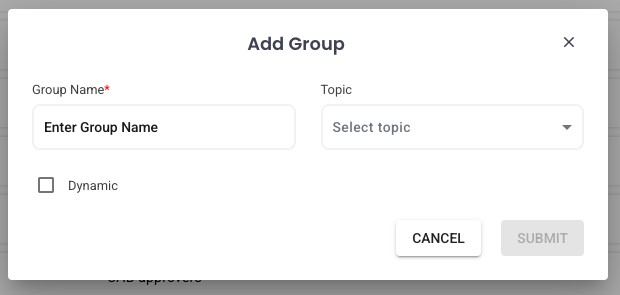
Figure 3. The Add Group modal — start with a static group unless you have a specific need for dynamic membership.
Step 4 — Add Users to the Group
Relevant for Admins and Group Managers
- From Groups and Schedules, click the group you just created.
- On the Members tab, click + Add Members.
- In the picker, move people from Available Users to Selected Members using the right-arrow button.
- Click Submit.
- Back on the Members tab, assign each member the Primary, Secondary, or Manager checkbox so the group's escalation policy knows who to page in what order.
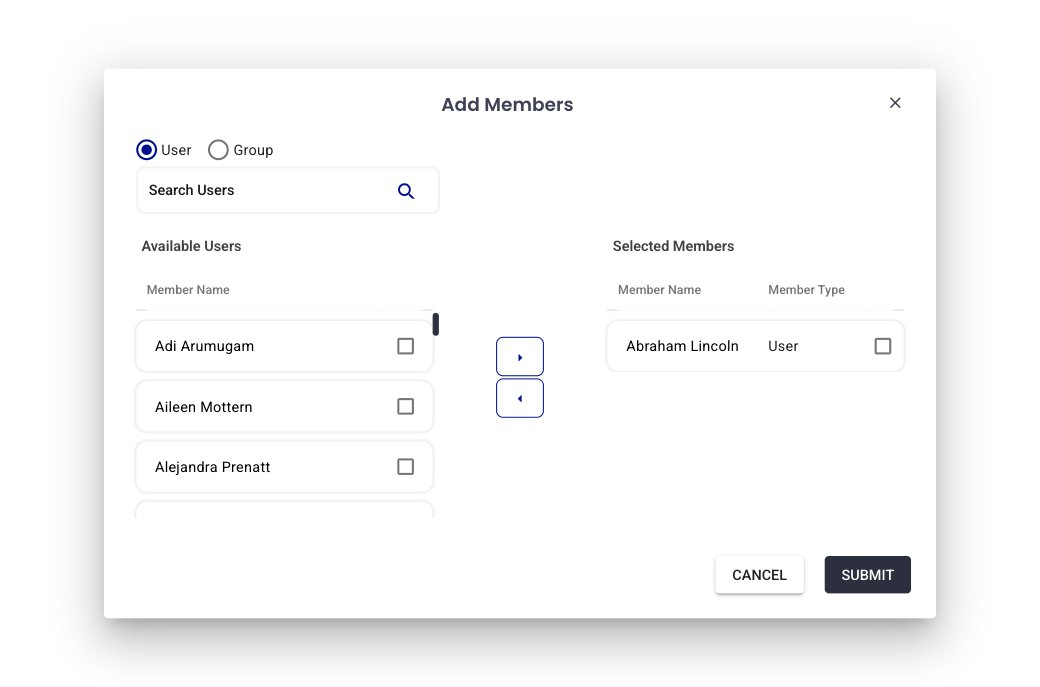
Figure 4. The Add Members picker — move users from left to right with the arrow, then Submit.
Step 5 — Add a Schedule (Optional, but Recommended)
Relevant for Admins and Schedule Managers
Without a schedule, the group notifies its static Primary / Secondary / Manager members in order. Add a schedule if on-call should rotate across the team.
- On the group page, open the Schedule tab.
- Create one or more schedules (weekly rotation, follow-the-sun, custom).
For detailed schedule recipes, see Scheduling Basics and Schedule Examples.
Step 6 — Create an Escalation Policy
Relevant for Admins
The escalation policy is the "what happens if nobody acknowledges" layer. Every group that routes alerts should have one.
- Go to Configuration → Escalation Policies.
- Click + Add Escalation Policy at the top-right.
- Fill in the form:
- Name — something memorable, e.g., "Platform — Tier 1 Escalation."
- Priority — the AlertOps priority this policy handles (Critical, High, No Priority, etc.).
- Description — optional; explain the policy's purpose for future admins.
- Click Submit.
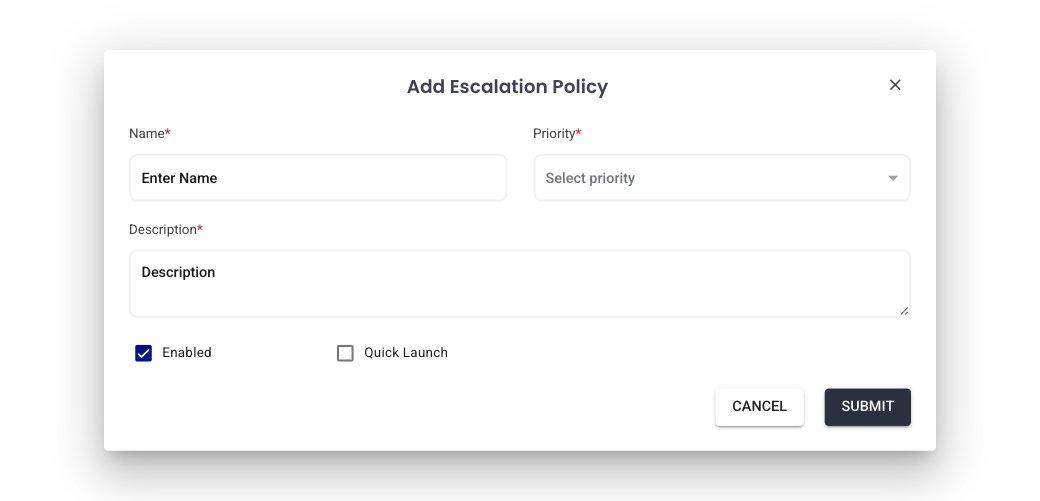
Figure 5. The Add Escalation Policy modal — Name and Priority are required; Description is optional but recommended.
After creating the policy, open it and use the Rules tab to configure escalation steps (Primary → Secondary → Manager), wait times, retries, and the communication channels each step uses. Toggle Centralized if you want the policy to control channels directly; leave it off to respect each user's personal contact preferences.
|
Note on recipient groups A recipient group is usually attached to an integration rather than directly to an escalation policy. When you later wire up an integration, you choose which group it sends to; the group's escalation policy then takes over. |
Best Practices for First-Time Setup
Do
- Start simple — one group, three members, one escalation policy. Expand once it works.
- Use descriptive names for groups and policies ("Platform — Tier 1" beats "Group 1").
- Give every user at least one contact method before routing any real alerts.
- Test with a manually triggered alert before connecting a real integration.
Don't
- Don't route production alerts at a single user. Use a group, even if it starts with one person.
- Don't leave an escalation policy without a Manager tier — you need a final fallback.
- Don't skip the test alert. Connection-level configuration is easy to mis-wire.