
Permissions
The InboundIntegrations_GlobalAccess entitlement is necessary for creation, update, and deletion of inbound e-mail, API, and chat integration templates in the environment. The user roles that have access to this entitlement are Owner, App Admin, and Integrations Admin.
Overview
Relevant for App Admins and Integrations Admins
Below Basic Settings on an Integration page you'll find the Advanced Settings panel — an accordion of five expandable sections. These options let you tune how the integration parses payloads, groups duplicate alerts, customizes message text, throttles traffic, filters JSON, and dynamically overrides the escalation policy or recipient group based on the incoming data.
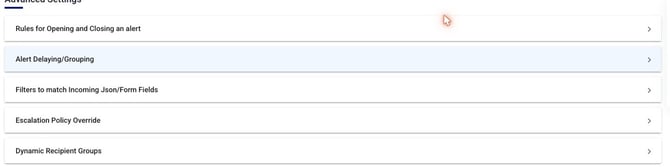
Figure 1. The Advanced Settings accordion below Basic Settings, with its five sections: Rules for Opening and Closing an alert, Alert Delaying/Grouping, Filters to match Incoming Json/Form Fields, Escalation Policy Override, and Dynamic Recipient Groups. Each expands in place when clicked. Open/close conditions, custom messaging, and auto-grouping are all configured inside Rules for Opening and Closing an alert.
|
Package gating Depending on your AlertOps package, you may not have access to all of the options below. |
Most teams reach for Advanced Settings to solve one of a handful of recurring problems. Use this map to jump to the right control:
|
If you need to… |
Use… |
|
A single incident produces a flood of duplicate alerts |
Alert Grouping — merge alerts that share Source, Source Name, and Source Id into one. |
|
Flapping alerts that self-resolve in seconds |
Alert Delaying — wait out the noise before notifying. |
|
Only certain alerts should ever page (e.g. CRITICAL only) |
Filters to Match Incoming JSON/Form Fields — drop everything that doesn't match. |
|
Different on-call for business hours vs nights/weekends |
Escalation Policy Override → Time of Day. |
|
Route by what the payload says (severity, P1/P2, env) |
Escalation Policy Override → Source Data. |
|
Send to the right team based on a keyword in the alert |
Dynamic Recipient Groups. |
|
Make notifications readable across SMS, voice, email, push |
Custom Messaging (Short Text / Long Text). |
Rules for Opening and Closing an Alert
Relevant for App Admins configuring custom mappings
Use Rules for Opening and Closing an Alert to access, add, or change the underlying field mapping that determines when this integration opens or closes an alert. This article surfaces the high-level use case; for the field-by-field walkthrough see Advanced Field Mapping.

Figure 2. The Rules for Opening and Closing an alert drawer expanded — Method, Content, Source, Source Name, Source Value, and the rest of the field-mapping inputs. Auto Grouping, Open/Close conditions, and Custom Messaging are all configured here.
Auto Grouping of Alerts
Relevant for Anyone tuning alert noise
In the case of alert updates, an open alert may have follow-up notifications appended to the original alert to reduce alert noise. AlertOps can combine — or group — multiple alerts with the same value for Source, Source Name, and Source Id.
An alert received with an Open value for SourceStatus creates a notification and all other alerts with the matching Source, Source Name, and Source Id are appended to the existing alert. These updates can be viewed in the messages or status changes section of an alert.
Open Alert When
Relevant for Anyone configuring open conditions
Open Alert When is where you configure the source and value AlertOps parses from incoming data to trigger an alert. For example, a new alert is triggered when the body of an incoming integration email contains the value "open."
Close Alert When
Relevant for Anyone configuring close conditions
Most sources support auto-closing — a closing event is sent that matches the open event. AlertOps automatically closes the existing alert when an incoming incident matches an existing open alert and contains the configured "close" value.
Custom Messaging
Relevant for Anyone shaping how alerts read in notifications
Under the alert mapping options there are several fields for creating rich messages for alerts and notifications. The exact fields available vary by AlertOps package and integration type. Each field accepts a combination of static text and dynamic variables.
- Subject Text (email integrations only) — sets the subject line for the email.
- Sample email body (email integrations only) — used for testing the integration.
- Short Text — the message used in SMS and voice notifications. If left blank, AlertOps falls back to the Long Text as the Short Message text.
- Long Text — the message used in Email and Push notifications. If both Short and Long are blank, AlertOps uses the entire JSON body as the Message text.
The Short Text and Long Text fields are not required, but configuring each is recommended to keep notifications readable across channels.

Figure 3. The Long Text and Short Text message fields inside the Rules drawer. Long Text drives Email and Push notifications; Short Text drives SMS and voice. Each accepts a mix of static text and dynamic variables.
Attachments
To include an attachment in the form of a URL, tick the Attachments box. You can send one or more URLs in an array structure — enter the field name surrounded by brackets.
|
Field |
Description |
|
Base Path |
The value for the base path in the incoming URL data. |
|
URL |
The value for the URL in the incoming URL data. AlertOps can send the URL as a clickable link in an email notification, or users can click the link in the web app. |
|
File Name |
The value for the file name in the incoming URL data. |
Alert Delaying / Grouping Options
Relevant for Anyone tuning alert volume
Alert Delaying
Customers often need to delay alerts for various reasons. A common use case is ignoring flapping incidents that self-resolve — for example, a network router experiencing intermittent connectivity that toggles "up" / "down" several times in a short window. Each status change would otherwise trigger an alert.
Toggle Delay at the top of this section, then choose one of the delay strategies:
- Delay notification for (n) number of incidents received within (n) minutes.
- Delay notification for (n) number of incidents received.
- Delay notification for (n) minutes.
- Delay notification until support hours begin (then define the period during which users should receive alerts).
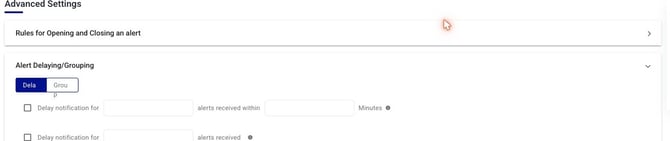
Figure 4. The Alert Delaying/Grouping section expanded, with the Delay / Group toggle. Under Delay, each strategy is enabled by its own checkbox — for example, "Delay notification for [n] alerts received within [n] Minutes."
Example: an IT team has determined a network issue produces 5 alerts in 1 minute and implements an Alert Delay to reduce noise.
Group
Grouping limits the volume of alerts from incidents that occur at the same time from the same source. Incoming incidents merge with the open alert and prevent multiple notifications for grouped incidents. Most monitoring systems generate multiple alerts when a critical server goes down — CPU usage, disk space, network connectivity. Instead of a separate notification for each, configure the AlertOps integration to group these alerts based on time frame.

Figure 5. The Group tab of Alert Delaying/Grouping. Tick "Group alerts received within [n] Minutes" to merge alerts arriving in the same window into one.
Example: alerts received from this integration are grouped if they all arrive within the same 3-minute span.
Filters to Match Incoming JSON / Form Fields
Relevant for Anyone scoping which alerts produce notifications
The AlertOps Filtering feature is a way to prioritise alerts that matter. Filtering allows you to be selective about which alerts create notifications based on specific criteria. For example, if you receive alerts from your monitoring system for a host of events, you can apply filters to notify only for critical server failures, or for alerts above a specified severity threshold.
Filters — Match All vs Match Any
- Match All Filters requires every condition to be true.
- Match Any Filters requires only one of the conditions to be matched.
When Match All and Match Any are used in conjunction, they constitute an OR condition: the filter only evaluates the Match Any conditions if the Match All Filters are not satisfied.
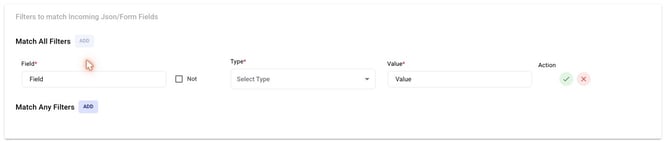
Figure 6. The Filters section. Click ADD under Match All Filters or Match Any Filters to add a condition row: Field, a Not toggle, Type, Value, and an Action (save / cancel).
Field, Value, Type
|
Field |
Description |
|
Field |
The specific JSON key targeted by this filter. |
|
Value |
The associated JSON value pair. Inputting a value here dictates the matching criterion — when the filter triggers further actions. |
|
Type |
Determines how specific conditions (pattern matching, exact matching, etc.) are applied. Available types differ between Match All Filters and Match Any Filters — see below. |
Filter Types — Match All
|
Type |
Behavior |
|
Is Any |
Allows multiple filter values; the alert is processed if any of these values exactly match the corresponding field in the JSON. |
|
Contains Any |
Filter value can be one word, part of a word, or a whole sentence. Supports multiple values for comprehensive filtering. |
|
MatchesRegex |
Filter value is a regular expression for advanced pattern matching. |
Filter Types — Match Any
|
Type |
Behavior |
|
Contains |
Requires the filter value to be a complete word or sentence that exactly matches the corresponding field in the JSON. Unlike Contains Any, this type does not allow partial matches. |
|
Is |
Requires the filter value to be an exact match to the corresponding field in the JSON. |
|
MatchesRegex |
Filter value is a regular expression for advanced pattern matching. |
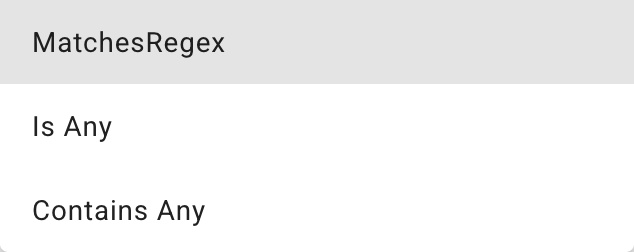
Figure 7. The Type drop-down for a Match All filter row — Is Any, Contains Any, and MatchesRegex. (Match Any rows offer Contains, Is, and MatchesRegex.)
Example: incoming JSON includes a field called severity. A filter only produces an alert if severity contains the value CRITICAL.
Escalation Policy Override
Relevant for Anyone routing alerts dynamically
An Escalation Policy Override is set at the integration level and supersedes the integration's associated Escalation Policy based on the time an alert is generated or on values in the incoming data. This lets you apply different escalation policies at different intervals — say, business hours vs nights / weekends — or different policies based on what the source system sent.

Figure 8. The Escalation Policy Override section offers two modes: Based on Time Of Day and Based on Source Data. Toggle one on to reveal its rule configuration.
Time of Day
Apply a different Escalation Policy for specific time-of-day windows. Switching between policies happens automatically and seamlessly.
Example: alerts coming in on Saturday and Sunday are emailed to the Manager per the applied Escalation Policy Override.
Source Data
Update the Escalation Policy dynamically based on values from the incoming JSON. Define rules or conditions on the alert's source data — production servers vs development, severity levels, priority bands.
Example: if incoming JSON contains a severity field with the value CRITICAL, alerts are blasted to all hands per the applied Escalation Policy Override. The same pattern works for priority-based escalations: P1 → an Escalation Policy for P1, P2 → the policy for P2, and so on.
|
Override evaluation order If an Escalation Policy Override is configured, the override rules are evaluated first. If the override conditions are not satisfied, the policy under Basic Settings is used to trigger the alert. |
Dynamic Recipient Groups
Relevant for Anyone routing alerts to different teams based on payload
Dynamic Recipient Groups change which group receives an alert based on key values from the incoming JSON. For large organisations with multiple departments this ensures an alert lands with the right team based on the nature of the issue.

Figure 9. The Dynamic Recipient Groups section. Click ADD to create a routing rule — Field, Type, Value, and the Recipient Group to route to when the rule matches.
Define rules or conditions that determine which group receives the alert. For example, set rules based on keywords in the description or source data such as "network" or "database" — when an alert matches, it is automatically routed to the corresponding department.
Example: if incoming JSON contains a field issue_name with the value network, the Infrastructure Team is alerted.
|
Don't set both If a Dynamic Recipient Group is added to the integration, do not configure a Recipient Group under Basic Settings. If both are set and the dynamic conditions match, alerts route to the groups specified in both areas. |