
AlertOps Dynamic Routing features the ability to dynamically route alerts to specific groups on specific conditions in the inbound data. This can be accomplished in both API and E-mail integrations, with a slight variation.
API Integration
In API Integrations, Dynamic Recipient Groups allow routing alerts to a specific group based on a field value in the incoming JSON containing certain text or match a certain Regex. Upon meeting that condition, AlertOps will route to the designated Recipient Groups (in this case, the On-Call Team)
Email Integration
In Email Integrations, Dynamic Recipient Groups allow routing alerts to a specific group based on a field value in the incoming e-mail's subject or body containing certain text or match a certain Regex. Upon meeting that condition, AlertOps will route to the designated Recipient Groups (in this case, the On-Call Second Level Escalation Team)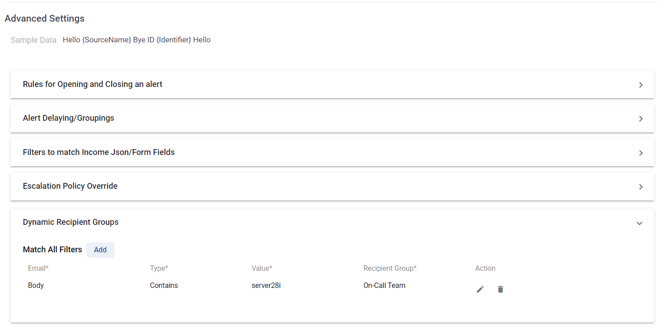
Note: Recipient Groups in Basic Settings
When Dynamic Recipient Groups are configured, the Recipient Group set under Basic Settings is not treated as a default or fallback. If a Dynamic Recipient Group condition matches and a Recipient Group is also present in Basic Settings, both groups are notified.
For this reason, when using Dynamic Recipient Groups, the general recommendation is to leave the Recipient Group in Basic Settings empty and define all routing through the dynamic conditions.
This behavior differs from Escalation Policy Override, where the Default Escalation Policy in Basic Settings does act as a true fallback.
Recipient Group Routing under Rules for Opening and Closing Alert
In addition to condition-based Dynamic Recipient Groups, alerts can be routed using a value taken directly from the inbound payload. Under Rules for Opening and Closing Alert, the Recipient Group field accepts the name of a key in the incoming JSON rather than a fixed group name. AlertOps reads the value of that key, looks for a Recipient Group in AlertOps with a matching name, and routes the alert to it automatically.
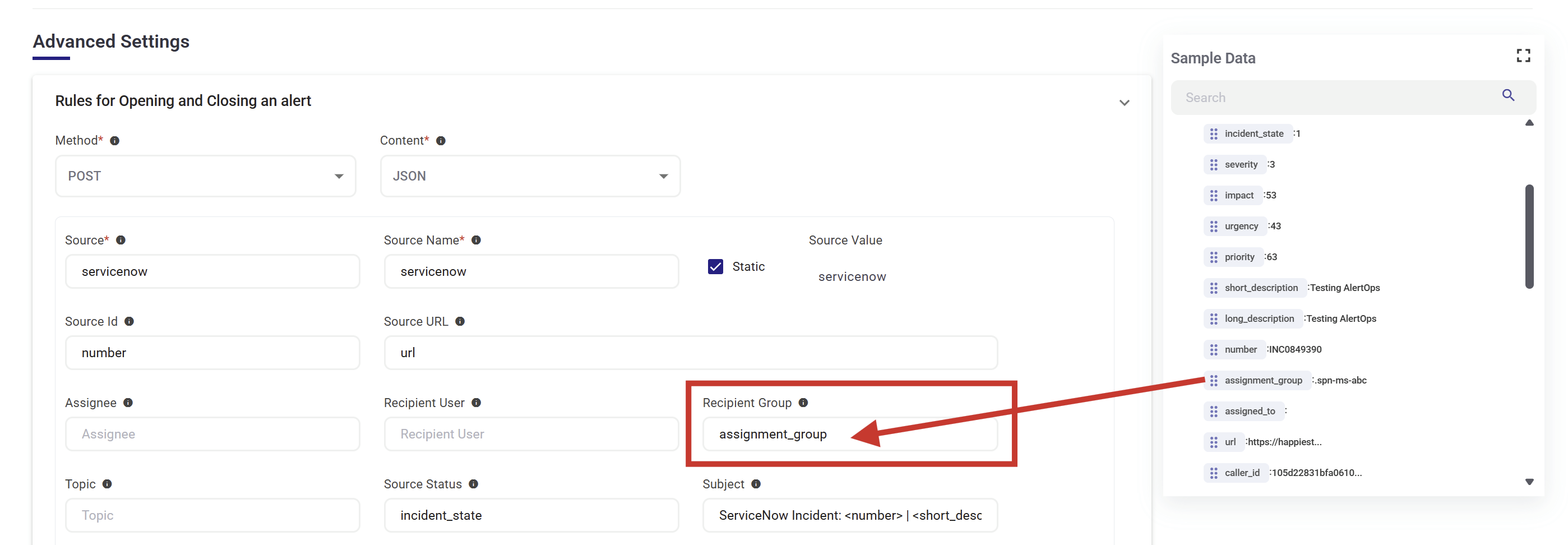
Example: the source sends a payload containing a key called group. Setting the Recipient Group field to group tells AlertOps to take whatever value arrives in that key, match it against the group names in your environment, and route the alert accordingly.
This removes the need to define a separate condition for every team. As long as the group names in the source system match the Recipient Group names in AlertOps, new groups route correctly without any change to the integration.
Escalation Policy Override
The Escalation Policy Override feature allows you to define conditional rules that dynamically route incoming alerts to different escalation policies based on the content of the alert payload and the time of day the alert is received. Rules are evaluated in sequence and behave like an if / else if / else chain — the first rule whose conditions match will be applied, and subsequent rules will not be evaluated.
Accessing Escalation Policy Override
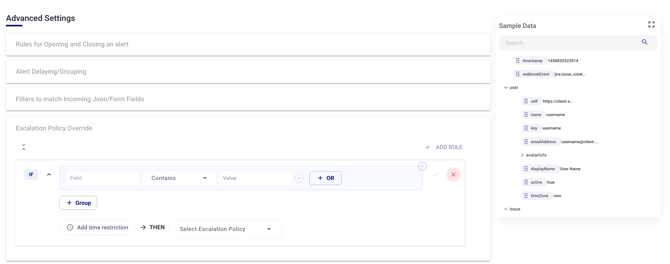
Navigate to your integration's Advanced Settings section and expand the Escalation Policy Override panel.
Understanding the Rule Structure
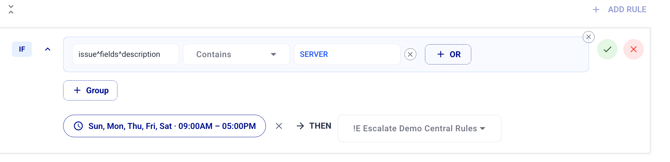
Each rule is made up of three parts:
- Condition Groups — the payload criteria that must be met for the rule to apply
- Time Restriction (— defines the days and hours during which the rule is active
- Then (Action) — the escalation policy to apply if the rule matches
All three elements must be satisfied for a rule to fire. If a rule's conditions match but the alert arrives outside the rule's defined time window, the rule will not match and evaluation will continue to the next rule.
Condition Groups and OR / AND Logic
Conditions Within a Group (OR Logic)
Within a single condition group, each condition you add is evaluated using OR logic. The group is satisfied if any one of its conditions matches the incoming alert payload.
To add another condition to a group, click the + OR button within that group.
Example: A group with the following conditions would match if either condition is true:
statuscontains"critical"ORstatuscontains"high"

Multiple Groups Within a Rule (AND Logic)
When you add more than one condition group to a rule, the relationship between groups is AND logic. All groups must be satisfied for the rule to trigger.
To add another group, click the + Group button below the existing group(s).
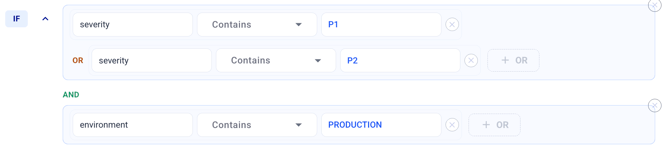
Example: A rule with two groups would match only if both are satisfied:
- Group 1:
severitycontains"P1"ORseveritycontains"P2" - AND
- Group 2:
environmentcontains"production"
This allows you to build powerful compound conditions such as "high severity AND in production."
Time Restrictions
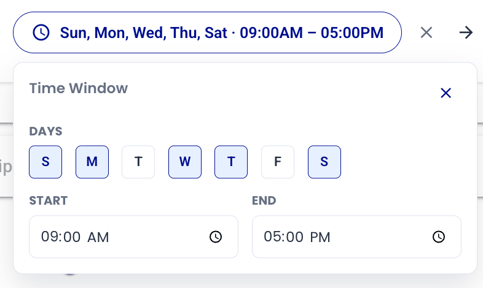
Each rule can optionally include a Time Restriction, which controls the days of the week and the time window during which the rule is eligible to match. This adds a time dimension on top of your payload conditions, allowing you to route the same alert to different escalation policies depending on when it arrives.
To add a time restriction to a rule, click Add time restriction within the rule editor. You can then select the days of the week and define a start and end time for the window.
How Time Restrictions Interact with Conditions
A rule will only match if both its payload conditions and its time restriction are satisfied simultaneously. If the conditions match but the alert arrives outside the defined time window, the rule is skipped and the next rule in the sequence is evaluated.
Example use case — routing by time of day:
| Rule | Label | Condition | Time Restriction | Action |
|---|---|---|---|---|
| 1 | IF | severity contains "P1" |
Mon–Fri, 9:00 AM – 5:00 PM | Escalate to: Business Hours On-Call |
| 2 | ELSE IF | severity contains "P1" |
Any time | Escalate to: After Hours On-Call |
| 3 | ELSE | severity contains "P2" |
Any time | Escalate to: General Notifications |
In this example, a P1 alert arriving during business hours will match Rule 1. The same P1 alert arriving at 2:00 AM will skip Rule 1 (time restriction not met), and match Rule 2 instead. This pattern makes it straightforward to implement different on-call escalation paths for business hours vs. after hours without needing separate integrations.
Rules With No Time Restriction
If no time restriction is added to a rule, that rule is eligible to match at any time of day on any day of the week. This is the default behavior when a new rule is created.
Multiple Rules: IF / ELSE IF / ELSE Logic
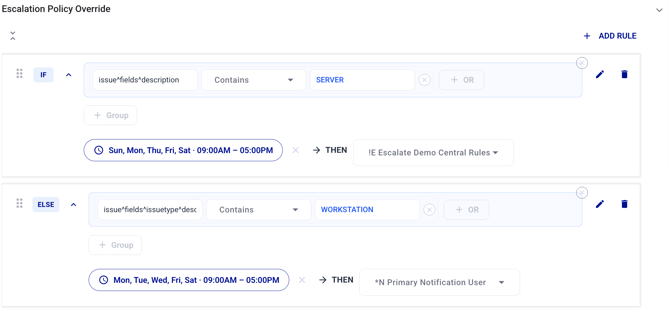
You can define multiple rules within the Escalation Policy Override section. Rules are evaluated in order from top to bottom, following an if / else if / else pattern:
- The first rule is the IF — it is evaluated first.
- Each subsequent rule is an ELSE IF — it is only evaluated if all preceding rules did not match.
- The last rule is the ELSE — it still requires its own conditions to be met, just like any other rule. It is simply the final rule in the sequence and will only be reached if none of the preceding rules matched.
Rules can be reordered using the drag handle on the left side of each rule card.
To add a new rule, click the + ADD RULE button at the top right of the Escalation Policy Override panel.
Default Escalation Policy (No Rules Match)
It is important to understand that the ELSE rule is still a conditional rule — it will only fire if its own conditions (and time restriction, if set) are met. It is not an unconditional catch-all.
If none of the defined rules match the incoming alert — including the ELSE rule — AlertOps will automatically fall back to the Default Escalation Policy configured in the Basic Settings of the integration. This ensures that no alert is ever dropped, regardless of the payload content or time of day.
Summary
| Concept | Behavior |
|---|---|
| Conditions within a group | OR — any condition in the group can match |
| Multiple groups within a rule | AND — all groups must match |
| Time Restriction | AND with conditions — must also be within the defined time window |
| Multiple rules | Sequential (IF / ELSE IF / ELSE) — first match wins |
| ELSE rule | Still conditional — only fires if its conditions and time restriction are met |
| No rules match | Falls back to the Default Escalation Policy in Basic Settings |
Tips
- Use multiple groups (AND) when you need to match on two independent fields simultaneously (e.g., severity AND environment).
- Use OR conditions within a group when a single field might have multiple acceptable values.
- Use Time Restrictions to route the same alert type to different escalation policies based on time of day — for example, a dedicated after-hours on-call policy for critical alerts outside business hours.
- Duplicate a rule and change only the time restriction to easily create business hours / after hours variants of the same condition.
- Place your most specific rules (with both payload conditions and time restrictions) first, and your broadest rules last.
- The ELSE rule is not a guaranteed fallback — if you need a true catch-all for all unmatched alerts at any time, rely on the Default Escalation Policy in Basic Settings.