The InboundIntegrations_GlobalAccess entitlement is necessary for creation, update, and deletion of inbound e-mail, API, and chat integration templates in the environment. The user roles that have access to this entitlement include Owner, App Admin, and Integrations Admin.
This section will cover additional information for email integration configuration such as including attachments, conference bridges, as well as link back to source.
Include Attachments
By default, AlertOps will include email integration attachments from inbound email alerts for certain types, such as documents and audio files.

AlertOps will send attachments in the email notifications.

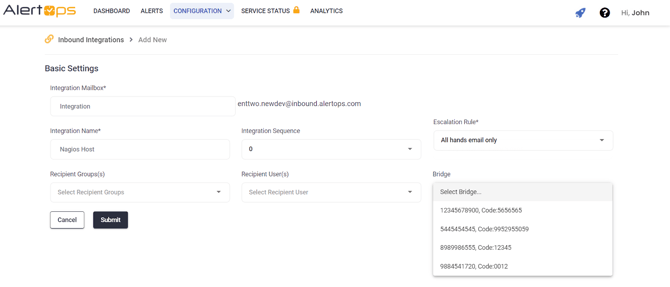
Include Bridges
To learn how to configure a bridge click here. To include a preconfigured bridge in your email integration, select a conference bridge from dropdown displaying all preconfigured bridges.
Specify Alert Recipients in the Alert
You can send User or Group recipients in an email alert by added them as recipients in the integration setup page.

Link Back to the Source
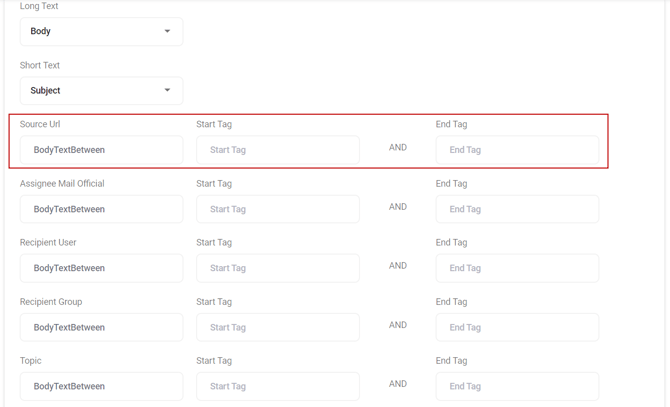
- Use the Source URL field to identify and map to the alert source.
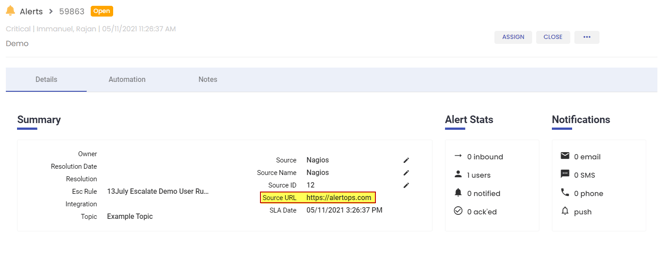
- The source URL can be found on the Alert Detail screen.
Customize the Alert Message
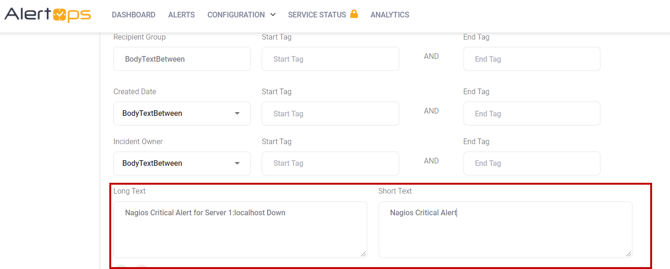
By default, AlertOps will use the email subject as the alert subject and the email body as the alert message. But you can set the Long Text and Short Text fields and use those fields instead.