
Overview
Relevant for App Admins designing escalation patterns
Escalation Policies work in conjunction with Schedules to guide alerts, so both concepts matter when designing one. The four examples below cover the most common patterns. Each pattern is built by adding Member Roles (Primary, Secondary, Manager) to the policy's Rules tab and setting the wait time and retries per tier.
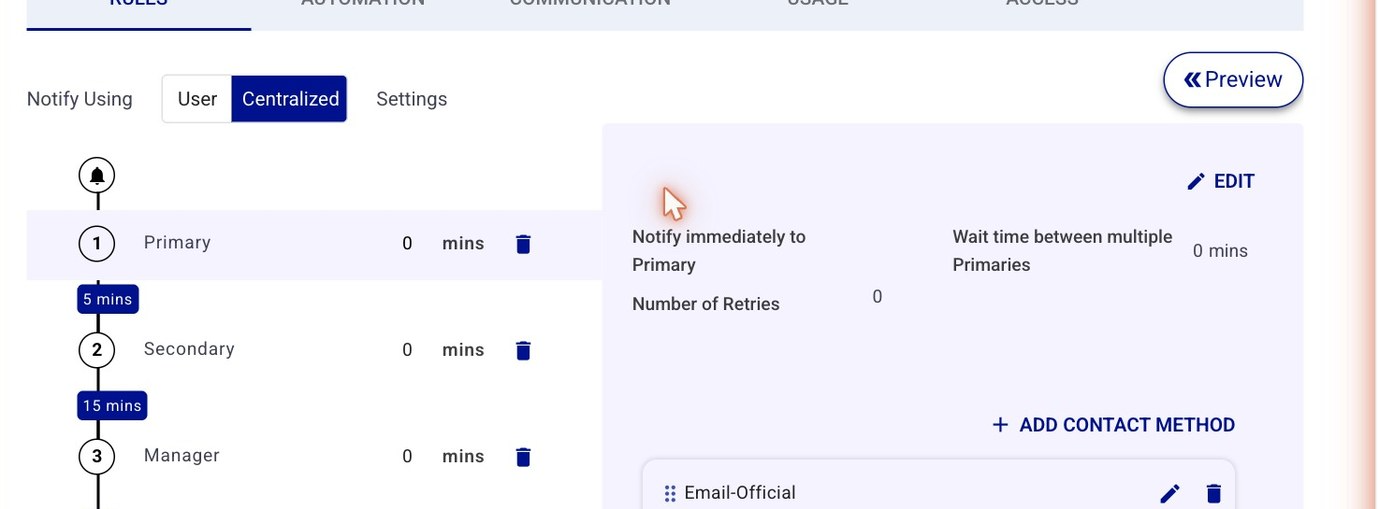
Figure 1. A policy's Rules tab with all three tiers — Primary → (5 min) → Secondary → (15 min) → Manager. Examples 3 and 4 build exactly this chain; Examples 1 and 2 use only the Primary tier. The wait time on each connector is the delay before escalating to the next tier.
Example 1 — Notify One Primary Only
Relevant for App Admin — simplest pattern
Notify a single primary user when they are on-call in a shift.
1. Set up a rotating on-call shift in the group with only one Primary member. The Primary user is considered the on-call user.
2. Add the Primary Member Role to the Escalation Policy.
3. Configure Primary settings — number of retries, retry interval, and which device contacts will be notified.
Example 2 — Notify More Than One Primary
Relevant for App Admin — multi-primary
Configure the policy similarly to Example 1. The key difference is in the shift: include multiple Primary users. The order of users in the shift determines the notification order.
1. Set up the shift with multiple Primary members in the desired sequence.
2. Add the Primary Member Role to the Escalation Policy.
3. Configure Primary settings — retries, interval, and contact methods.
Each Primary member in the shift is notified sequentially using the Primary escalation settings.
Example 3 — Notify Primary then Escalate to Secondary
Relevant for App Admin — two-tier
Primaries are notified first; if no response, the alert escalates to a Secondary.
1. Configure a shift that includes Primary and Secondary members. Position Primaries before Secondaries — the notification path follows this order. Multiple of either role is supported.
2. Add both Primary and Secondary Member Roles to the Escalation Policy.
3. Configure Primary settings (retries, interval, contact methods).
4. Configure Secondary settings (retries, interval, contact methods).
Each user in the shift is notified in turn according to their Member Role's escalation settings.
Example 4 — Escalate to Manager
Relevant for App Admin — final-fallback to Manager
The Escalation Policy ends by notifying the Group Manager.
1. Designate a Manager from the Group Members tab.
2. When creating the shift for this group, do not include the Manager — the Manager Role lives at group level, not in the shift roster.
3. Add Manager Member Role as the final tier in the Escalation Policy.
4. Configure Manager settings — retries, interval, and contact methods.
The Group Manager is notified as the last step in this policy.
Pattern Picker
Relevant for App Admin choosing among patterns
|
Example |
When to use |
|
Notify One Primary Only |
Smallest team, one on-call user at a time. Lowest configuration overhead. |
|
Notify More Than One Primary |
Pair on-call coverage — two Primaries paged in sequence. |
|
Notify Primary then Escalate to Secondary |
Two-tier coverage with a clear backup tier. Most common production pattern. |
|
Escalate to Manager |
Add a final fallback for when Primary and Secondary tiers don't respond. |