
Permissions
The following entitlements are required to make changes to Escalation Policies:
- Message_Rule_Update — Add and update existing Escalation Rules.
- Message_Rule_View — View existing Escalation Rules.
Owner and App Admin user roles have access to these entitlements.
Overview
Relevant for App Admins designing alert routing
An Escalation Policy is the plotted pathway between user roles that guides every alert delivery. Each alert has an Escalation Policy assigned to answer to whom, where, and when an alert will be delivered — not just which user to contact, but when to escalate to the next tier.
Settings
Relevant for App Admins editing the policy header
At the top of the escalation policy detail page is the Settings section. Edit the escalation policy name, priority, and description by clicking Update in the top right corner.
- Enabled (checkbox) — enables or disables the escalation rule.
- Quick Launch (checkbox) — makes the Escalation Rule available for Manual Alerts from the Create Alert menu.

Figure 1. The Settings section at the top of a policy. Name, Priority, and Description (edit via the top-right controls); Quick Launch and Enabled checkboxes; and Clone / Edit / Delete actions.
Rules Tab
Relevant for App Admins plotting the notification chain
The Rules tab opens automatically when you click into an escalation policy. It is the starting point for building escalations. The notification chain runs down the left (Primary → Secondary → Manager, with the wait time between tiers shown on the connectors); selecting a role opens its contact-method configuration on the right.
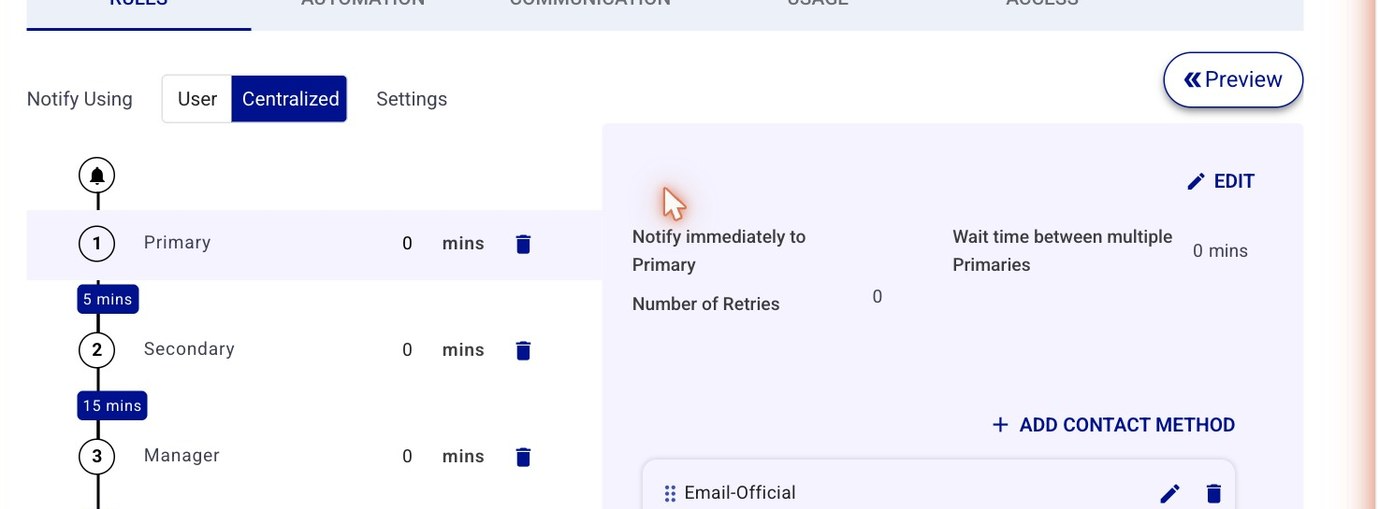
Figure 2. The Rules tab. The Notify Using toggle (User / Centralized) sits top-left; the member-role chain (Primary → 5 min → Secondary → 15 min → Manager) runs down the left; the selected role's contact methods, retries, and wait times are on the right. Preview (top-right) simulates the escalation against a real group.
Notify Using — User vs Centralized
- User — escalates using contact methods and per-user preferences set in each user's profile.
- Centralized — overrides per-user preferences with standardized admin-set preferences inside the escalation policy.
Add Member Role
Click Add Member to plot the notification chain. A Primary member role is included by default; add as many role tiers as needed.
Wait Time Between Multiples
The interval (in minutes) set per role controls both (a) the wait time before escalating to the next role and (b) the wait time between multiple members sharing the same role (e.g., multiple Primaries or Secondaries).
The first role added to the escalation policy is always notified immediately — a delay before the first alert can only be set at the integration level. Example: the first Primary is notified immediately; the second Primary is notified five minutes after.
Wait Time Before Escalating
Admins can set a wait time before the policy escalates to the next role tier. Example: notify all Primaries, then wait 2 minutes before notifying the first Secondary.
Number of Retries
Define how many retries each member receives before the policy moves on to the next member in the sequence. Configurable when adding a member role or by editing an existing one.
Retry Interval
The wait time between retries (in minutes). Not shown when Number of Retries is set to zero.
Contact Sequence
When editing a member role, you can set the sequence of contact methods (Email, Phone, SMS, etc.) and a time interval between each contact type. You can also set per-method retries and a per-method retry interval. AlertOps walks the sequence from top to bottom.
Example: notify the Primary by email first; continue sending emails 5 more times every 2 minutes; if still no answer, escalate to phone call.
Matching Labels
|
Match labels exactly between the policy and user profiles Contact labels in the escalation policy must match the labels in each user's profile contact methods. Mismatched labels result in alert delivery failures. A common mistake: the policy references "Phone-Offical" but the user profile only has "Phone-Official-Mobile." If you are experiencing delivery failures, verify these labels match exactly. |
Preview Your Escalation
Click the Preview button to test the escalation against an actual group. Pick the group and (optionally) a specific date / time for a more detailed simulation. Preview is the fastest way to confirm group contact information is configured correctly — if the timeline plays out wrong, check the user contact methods and verify labels match what the policy expects.
Automation Tab
Relevant for App Admins layering on automations
The Automation tab is where you view auxiliary actions tied to the escalation policy.
- Workflows — trigger an auxiliary action if certain conditions are satisfied when this escalation policy is launched.
- Outbound Integrations — trigger actions in third-party systems (Salesforce, Statuspage, ServiceNow, JIRA). Unlike Workflows, these are not conditional — they always execute when the policy is launched.
- Outbound Actions — like Outbound Integrations but executed on-demand from a button in the web or mobile app instead of automatically.
Communication Tab
Relevant for App Admins shaping response options and content
Response Action Options
The Communications tab links response actions (Acknowledgement, Assignment, Escalate, Close) with specific communication channels (Phone, SMS, Email, Group Chat — Slack or Teams). If a communication method is not selected under a response action, the corresponding response option will not appear within the alert. Example: if an alert with this policy is received by SMS, the SMS will only include options for the response actions where SMS was selected (e.g., Acknowledge and Assign).
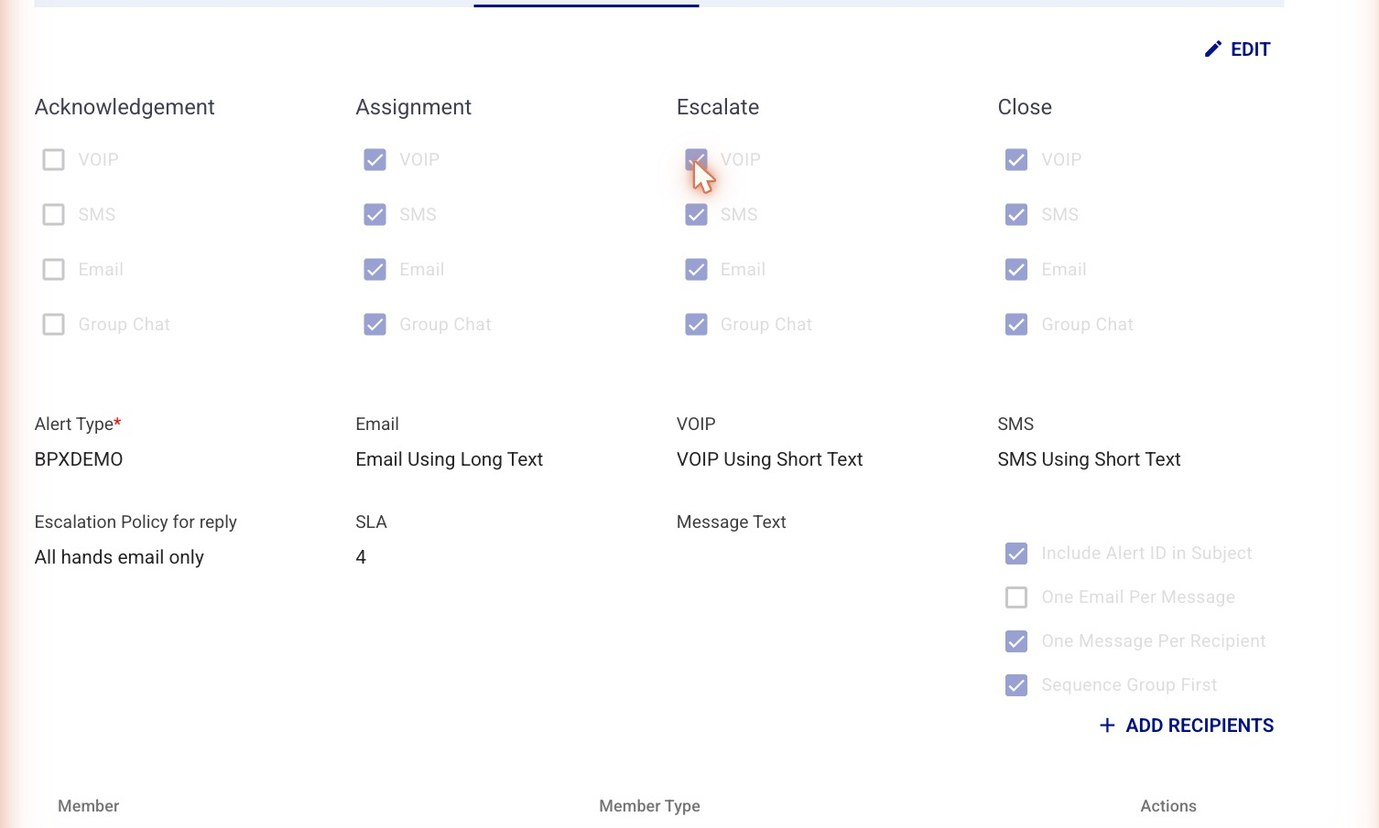
Figure 3. The Communication tab. The top grid maps each response action (Acknowledgement / Assignment / Escalate / Close) to channels (VOIP / SMS / Email / Group Chat). Below: Alert Type, the Email/VOIP/SMS short-vs-long-text settings, Escalation Policy for reply, the SLA (in hours), and options like Include Alert ID in Subject and Sequence Group First.
Alert Type Options
The Alert Type drop-down picks the alert type for this policy. Alert Types store all custom fields. Workflows and outbound methods are tied to specific alert types upon creation, so the Alert Type chosen here determines which Workflows and Outbound methods are available in the Automations tab.
Email, VOIP, and SMS Options
These settings determine the content length per communication channel. For email, choose short or long text. Opting for short text in VOIP means the user hears a condensed version during a phone call. Best practice: short text for VOIP and SMS; long text for email. Short and long text values themselves are configured in the Inbound Integration advanced settings under Rules for Opening and Closing an Alert.
Escalation Policy for Reply
Designate a specific escalation policy for responding to alerts or adding others to them. When a user clicks Add Others on an alert, additional users are notified via the reply policy. Replying directly to the alert also triggers notifications through the reply policy.
SLA (in Hours)
The SLA value (in hours) serves as a key trigger for Workflows. SLAs enable time-based conditions — for example, a 3-hour SLA on this policy supports Workflows like "notify 30 minutes before SLA deadline" or "notify management if the alert remains open one minute past the SLA."
Include Alert ID in Subject
When enabled, the Alert ID appears in the subject line of all alerts using this policy. Useful for cross-referencing alerts in ticketing or chat tools.
Sequence Group First
When the policy alerts nested groups or group contact methods, enabling Sequence Group First ensures they are properly ordered instead of being sent as a single blanket notification across all groups.
Additional Communication Options
Three settings the published article previously grouped under “Deprecated” are in fact valid, current options. They are documented here properly:
Add Recipients
Adds specific users or groups as recipients on this policy, on top of the role-based routing defined in the Rules tab. Use it when a fixed person or team (for example a duty manager or a NOC distribution group) should always be notified for alerts that run through this policy, regardless of who is on call. The role-based escalation still proceeds as configured; these recipients are additive.
One Email Per Message
Controls how email notifications are batched. When enabled, each notification event is sent as its own separate email rather than being combined or threaded into a single message — so an open, an update, and a reminder each arrive as distinct emails. Turn it on when recipients (or downstream ticketing/email rules) need every event as an individual email; leave it off to reduce inbox volume.
One Message Per Recipient
Controls whether recipients share one message or each get their own. When enabled, every recipient receives an individual copy of the message instead of a single shared/blanket notification, so each person's delivery, read, and acknowledgement can be tracked separately. Use it when you need per-person accountability; leave it off for a single broadcast.
|
Validation note These three are documented as valid current settings per reviewer direction. Confirm the exact runtime behavior of each against a live policy before publishing, and capture a screenshot of the settings where they appear on the Communication tab. |
Deprecated Features
Relevant for Awareness — do not configure new policies with this
Only one setting is flagged as deprecated:
- Message Text — deprecated. Do not rely on it when building new policies; use the Communication-tab message settings (Email/VOIP/SMS short and long text) instead.
Usage Tab
Relevant for Anyone auditing which surfaces use this policy
View which integrations and workflows are using this escalation rule. The article's example escalation rule is used in two workflows and has no associated integrations.