
Overview
Relevant for App Admins reducing alert noise across integrations
The Intelligent Alert Grouping (AIOps) feature uses Natural Language Processing (NLP) and content-based similarity matching to automatically merge related alerts.
Key benefits:
- Merged Alerts — alerts in the merged state do not trigger notifications, reducing noise.
- Workflows — even when alerts are merged, workflows can still fire (update a ticket, run automation).
- Testing Capability — test the configuration with historical data before enabling Auto Merge in production.
- Smart Correlation — algorithms identify related incidents across multiple integrations.
Navigation
Relevant for Anyone accessing AIOps
From the main navigation, select AIOps. Two drop-down options appear:
- AIOps Test — configuration and simulation against historical alerts.
- AIOps — live production configuration with Auto Merge.
Configure in AIOps Test first; promote to AIOps once you're confident in the thresholds.
AIOps Test (Simulation Mode)
Relevant for App Admins tuning merge thresholds
AIOps Test simulates merge behavior against up to 100 past alerts within a chosen date / time range. Recommended approach before enabling live Auto Merge.
Configuration Options
|
Field |
Description |
|
Alert Type |
Pick the alert type to evaluate. Only the custom fields associated with that alert type appear below. |
|
Integration |
Pick one or more integrations to correlate alerts across. Lets you merge alerts from multiple monitoring sources. |
|
Custom Fields (max 5) |
Select up to 5 custom fields from the chosen alert type. These serve as evaluation criteria for NLP to decide merge eligibility. |
|
Subject Minimum Similarity Score |
Minimum subject similarity threshold (0–1). E.g., 0.8 means alerts with subject similarity below 0.8 will not merge. |
|
Custom Fields Minimum Similarity Score |
Minimum field similarity threshold (0–1). |
|
Subject Weight + Field Weight |
Must sum to 100. Determines the relative importance of subject matching vs. field matching. |
|
Combined Weight Minimum |
Overall similarity threshold (combined subject + fields + weights) required for merge. |
|
Max Time Between Alerts |
Allowable time gap for merging alerts. Minimum 5 minutes. |
|
Exact Match Fields |
Fields that must match exactly (e.g., Company Name, IP Address, Site Name). Prevents merging across unrelated entities. |
|
Simulation Date Range |
Start and end date for the simulation window. |
|
Simulate |
Runs the simulation against the configured criteria. |
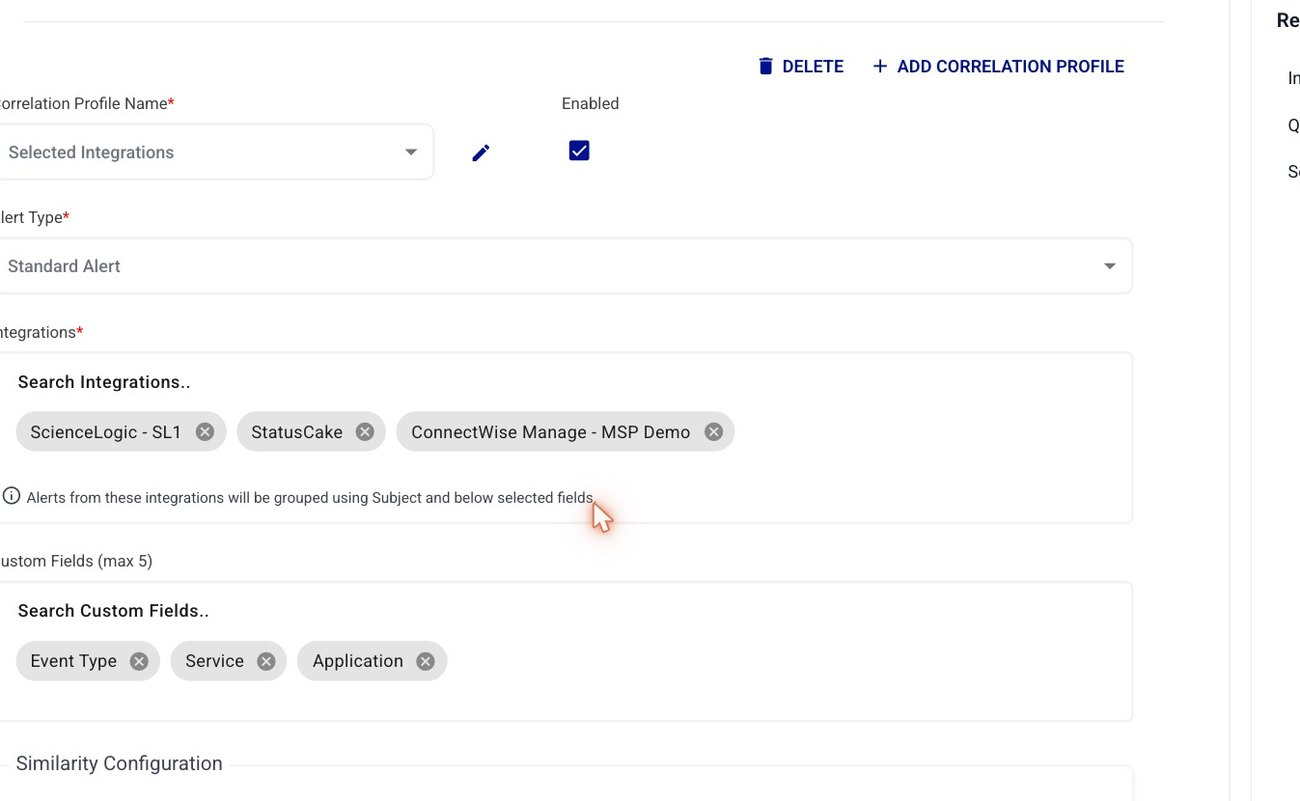
Figure 1. The top of an AIOps correlation profile. Name the profile, pick the Alert Type (here Standard Alert), then add the Integrations to correlate across (ScienceLogic, StatusCake, ConnectWise) and up to five Custom Fields (Event Type, Service, Application). Alerts from these integrations are grouped on Subject plus the selected fields.
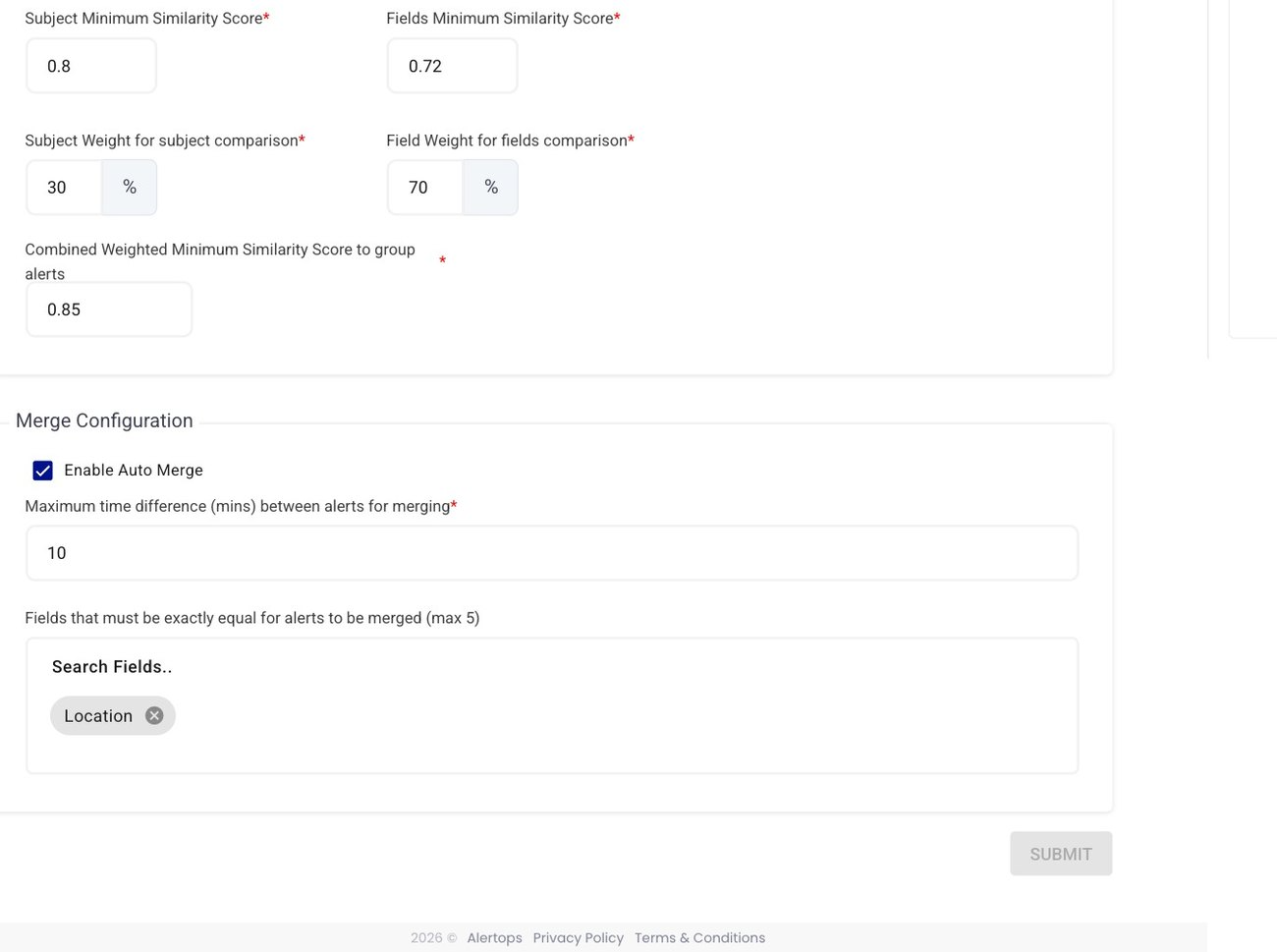
Figure 2. The Similarity Configuration section of the same profile — the Subject / Custom-Field minimum similarity scores, the Subject Weight + Field Weight split (must total 100), the Combined Weight Minimum, and Max Time Between Alerts. These are the dials you tune in AIOps Test before promoting to production.
AIOps (Production Mode)
Relevant for App Admins turning on live Auto Merge
AIOps applies the same configuration options as AIOps Test, with one key addition:
- Enable Auto Merge (checkbox, under Merge Configuration) — when this checkbox is ticked, the system automatically merges alerts in production based on the configured thresholds and rules. It is a checkbox in the Merge Configuration section — not a standalone on/off toggle.
|
Enable Auto Merge is a checkbox, not a toggle Production merging is controlled by the Enable Auto Merge checkbox inside the Merge Configuration section of the AIOps profile — tick it to activate automatic merging. Earlier wording that described an "Auto Merge toggle" was incorrect. |
Click Submit to save and activate the configuration.
Best Practices
Relevant for Anyone running AIOps in production
Testing First
- Always use AIOps Test before enabling Auto Merge.
- Run simulations across different date ranges to understand merge behavior.
- Test with various similarity scores to find optimal settings.
Conservative Approach
- Start with high similarity scores to avoid over-merging unrelated alerts.
- Gradually adjust thresholds based on test results and operational feedback.
- Monitor merged alerts regularly to ensure appropriate grouping.
Exact Match Fields
- Always define Exact Match Fields when correlating across multiple integrations.
- Common exact match fields: Company Name, IP Address, Site Name, Customer ID.
- Prevents alerts from different customers / systems being inappropriately merged.
Workflow Integration
- Monitor merged-alert workflows to confirm ticket updates and automations still function correctly.
- Test workflow behavior with merged alerts before production deployment.
- Confirm merged alerts still trigger necessary automation and notifications.
Similarity Score Guidelines
- Subject similarity — start with 0.7–0.8 for conservative merging.
- Field similarity — start with 0.8–0.9 for more precise matching.
- Combined weight — typically 0.6–0.8 depending on alert patterns.
Time Window
- Set the window based on incident patterns.
- Too short — miss related alerts that arrive with delays.
- Too long — risk merging unrelated incidents.
- Typical range: 15–60 minutes depending on the environment.
Configuration Examples
Relevant for Starting templates for common tuning profiles
Example 1 — Conservative
|
Field |
Value |
|
Subject Minimum Similarity |
0.8 |
|
Fields Minimum Similarity |
0.9 |
|
Subject Weight / Field Weight |
30 / 70 |
|
Combined Weight Minimum |
0.7 |
|
Max Time Between Alerts |
30 minutes |
|
Exact Match Fields |
Company Name, Site Name |
Example 2 — Moderate
|
Field |
Value |
|
Subject Minimum Similarity |
0.7 |
|
Fields Minimum Similarity |
0.8 |
|
Subject Weight / Field Weight |
50 / 50 |
|
Combined Weight Minimum |
0.6 |
|
Max Time Between Alerts |
45 minutes |
|
Exact Match Fields |
Customer ID, Environment |
Example 3 — Aggressive (Use with caution)
|
Field |
Value |
|
Subject Minimum Similarity |
0.6 |
|
Fields Minimum Similarity |
0.7 |
|
Subject Weight / Field Weight |
60 / 40 |
|
Combined Weight Minimum |
0.5 |
|
Max Time Between Alerts |
60 minutes |
|
Exact Match Fields |
Company Name |
Troubleshooting
Relevant for Anyone debugging AIOps behavior
Alerts Not Merging
- Similarity thresholds may be too high — lower them.
- Verify Exact Match Fields are not preventing appropriate merges.
- Ensure Time Window is sufficient for your patterns.
- Review custom field selections for relevance.
Too Many Alerts Merging
- Increase similarity thresholds.
- Add more restrictive Exact Match Fields.
- Reduce the Time Window.
- Refine custom field selections.
Simulation Not Working
- Verify the date range contains sufficient historical alerts.
- Confirm selected integrations have alerts in the specified timeframe.
- Ensure the alert type matches your historical data.
- Confirm the custom fields exist on the historical alerts.
Auto Merge Not Activating
- Verify the Enable Auto Merge checkbox is checked.
- Confirm the configuration was submitted successfully.
- Confirm alerts actually meet the configured criteria.
- Review system logs for error messages.