
Overview
Relevant for App Admins and Integrations Admins
A Maintenance Window is a planned downtime that allows users to temporarily prevent the creation of new alerts from a selected integration source. Once the maintenance window ends — or the integration is removed from the window — the integration's normal functionality begins automatically.
The point of a maintenance window is to stop expected, self-inflicted noise from paging your on-call team. Any time you know a system is going to misbehave on purpose — a deployment that restarts services, a server reboot during patching, a database migration, a nightly batch job that briefly trips thresholds — the monitoring tool attached to that system will fire alerts you already expect. A maintenance window suppresses those new alerts for the integration during the planned period, so the team isn't woken up for work you scheduled.
Maintenance is scoped to one integration source at a time, not the whole tenant. Other integrations keep alerting normally, so you suppress only the system under maintenance and stay covered everywhere else.
Add a Maintenance Window
Relevant for App Admin / Integrations Admin
- Navigate to Configuration → Integrations and scroll down to the Maintenance Windows section. The section lists existing windows under CURRENT / PLANNED / PAST / ALL filter tabs and shows your Account Time Zone, which is the time zone all window times are interpreted in.
- Click + ADD WINDOW. The Add New maintenance-window form opens.
- Fill in the maintenance window details (see the field reference below).
- Click Submit. The window appears in the Maintenance Windows section and activates at the configured Start Date / Start Time.

Figure 1. The Maintenance Windows section. CURRENT / PLANNED / PAST / ALL tabs filter the list; the Account Time Zone (here UTC-06:00 Central) is the time zone all window times use; + ADD WINDOW opens the form. Columns: Description, Recurrence, Integration, Start Date, End Date, Week Day, Status.
Maintenance Window Details
|
Field |
Value |
|
Description |
A name describing the maintenance window. (Required.) |
|
Integration |
The single integration source to temporarily pause. One integration per window. (Required.) |
|
Recurrence |
Set the recurrence pattern based on need — Once / Daily / Weekly / Monthly (see the recurrence options below). (Required.) |
|
Week Day |
For Weekly recurrence, select the days of the week to pause the integration source. |
|
Start Date |
Select the date to pause the integration source. |
|
Start Time |
Select the time of day at which the integration source will be paused. (Required.) |
|
End Date |
Select the day to resume the integration source's normal functionality. |
|
End Time |
Select the time of day at which the integration source will resume normal functionality. (Required.) |

Figure 2. The Add New maintenance-window form. Description, Integration, Recurrence, Start Time, and End Time are required. Integration is a single-select — each window pauses exactly one integration source. Times are interpreted in the Account Time Zone shown on the Maintenance Windows section.
Recurrence Options
The Recurrence drop-down offers four patterns:
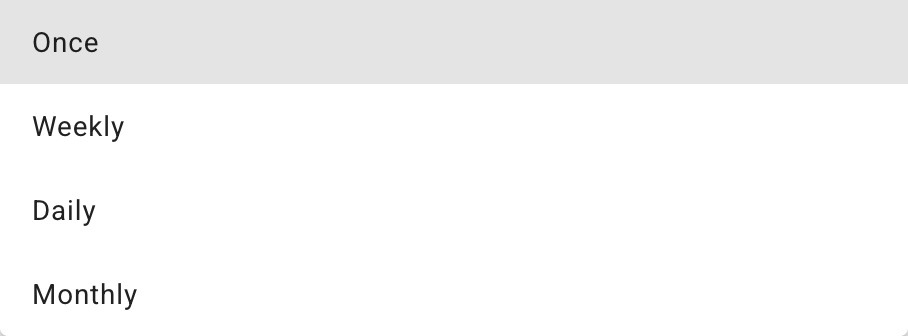
Figure 3. The Recurrence drop-down: Once, Weekly, Daily, and Monthly.
- Once — for a one-time maintenance.
- Daily — pause an integration source daily (open ended or within a date range).
- Weekly — pause an integration source weekly based on the selected weekdays. Selecting at least one weekday is mandatory. The window can be open ended, or a date range can be selected.
- Monthly — pause an integration source monthly based on a particular day of the month. The window recurs on the selected day for the following months in the selected date range.
What Happens During an Active Window
Relevant for Anyone reviewing suppressed traffic
Inbound messages received from an integration during its maintenance window — including those that would normally create new alerts — receive a Mapping Status of Maintenance and are not mapped.
|
Close events still flow An inbound message that closes an existing alert can still be mapped to that existing alert during a maintenance window. Maintenance suppresses the creation of new alerts from the integration; it does not interrupt close-events on alerts that were opened before the window started. |
Maintenance for a Subset of a Source
Relevant for App Admin / Integrations Admin suppressing only some devices/apps from a source
A maintenance window pauses an entire integration source. When you need to suppress only some devices or apps from a source — and keep alerting on the rest — use a clone-plus-filter pattern: split the traffic into two integrations that share the same endpoint, put only the clone into the window, and use filters so each integration handles its own slice.
- Clone the original integration (Basic Settings → CLONE) so the clone receives the same inbound traffic. Give the clone an obvious name, e.g. “Maintenance DataDog.”

Figure 4. Basic Settings on an inbound integration. CLONE (top-right, beside DELETE and EDIT) duplicates the integration; Integration Sequence sets the order in which integrations evaluate an inbound message.
- Put the CLONE — not the original — into the maintenance window (the Integration field on the Add Window form), so only the clone's matching traffic is suppressed rather than the whole source.
- Use Integration Sequence so the clone evaluates in a LATER sequence than the original (a higher number is processed second).
- On the ORIGINAL / main integration, add a NEGATIVE filter under Filters to match Incoming Json/Form Fields so it SKIPS the subset — tick the Not checkbox and choose Contains Any, e.g. device Not Contains Any “A.”
- On the MAINTENANCE clone, add the matching POSITIVE filter so it CATCHES just that subset, e.g. device Contains Any “A” (or Integration contains “A”).
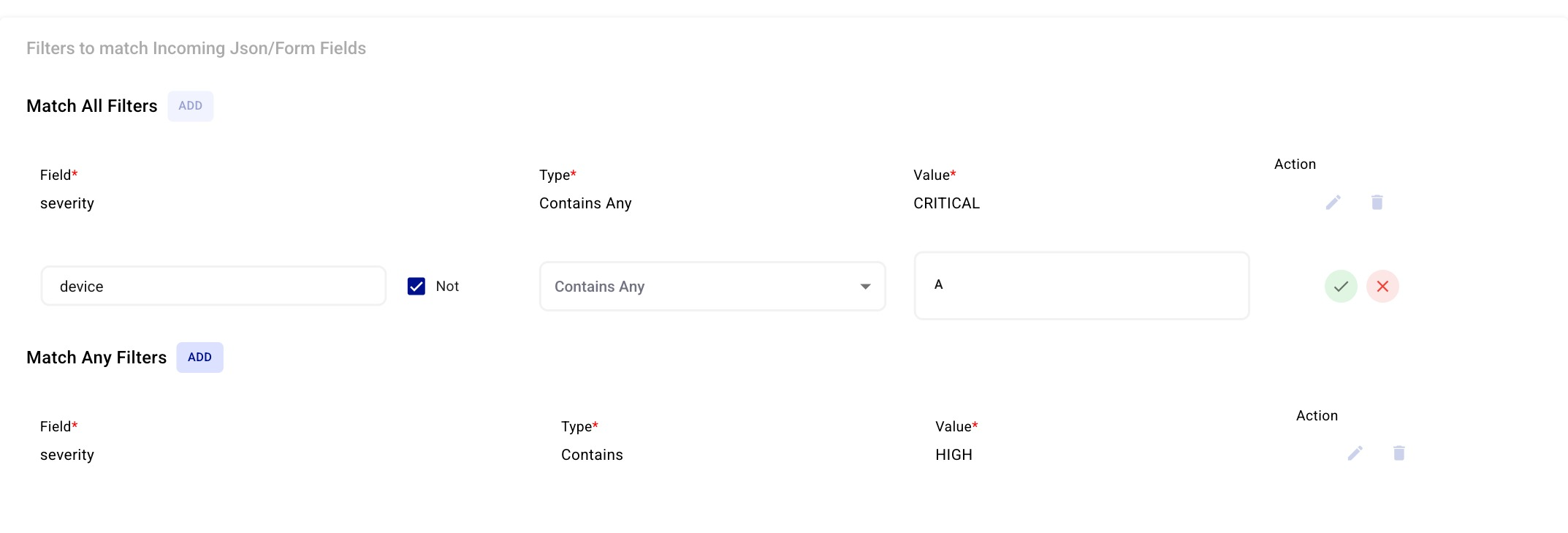
Figure 5. The Filters to match Incoming Json/Form Fields editor. A positive filter (severity · Contains Any · CRITICAL) sits above; below it a negative filter is being built — Field device, the Not checkbox ticked, Type Contains Any, Value A — which makes the integration SKIP anything whose device contains “A.” Use the negative form (Not ticked) on the main integration and the positive form (Not unticked) on the maintenance clone.
- If integration sequencing is already in place for this source, adjust the other sequence numbers so the new ordering is still correct.
- When maintenance is over, disable or delete the clone (and its filters) as needed.
|
How the split works Both integrations share the same endpoint, so every inbound message reaches both. The negative filter on the main integration drops the subset; the positive filter on the maintenance clone keeps only the subset; and the maintenance window — applied to the clone only — suppresses new alerts for that subset while the rest of the source keeps alerting normally. |
Common Use Cases
Relevant for Anyone planning suppression around known work
Deployment / release window
A service deploy restarts containers and briefly fails health checks, so your APM or uptime integration fires "service down" alerts every release. Create a Once window on that integration covering the deploy slot (for example, today 22:00–22:30). New alerts from that integration are suppressed for the window; the moment it ends, alerting resumes automatically — no need to remember to re-enable anything.
Recurring server patching
Servers reboot every Sunday between 02:00 and 04:00 for OS patching. Create a Weekly window on the host-monitoring integration with Week Day = Sunday, Start Time 02:00, End Time 04:00. The window recurs every Sunday and suppresses the expected "host unreachable" alerts during the reboot, while still alerting the rest of the week.
Database migration / planned outage
A one-off database migration will take the app offline for two hours on a known date. Create a Once window on the database (or app) integration spanning the migration. Because Maintenance only suppresses the creation of new alerts, any close/resolve events for alerts that were already open before the window still flow through.
Nightly batch job
A nightly ETL or backup job briefly spikes CPU and disk thresholds and trips transient alerts. Create a Daily window on the integration covering the batch run. If you'd rather be told when the job DOESN'T run, pair this with a Heartbeat integration instead — see AlertOps Heartbeat Monitoring.
|
Suppressed is not the same as off A maintenance window suppresses NEW alerts from one integration for a defined period. It does not disable the integration, and it does not stop close-events on alerts opened before the window. If you want to stop an integration entirely, uncheck Enabled on the integration itself instead. |
Edit a Maintenance Window
Relevant for App Admin / Integrations Admin
- Click the maintenance window's details under the Maintenance Windows section.
- Make the necessary changes.
- Click Update.