In each group, users can have one of three active member roles: Primary, Secondary, or Manager. These member roles determine escalation behavior when an alert is received.
A group does not need to have a member with the Manager role, but it needs at least one Primary member or one Secondary member.
Member Roles in Schedules
When schedules are implemented, alerts will be delivered to the group members based on the scheduled users' member roles. Escalation Policies define the way notifications are sent to group members depending on their member role.
Fixed Schedules
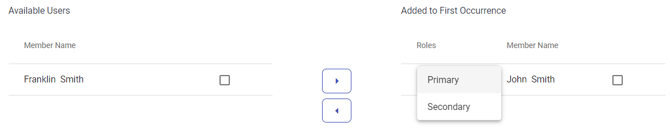
For fixed schedules, users may be assigned with Primary or Secondary role
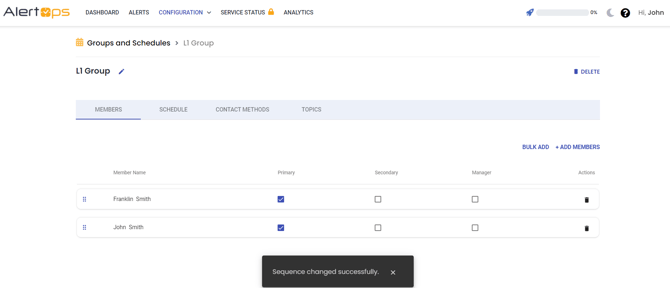
 The sequence in which members of a fixed schedule will follow the order of Primaries being notified first, followed by secondaries, then managers. However, if you have multiple group members of the same role, the Sequence determines the order. This can be accessed from the group's main page.
Rotating Schedules
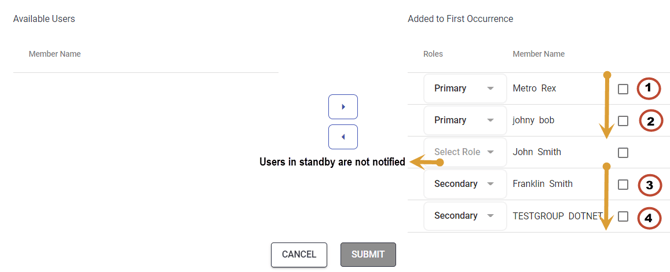
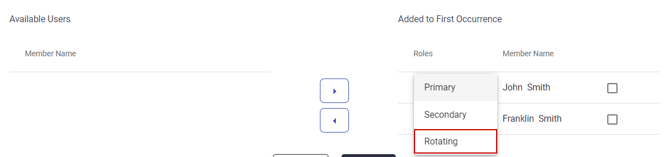
For rotating schedules, you may select the Primary and Secondary member roles for group members who will be on-call for the first period. Then you may choose the Rotating for users on Standby and will be rotated into a role. Users on Standby for a shift will not be notified until they are rotated into an on-call role.
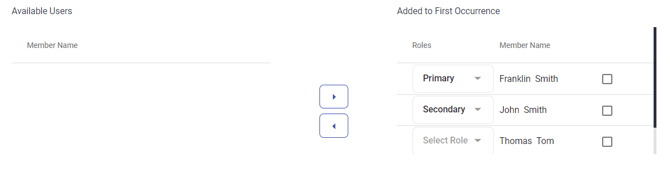
 When you create a schedule with multiple members on-call, The order in which the Members will be notified is based on the order moving from top to bottom based on the order they are listed:
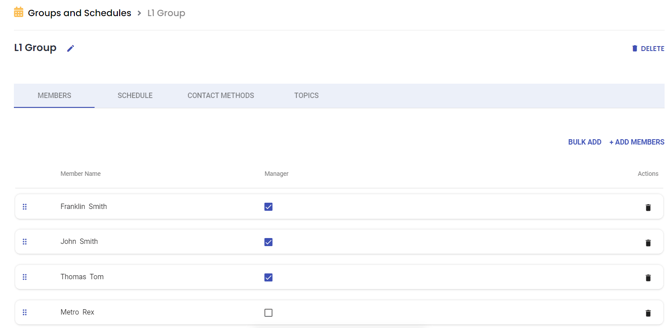
 If no members of the schedule acknowledge or close an alert, the alert will be escalated to Manager members of the group:
 The rotation of on-call roles within a rotating schedule will occur from bottom to top based on the listed order. The user at the top will be moved to the bottom of the list. As users rotate, they were assigned the role that the previous member of that rotation held.
Scheduling Users
Example 1
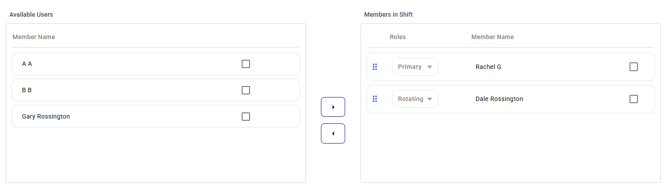
This example shows a rotating schedule with three members: one Primary member and one rotating member. By default, when adding a user to a schedule, the first user will be a Primary member. Primary members receive primary member role alerts defined by Escalation Policies. Rotating members will become Primary members when it's their turn in the rotation.
Example 2
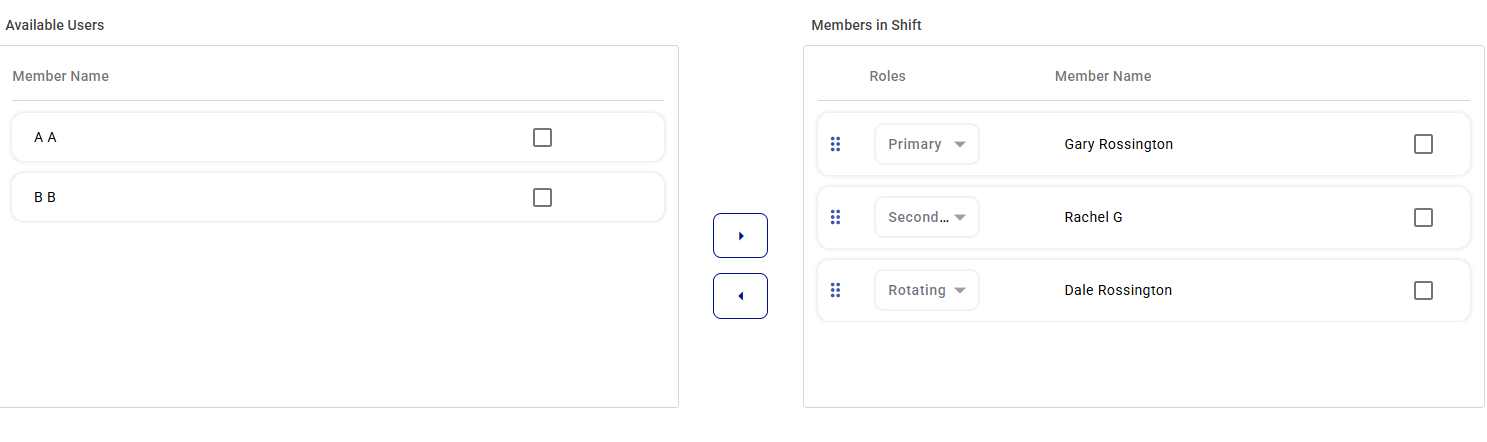
You can set up as many primary and secondary members as you want in a schedule. Depending on the schedule setup, users will rotate between primary, secondary, and rotating member roles. This example shows a rotating schedule with one Primary member, one Secondary member, and one rotating member.
Example 3
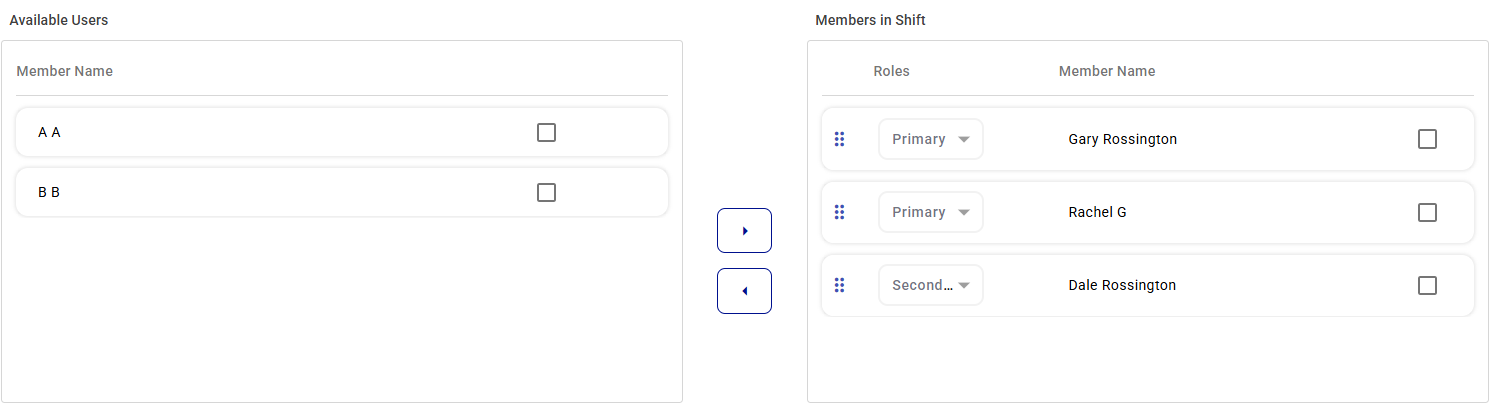
This example shows a fixed schedule with two Primary members and one Secondary member. Escalation Policies and Member Roles define how the users in the schedule will receive notifications. Gary and Rachel receive notifications defined for Primary members and, Dale receives notifications defined for Secondary members.
Example 4 (ADVANCED EXAMPLE)
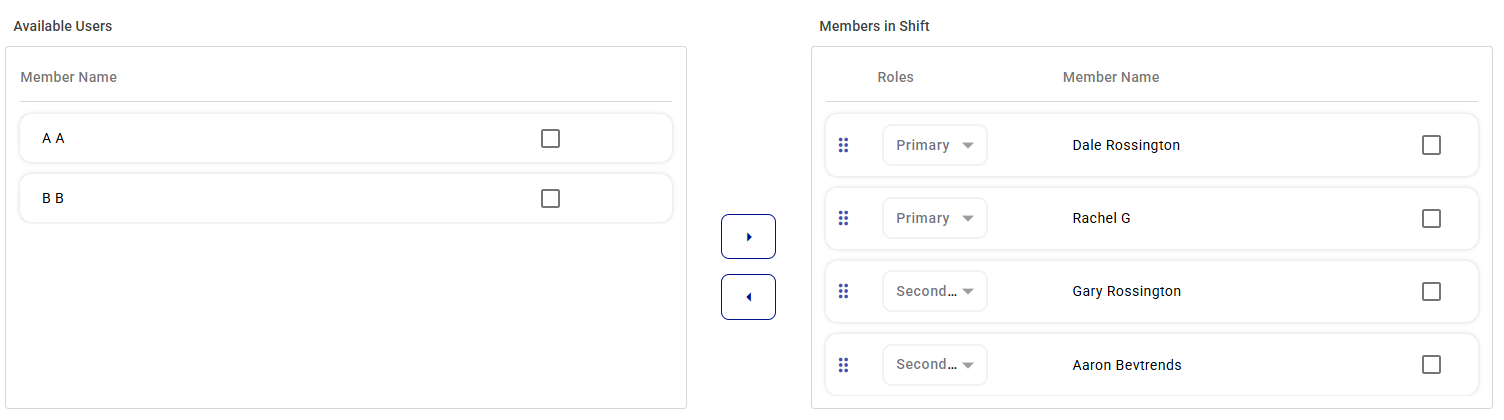
This example shows a fixed schedule with two Primary members and two Secondary members. In this case, for escalations, Dale will be notified first, followed by Rachel, then Gary, and finally Aaron. Escalation Policies and Member Roles define how the users in the schedule will receive notifications. Dale and Rachel receive notifications defined for Primary members, while Gary and Aaron receive notifications defined for Secondary members.
This scenario has a more complicated rotation order. After two shifts of being primary the user is shifted into a secondary role. After two shifts of secondary, the user is shifted into a rotating role(standby).