
In this page user can configure the user Profile, Contact Methods, Out of office and on-call Schedules
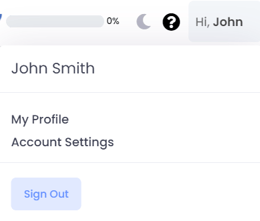
- Clicking on the login name at the top right-hand corner.
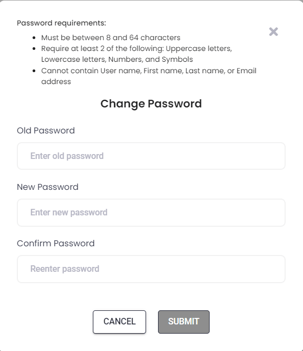
Change Password
On the My Profile page, click Change Password
Only visible for team member(s)
| Old Password |
Enter the current password when logging in to Alertops |
| New Password |
Enter the new password you want to use (maximum 64 characters) |
| Confirm Password |
Enter the new password again. This helps to eliminate any mistakes in the password. |
Click Submit, the changes are applied successfully.
Profile
In the profile sections where you can view and manage user information.
- In Profile section, user can edit Username and First Name or Last Name.
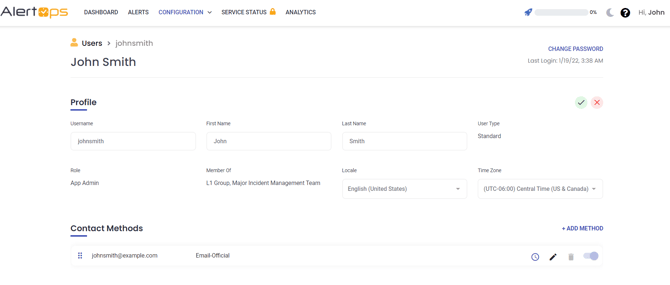
Click the green checkmark, Profile details are getting updated.
Contact Methods
Contact Methods define the way in which AlertOps contacts a specific user. You may select contact methods such as email, SMS, or phone. Push notification contact methods are added automatically after a user registers their AlertOps mobile app.
Add Contact Method
- On the User Management page, click the Contact Methods tab.

- Click on + Add Method in the bottom, right-hand corner.
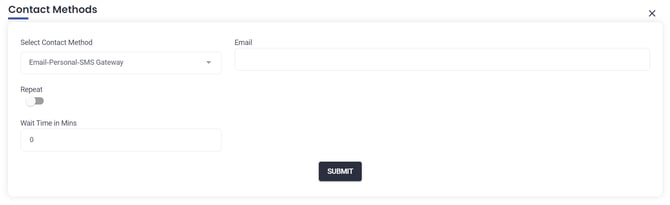
- Select a Contact Method from the drop-down menu.
- Add Contact Detail based on the type of contact method.
- Change the Contact Sequence to decide which contact method to use first. When selecting User settings in Escalation Policies, the User profile determines Contact Methods and sequence for notifications.
- Enable the Repeat toggle button
- Click Submit button, the method added successfully.
Schedules
- View or export your schedule for all your groups.
- Use WebCal or iCal to export your user schedule to platforms such as Microsoft Office 365, Apple Calendar, Google Calendar, and Yahoo Calendar.
WebCal
- Click My Profile in the top right corner.
- Select the Schedules tab.
- Click WebCal Feed URL. The URL will be copied.
- Enter this URL into the calendar platform you wish to import your schedule to.
iCal
- Click My Profile in the top right corner.
- Select the Schedules tab.
- Click iCal Export. Your user schedule will be downloaded as an .ical/.ics file.
- Open the file using your desired calendar platform.
- Click here to learn more about schedules.
Out-of-Office
- Add out-of-office schedules so alerts will be sent to a covering user.
- Click here to learn about configuring out-of-office schedules.
Reset Password
- If you forget your password, you may reset it. To reset your password, you must be logged out of AlertOps.
- Go to your AlertOps login page. (For example: https://subdomain.alertops.com)
- Click Reset Password.
- Enter your username, and a reset password email will be sent to you at your official email.
Locale
- To see date and time displayed in the format common to your location, update the Locale to the appropriate region.