
AlertOps and NinjaOne
AlertOps' alert-management system integrates with NinjaOne to receive and respond to predefined, status-mapped alerts through email, SMS, push notifications, or phone calls.
AlertOps routes job/alert statuses to the appropriate team using workflows, escalation policies, and schedules. Based on your ruleset, incidents can open and close automatically depending on the alert type NinjaOne reports.
This is possible because AlertOps supports flexible API/Webhook configuration that works seamlessly with NinjaOne's alert and notification capabilities.
AlertOps – Inbound Integration
-
You can define rulesets in AlertOps so NinjaOne can push alerts to the platform. AlertOps routes these notifications to the correct person or team using escalation policies, schedules, and workflows.
AlertOps provides inbound integrations for numerous monitoring, chat, and ITSM tools — including one specifically for NinjaOne.
At a high level:
- You create an API Integration in AlertOps by defining settings such as Integration Name, Escalation Rules, and Recipient Users/Groups.
- AlertOps generates a unique API URL for that integration.
- NinjaOne uses that URL as a webhook endpoint to send alerts.
- Alerts arriving through this URL create or close incidents based on the payload and rules you've configured.
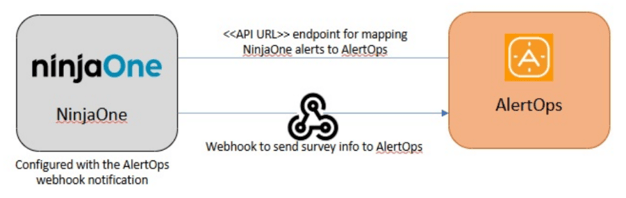
Configure Inbound Integration in AlertOps
- In Configuration → Integrations, under Inbound Integrations, select API and click Add API.
- Choose NinjaOne from the list of available integrations (or choose Custom and add field mappings manually, as described later).
- Specify basic settings: integration name, escalation policy, and the names of recipients/groups the alerts should be assigned to.
- Click Save. The API Integration will be created, and you'll be given a unique URL that acts as the access point — this needs to be configured at the source (NinjaOne RMM) to send alerts. You can find the integration you just created and adjust advanced settings, such as defining when alerts should open or close based on the payload, filters, etc.
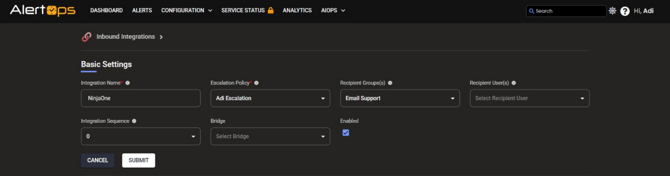
- Make a note of the API URL. NinjaOne RMM will use it to send an HTTP POST request with a JSON body containing alert-specific information.
- Following values must be added in the Sample Data field under Rules for Opening and Closing Alerts within Advanced Settings of the Inbound Integration.
-
-
SourceId:
deviceId (or id) -
Source / Source Name:
NinjaOne -
Source Status:
status -
Subject:
<message> -
Open Alert When Value:
Triggered -
Close Alert When Value:
Reset -
Long Text:
<message> -
Short Text:
<data^message^params^nodeDisplayName> - <data^message^params^conditionName>
-
Sample Data to Paste
{
  "id": 327451,
  "activityTime": 1762192612.839617,
  "deviceId": 62,
  "seriesUid": "d0d19953",
  "activityType": "CONDITION",
  "statusCode": "TRIGGERED",
  "status": "Triggered",
  "sourceConfigUid": "b3017678",
  "sourceName": "agent offline condition",
  "message": "Device 'ABC-RAS01' is offline for 15 minutes triggering condition 'Server Offline'",
  "type": "Condition",
  "data": {
    "message": {
      "code": "conditions_device_offline_triggered_with_cond_name",
      "params": {
        "nodeDisplayName": "ABC-RAS01",
        "conditionName": "Server Offline",
        "nodeContactTime": "2025-11-03T17:41:30.552Z",
        "durationOffline": "15"
      }
    }
  }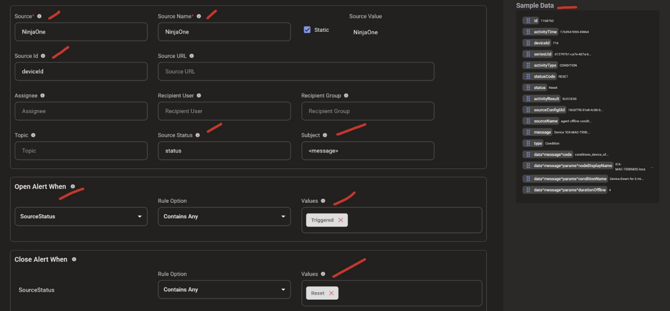

Select the green check mark to save.
You can define additional mappings as needed by referring the above image, thanks to the flexibility of AlertOps' Open API / plug-and-play integrations. You can also apply filters, match with regex expressions, and test the generated URL using the sample data above.
Configure Integration in NinjaOne
(Webhook triggers work only in the new UI)
-
Webhooks in NinjaOne send data to a specified URL when certain events occur.
-
Go to Administration → Apps → Notification Channels.
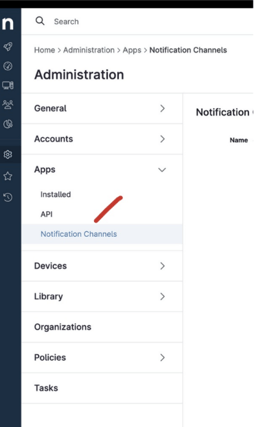
-
Click Add, then select Webhook.
-
Enter a name and paste the AlertOps API URL.
-
Enable the webhook.
-
Click Save to establish the connection.
-
Attach this webhook to a Device Policy under the Channels dropdown.
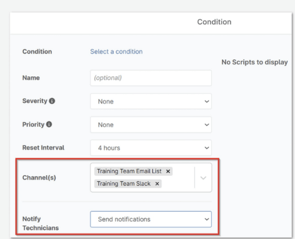
That's it! You have configured a Webhook for a monitor. Any alert will be sent to AlertOps for incident management.
Message logs, alert-specific information can be viewed in the “Inbound Log” under the Integrations window. Alerts can be viewed in the ‘Alerts’ tab as well.
Alert Triggering Information
-
AlertOps automatically creates a new incident when NinjaOne sends an alert, where
status = Triggered. -
If an incoming “Triggered” alert matches an already open alert, AlertOps detects it as a duplicate and ignores it.
The alert will still appear in Inbound Messages as Mapped Appended. -
AlertOps automatically closes the same incident when an alert with device status
Resetis received.