
Overview
Relevant for App Admins enabling on-demand actions
Most interactions with external systems are handled automatically through Workflows (opening tickets, posting to chat, updating status pages). But some decisions can only be made after a human observes the cause of an alert — bugs aren't always predictable, and you can't catch every case with a rule. Outbound Actions surface a menu of methods from an Outbound Integration that users can trigger on demand from inside an alert.
|
Prerequisite — an Outbound Integration with at least one Method configured Outbound Actions reference Methods defined on an Outbound Integration. Configure the Outbound Integration first; then expose its Methods as Outbound Actions on the relevant Escalation Policies. |
Configure Outbound Actions on an Escalation Policy
Relevant for App Admin
- From the menu, click Configuration and select Escalation Policies.
- Select an Escalation Policy and expand the Automation tab.
- Scroll down to the Outbound Action section of the page.
- Click Add Outbound Action on the right. A dialog appears with the available methods from configured Outbound Integrations.
- Check the boxes next to the actions you want available in the alert.
- Click the right arrow to add them to the policy.
- Click Submit to save.
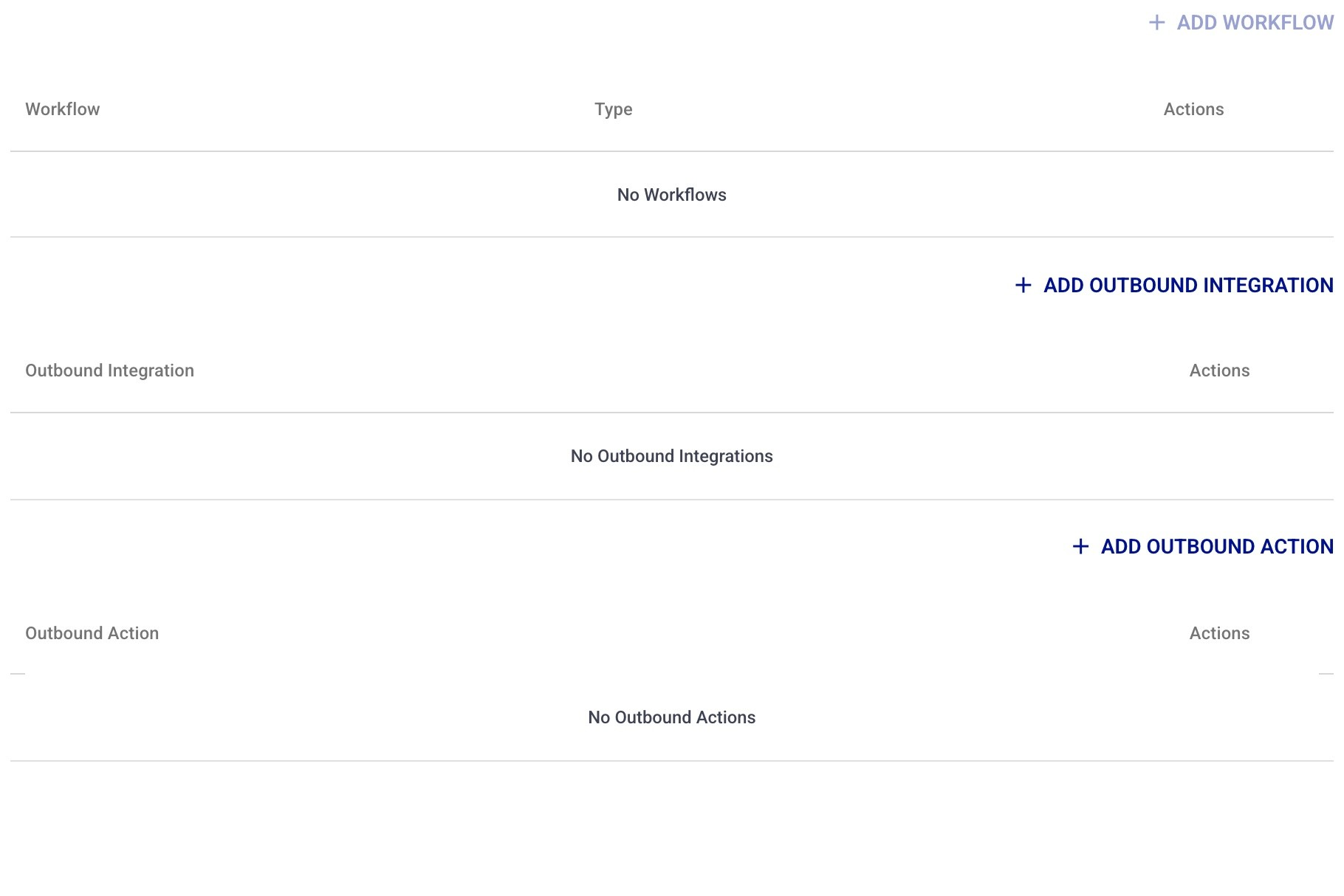
Figure 1. The Escalation Policy's Automation tab. Three sections stack here: Workflows (conditional automation), Outbound Integration (unconditional automation), and Outbound Action (the on-demand menu). Click Add Outbound Action on the right of the Outbound Action section.
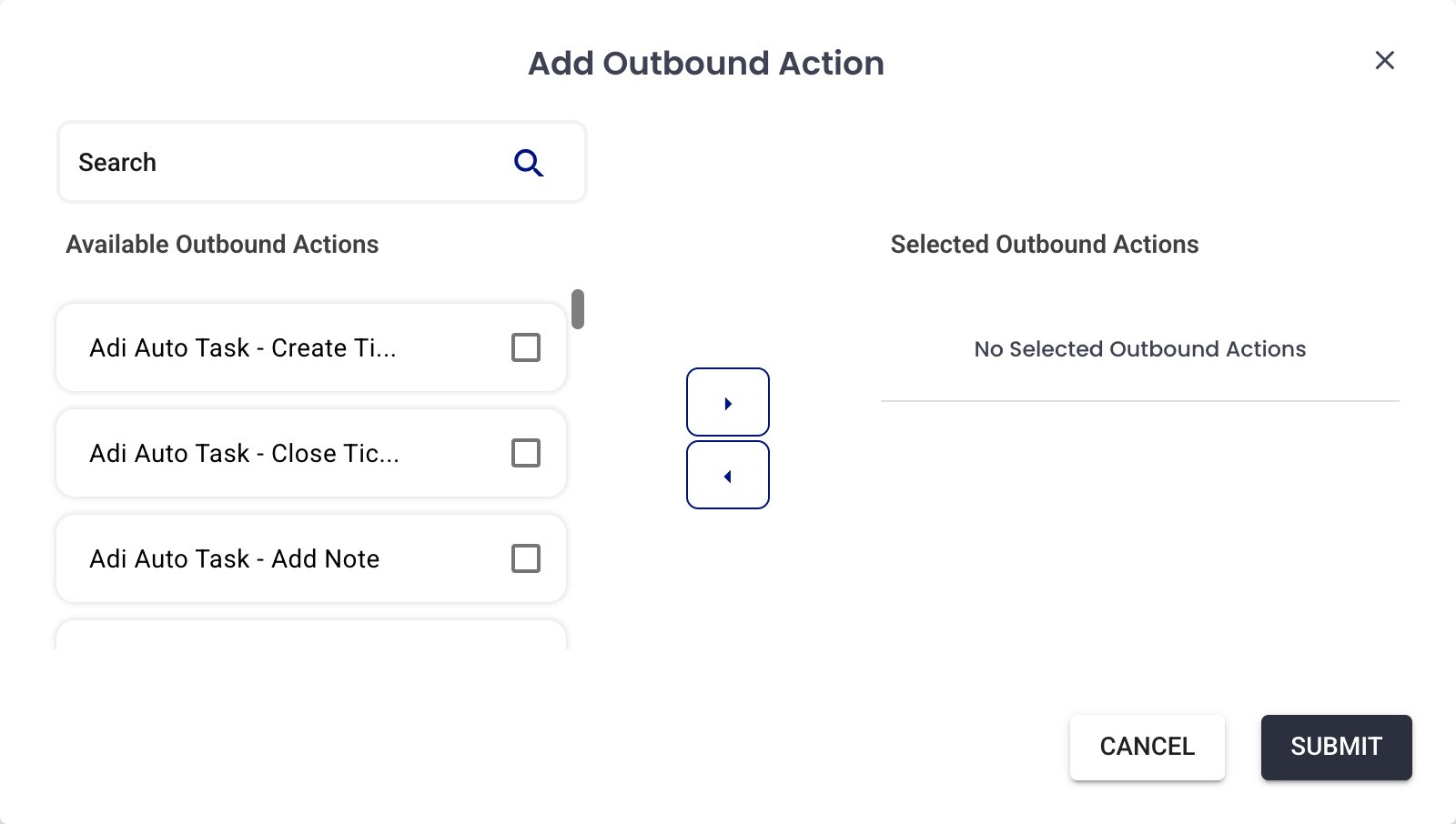
Figure 2. The Add Outbound Action picker. Available Outbound Actions (the Methods from your configured Outbound Integrations) appear on the left; check the ones to expose, click the right-arrow to move them into Selected Outbound Actions, then Submit. Each selected method becomes a one-click option inside matching alerts.
Execute an Outbound Action from an Alert
Relevant for Responders running actions on demand
From the Web App
- Open an alert from the Alerts list.
- Click the Automations tab.
- In the Outbound Actions section, click Execute Outbound Action.
- Choose the action you want to perform.
- Click Submit.
The result is displayed in the Outbound Actions section of the alert detail. Scroll down to Outbound Log to view any issues that occurred during execution.
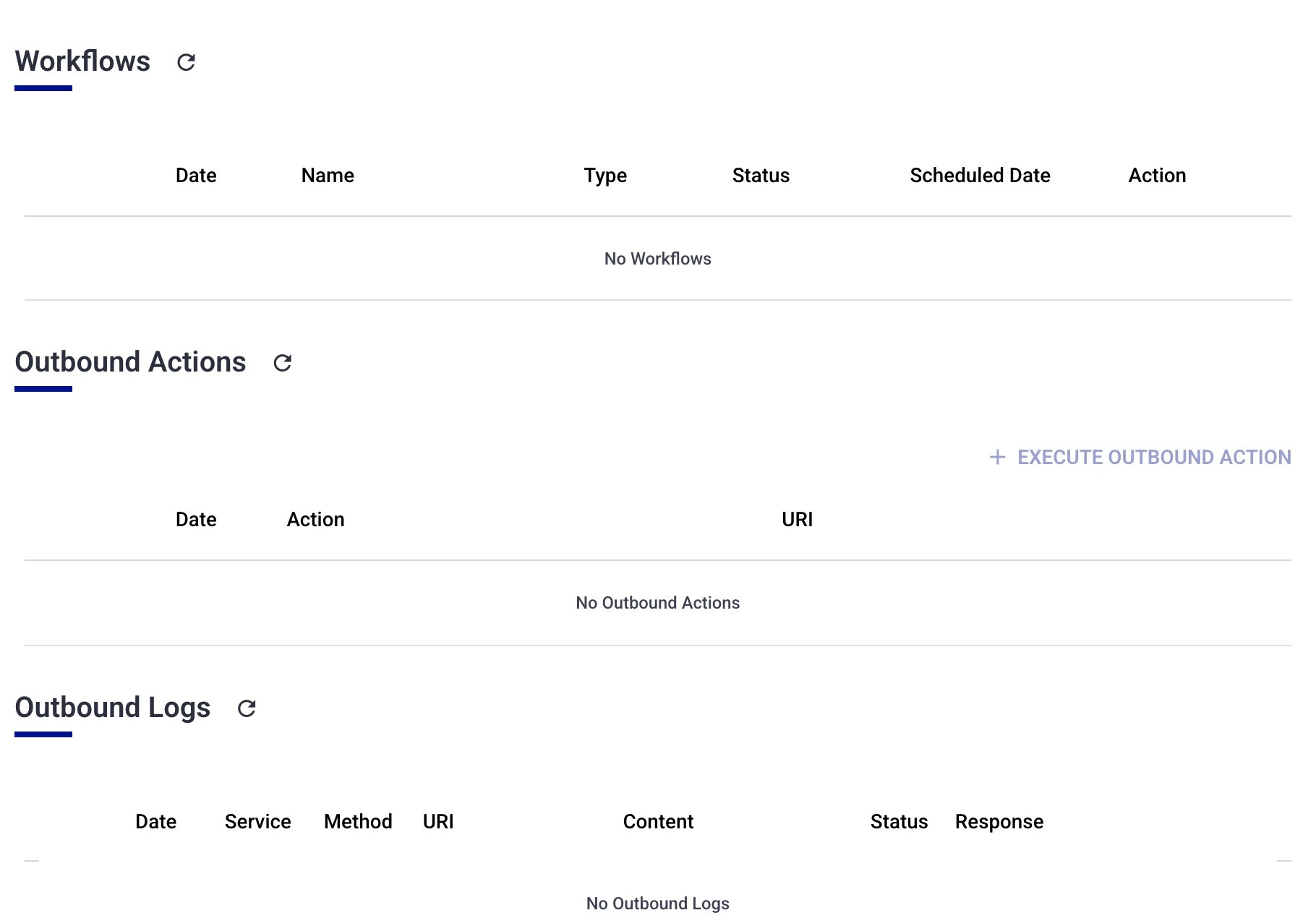
Figure 3. An alert's Automation tab. The Outbound Actions section carries the Execute Outbound Action button; once run, the action appears in this table and any transport errors land in the Outbound Logs section directly below.
From the Mobile App
- Open an alert from the mobile Alerts list.
- Tap the menu in the top right of the alert detail screen.
- The menu displays up to four outbound actions — choose the one you want to execute.
Outbound Actions vs Workflows vs Outbound Integrations
Relevant for App Admins picking the right automation tool
|
Tool |
When to use |
|
Workflow |
Conditional, automated. Fires when conditions are satisfied as the alert flows through the policy. Best for repeatable, predictable actions. |
|
Outbound Integration |
Unconditional, automated. Always executes when the escalation rule launches. Best for actions that should happen on every alert (e.g., always open a ticket). |
|
Outbound Action |
On-demand. Surfaces a menu of methods inside the alert for a human to choose from. Best when the response requires judgement. |
Use Cases
Relevant for Anyone deciding when an Outbound Action is the right tool
Outbound Actions shine whenever the responder — not a rule — should decide whether and when to reach out to an external system. Common examples:
- Create or escalate a ticket on demand — the on-call engineer triages an alert and, only if it warrants a ticket, clicks Execute Outbound Action to open or escalate an incident in ServiceNow, ConnectWise, or Autotask — instead of auto-creating a ticket for every alert.
- Human-in-the-loop remediation — expose a method that calls a runbook or webhook to restart a service or fail over, so a responder can trigger a fix from the alert after confirming it's safe.
- On-demand escalation to a vendor or bridge — page a third-party vendor, open a conference bridge, or post to a specific war-room channel only when the incident actually needs it.
- Enrich the alert — call an external API (CMDB, asset, or monitoring system) to pull extra context into the alert when the responder wants it.
- Update a downstream system — push a status-page update or notify a dependent team once the responder confirms customer impact.
Rule of thumb: use an Outbound Action when a human should decide; use a Workflow or Outbound Integration when it should happen automatically every time.
Best Practices
Relevant for App Admins configuring Outbound Actions
- Name each action clearly with a verb + system (e.g., “Create ServiceNow Incident,” “Restart App Pool”) so responders pick the right one instantly under pressure.
- Only expose the actions relevant to a policy's alert type — a short, curated menu beats a long one. The mobile menu shows up to four, so order the most-used first.
- Keep the underlying Outbound Integration Method generic and let the action (or a workflow) supply the specifics, so one Method can back many actions.
- Reserve Outbound Actions for high-impact or judgement-dependent operations (irreversible changes, vendor pages); let automated Workflows handle the safe, deterministic steps.
- After first use, check the Outbound Logs section beneath the Outbound Actions table on the alert to confirm the call succeeded and to catch auth/endpoint errors early.
- Document for responders — in a runbook or the action description — when to use each action, so on-call behavior is consistent.