
An Outbound Integration allows you to send messages and make changes to an external system.
Outbound Integrations can be found on the Integration page. From the main menu, click on Configuration and select Integrations.
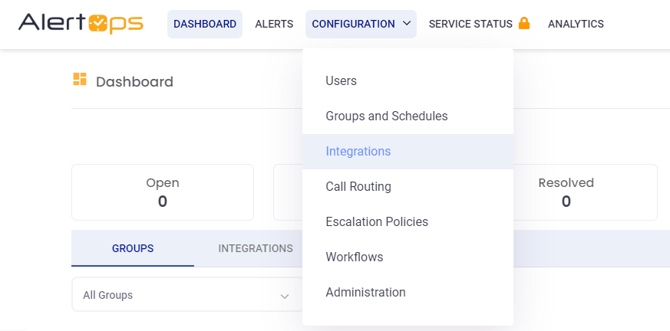
Scroll down the page to reach the Outbound Integration section.
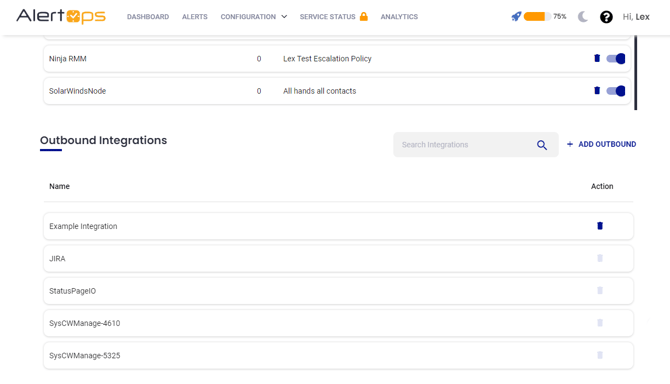
Things you can do with the AlertOps Outbound API are almost limitless when combined with Workflows and Escalation Policies:
- Send JSON packets required by the external service.
- Map any AlertOps standard field or any custom fields you have defined.
- Combine with Workflows, Escalation Policies and the Inbound APIs, build very powerful automations. For example, you can automatically close tickets in an external system when the alert has been resolved.
- Add status updates to an external system when changes occur. For example, when an owner has been assigned in AlertOps.
Settings and Methods
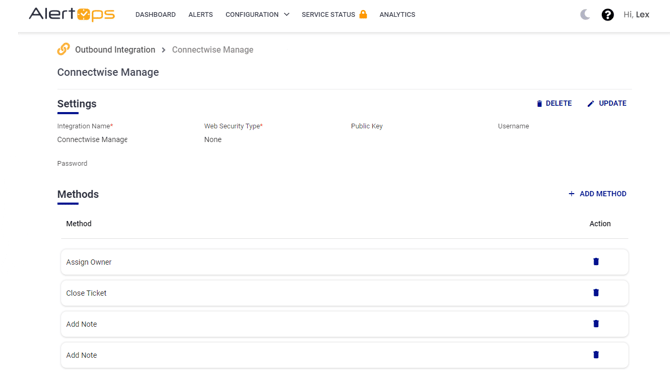
Within an Outbound Integration, there are two sections to configure:
- Settings contain all the naming conventions and security credentials for the integration.
- Methods are the individual actions triggered via API (Create, Update, Close, etc) that the integration supports.
You can use an Outbound Integration in one of two ways:
- Create a Workflow that automates invoking the Methods on alert events, such as Assignment, Close or when notifications are sent to users (Delivery Attempts). The Workflow is then added to a Escalation Policy.
- Manually invoke the Methods on demand by adding them directly to the Escalation Policy.
Configuring an Outbound Integration
Outbound Integrations are API Calls configured to trigger via workflows or methods.
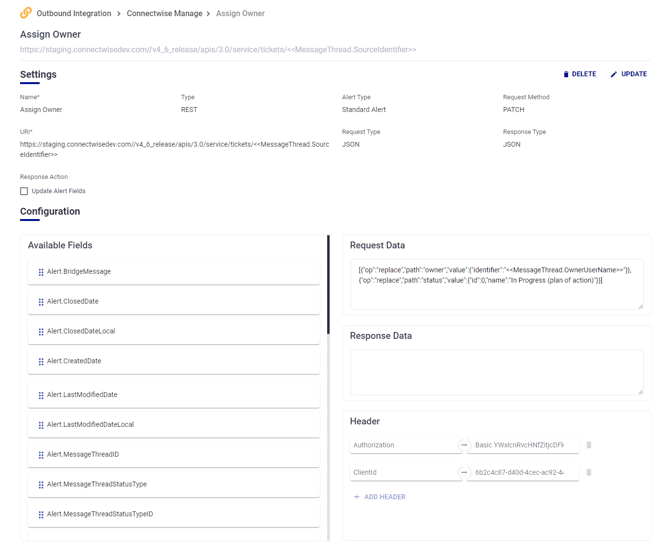
Methods are essentially API Calls to trigger an action on a 3rd party system. These have all of the parts of a basic API Call: URI, Body, Headers, Request Data.
The other piece of an Outbound Integration is Response Data which allows you to update fields within your Alert based on the values returned by the 3rd party system. For example, update Ticket ID field once a ticket is created.
Associating/Using Outbound Integrations (Important)
Configuring a Method on its own does not send anything. A Method only fires once the Outbound Integration is associated with either an Escalation Policy or a Workflow.
In an Escalation Policy
Outbound Integrations are added under the Automation tab of the Escalation Policy.
After adding the integration, click the pencil icon and select the Method that should be triggered. This step is frequently missed, and when no Method is selected, nothing happens on the alert even though the integration appears to be attached.
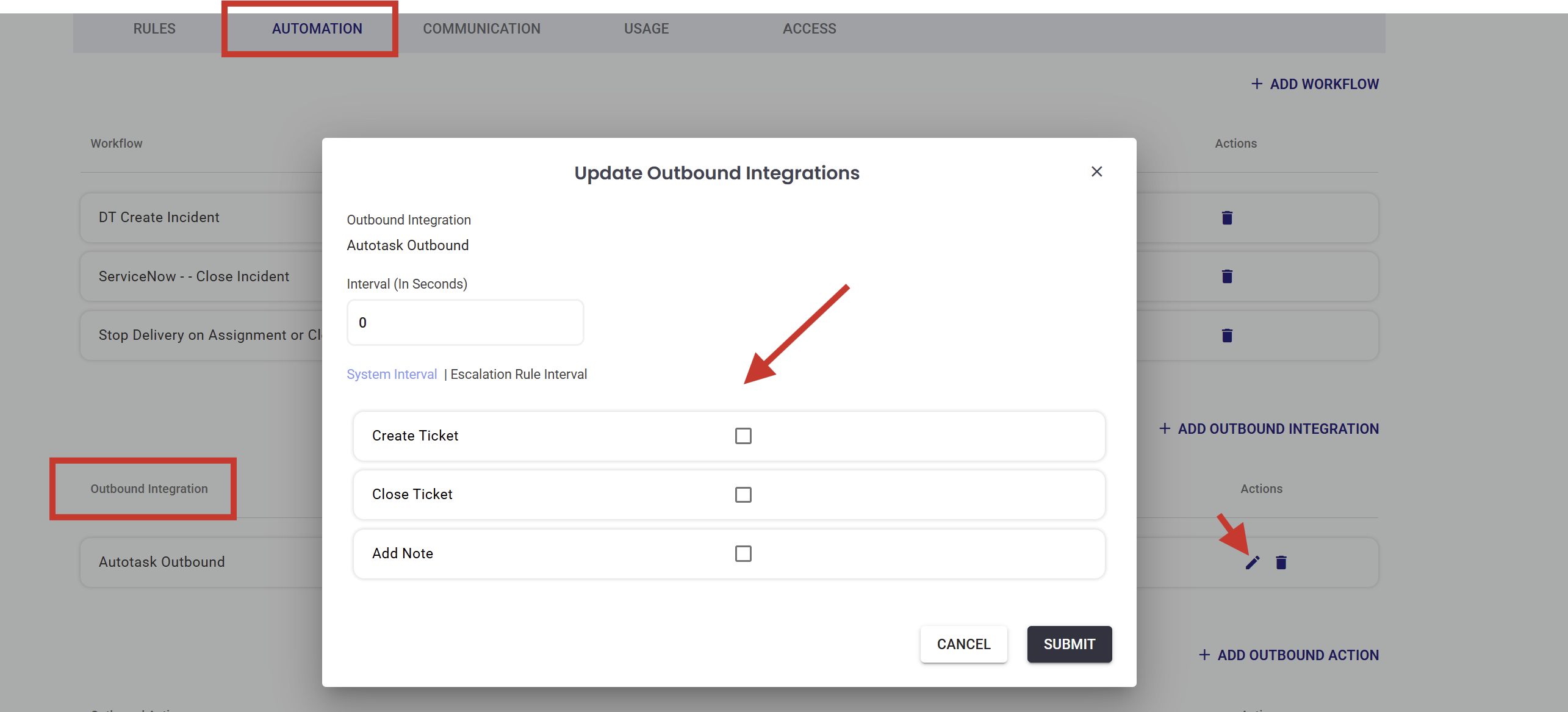
Note the timing: when an Outbound Integration is added directly to the Escalation Policy, it triggers as soon as the alert opens. (Outbound Actions on the other hand, if added, can be manually triggered/executed within an Alert/Incident Thread)
In a Workflow
Within a Workflow, the Outbound Integration is used through an Action called Outbound Service Notification. Select the Method that should be triggered, and it fires when the Workflow condition is met rather than at alert open. The Workflow is then added to an Escalation Policy.
The MessageText field on the Workflow Action is the equivalent of the Request Data in the Outbound Integration Method. When MessageText is populated here, it overrides the Request Data configured inside the Method itself.
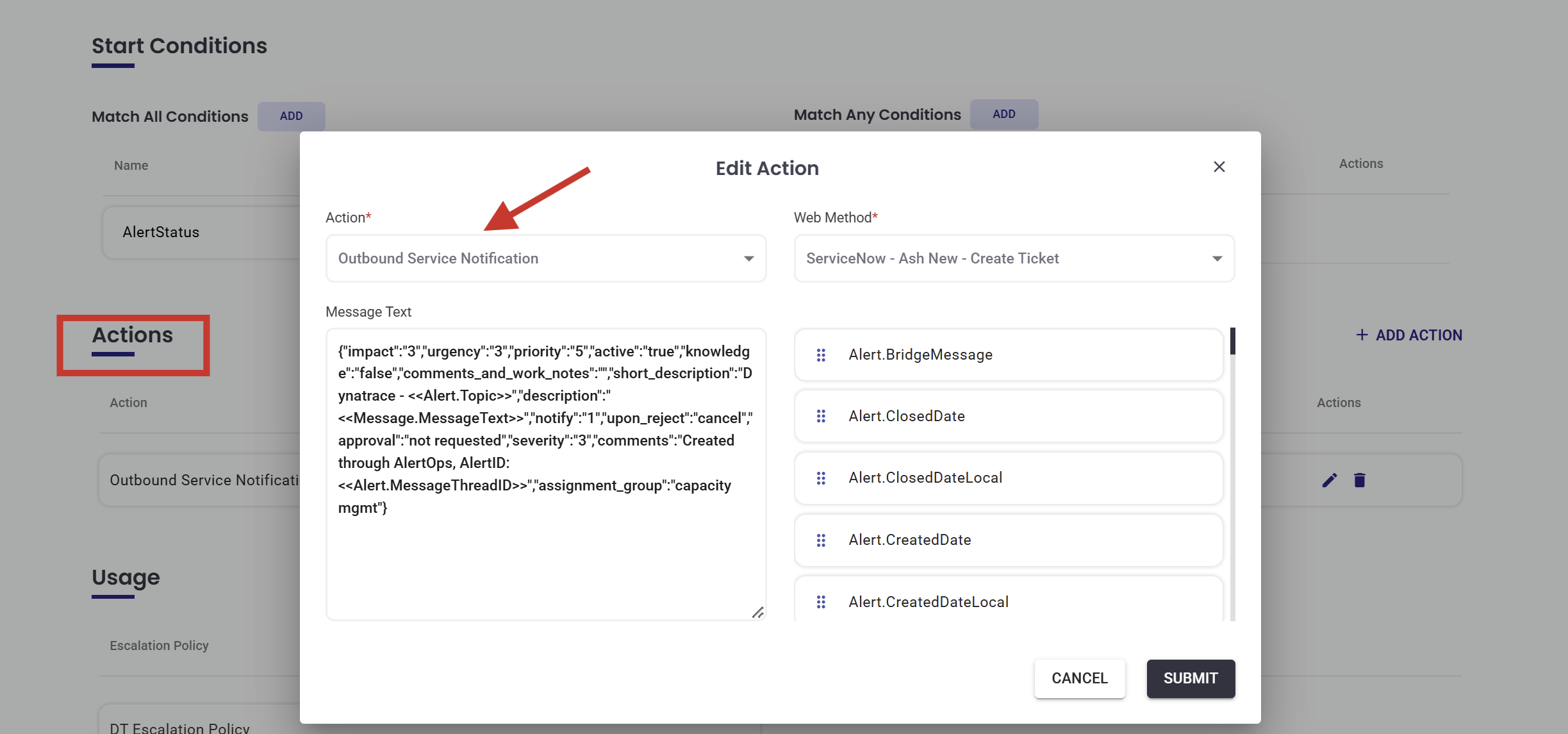
This is the recommended way to vary payloads by condition. Instead of one static Request Data on the Method, you can define different MessageText values across multiple Workflows and post a different payload depending on which condition is matched.
Choosing between the two
- Use the Escalation Policy Automation tab when the call should always fire at alert open with a single, fixed payload.
- Use a Workflow when the call should be conditional, tied to a specific alert event (Assignment, Close, Delivery Attempts), or when the payload needs to change based on the condition.