
Purpose
Schedule Export publishes your on-call schedule as a live iCal feed that external calendar applications can subscribe to. Once subscribed, the external calendar refreshes on its own cadence — typically every few hours — and picks up any shift changes, overrides, or out-of-office adjustments you make in AlertOps.
Use it when you want on-call coverage to appear alongside your meetings and personal events, so you can see the full picture of your week in one calendar.
Audience
Relevant for Any AlertOps user who wants their own on-call shifts visible in their external calendar
Every user can export their own schedule. App Admins can also export group-level schedules — see the group-level section below.
Prerequisites
- An AlertOps user account with at least one shift assigned.
- An external calendar application that can subscribe to iCal / WebCal feeds — Google Calendar, Apple Calendar, Outlook (desktop or web), Fantastical, BusyCal, and most native calendar apps.
- Familiarity with your User Profile — the export links live in the Schedules section on your profile.
iCal vs. WebCal — Which Link to Use
Relevant for Any user subscribing to the feed
Your profile's Schedules section shows two buttons. Both point to the same underlying calendar — they differ only in how your operating system or browser handles the click:
|
|
iCal (https://) |
WebCal (webcal://) |
|
Protocol |
Plain HTTPS URL ending in .ics |
webcal:// URL (same path, different scheme) |
|
Best for |
Google Calendar, any web-based calendar — paste the URL into the "Add calendar by URL" field. |
macOS / iOS Apple Calendar, Outlook desktop — clicking the link auto-opens the native calendar app and prompts you to subscribe. |
|
Copy vs click |
Copy the URL, then paste into the destination app. |
Click the button directly — your OS launches its default calendar. |
Find Your Schedule Export Links
Relevant for Any user exporting their own schedule
- Click your avatar or initials in the top-right → Profile.
- Scroll down to the Schedules section.
- You'll see two buttons — WebCal and iCal — below the weekly calendar preview.
- Use WebCal for one-click subscription on macOS / iOS / Outlook desktop; use iCal (copy URL) for Google Calendar and other web-based calendars.
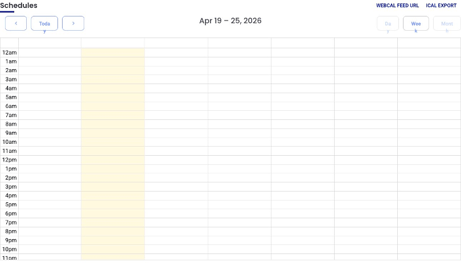
Figure 1. The Schedules section on the user profile. The WebCal and iCal buttons at the bottom are the two entry points to subscribe an external calendar.
|
Your export link is personal — treat it like a password The iCal / WebCal URL includes a token that authenticates you to AlertOps when your calendar app fetches updates. Anyone with the link can see your entire on-call schedule. Do not post it in shared docs, chat channels, or wikis. If the link is ever exposed, contact support@alertops.com to rotate it. |
Subscribe from Google Calendar
Relevant for Any user on Google Calendar
- On your AlertOps profile, right-click the iCal button and choose "Copy link" (or click it and copy the URL that loads).
- Open Google Calendar in a web browser (calendar.google.com).
- In the left sidebar, hover over "Other calendars" and click the + button.
- Choose "From URL."
- Paste the iCal URL into the field and click "Add calendar."
- Within a minute, your AlertOps on-call shifts appear on the Google Calendar grid. By default Google refreshes subscribed calendars roughly every 12 hours; there is no way to force an immediate refresh from Google's side.
|
Google Calendar refresh cadence Google Calendar controls the refresh interval for subscribed calendars — AlertOps cannot push updates. If you add an override or change a shift, expect the new shift to appear in Google within a few hours, not immediately. The native AlertOps web app and mobile apps always show the current schedule instantly; the subscription is for convenience, not real-time display. |
Subscribe from Apple Calendar (macOS / iOS)
Relevant for Any user on macOS or iOS
- On your AlertOps profile, click the WebCal button.
- macOS / iOS will prompt "Open Calendar?" — choose Allow / Open. The native Calendar app launches and shows a Subscribe dialog.
- Pick a display name (e.g., "AlertOps on-call"), a colour, and how often Apple Calendar should refresh the feed — every 5 minutes, 15 minutes, hourly, daily, or weekly.
- Click OK / Subscribe.
Apple Calendar honours the refresh interval you picked, so you can set it as tight as 5 minutes if you want near-real-time updates. Tighter refresh intervals make more requests to AlertOps but do not consume alert volume.
Subscribe from Outlook
Relevant for Any user on Outlook desktop or web
Outlook desktop (Windows and Mac): click the WebCal button on your AlertOps profile and confirm the "Subscribe to this calendar" prompt. Outlook adds it to Other Calendars.
Outlook on the web: copy the iCal URL. In Outlook, go to Calendar → Add calendar → Subscribe from web, paste the URL, give it a name, and click Import. The refresh interval is managed by Microsoft and is typically hourly.
Export a Whole Group's Schedule (App Admin)
Relevant for App Admin
For team-wide visibility, the group's Schedule tab exposes its own iCal / WebCal feed. Subscribing to this feed shows every member's shifts on the group's calendar in your external calendar application — useful for managers and for shared team calendars.
- Go to Configuration → Groups → the group.
- Open the Schedule tab.
- Find the iCal / WebCal buttons (typically in the top-right of the Schedule view or under a Share / Export menu).
- Use the same subscription procedure as for your personal schedule, above.
|
Group-level feed is also personal to the link holder The group-level iCal URL is also a tokenised link. Protect it the same way — do not post the URL in shared docs or public channels. If a group link needs to be rotated, contact support@alertops.com. |
What Shows Up in Your External Calendar
Relevant for Anyone reading the subscribed calendar
- Each shift appears as a calendar event with its start / end times in your device's local time zone.
- Event titles typically include the group name and the member's role for that shift (e.g., "[Platform] Primary — Alex").
- Overrides and out-of-office coverage surface as separate events for the covering user.
- Changes you make in AlertOps propagate to the external calendar on its own refresh cadence — not instantly.
- Subscribed events are read-only from the external calendar. Edits to the underlying schedule must be made in AlertOps.
Troubleshooting
Relevant for Anyone debugging the feed
The external calendar shows an empty or outdated schedule
- Check when the destination calendar last refreshed. Google and Outlook refresh on their own cadence (sometimes 12+ hours); Apple Calendar honours the interval you picked at subscribe time.
- In AlertOps, confirm you actually have upcoming shifts. A user with no shifts will produce an empty feed.
- Unsubscribe and re-subscribe as a last resort — that forces a fresh fetch.
The subscribe click doesn't open a calendar app
- Your OS may not have a default handler for webcal:// links. Copy the iCal URL instead and paste it into your calendar app's "subscribe by URL" field.
- Browser pop-up blockers sometimes intercept the prompt. Check the address bar for a blocked-popup indicator.
Subscribed events show the wrong time
- Confirm your device's time zone is correct — iCal events are stored in UTC and rendered in the device's local zone. A misconfigured device time zone will shift every event.
- Confirm the shift itself is configured in the expected time zone on AlertOps. See Time Zones for the distinction between the user's profile time zone and the shift's time zone.
I want to unsubscribe
- Unsubscribe from the external calendar app — remove the calendar from Other Calendars (Google), delete the subscription in Apple Calendar's preferences, or remove from Outlook's subscribed calendars list. The underlying AlertOps feed stays available; you can re-subscribe later with the same URL.
Best Practices
Relevant for Anyone using schedule export
- Give the subscribed calendar a distinctive colour so on-call shifts stand out from meetings and personal events.
- For Apple Calendar users, pick a refresh interval that matches your tolerance for staleness — 15 minutes is a good balance.
- Treat iCal / WebCal URLs as secrets — do not paste them into chat, shared docs, or wikis.
- If your schedule is actively changing (overrides, OOF), rely on the native AlertOps web app or mobile app for the current truth. The subscription is for at-a-glance visibility, not authoritative routing.
- If your organisation shares a team calendar, subscribe the team calendar to the group-level feed rather than having every member subscribe individually — fewer feeds to manage.