
Overview
Relevant for Anyone configuring a group's email reminders
Email reminders for group schedules are configured from the Groups & Schedules page. From a group's Schedule tab, click EMAIL SCHEDULE to open the Email Schedule dialog. Tick the enable checkbox and AlertOps will email the group's schedule to the on-call team on the cadence you configure.
You can choose the day and hour the email is sent, the day the schedule begins, and whether the message contains the current week's schedule or next week's.
Configure a Schedule Reminder
Relevant for Group Manager / App Admin
- Navigate to the Groups & Schedules page and open the group you want to configure.
- Click the Schedule tab on the group detail page.
- In the Schedule sub-toolbar (right side, alongside WEBCAL FEED URL and ICAL EXPORT), click EMAIL SCHEDULE.
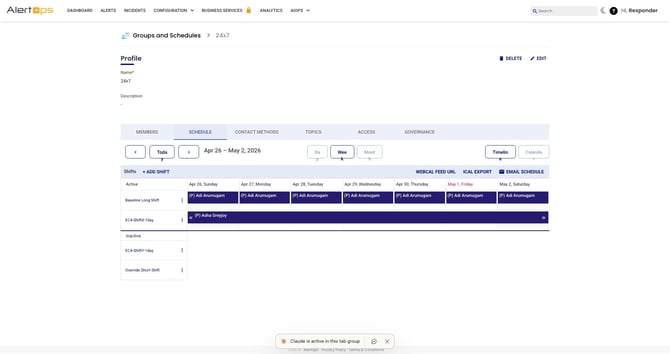
Figure 1. EMAIL SCHEDULE lives on the Schedule sub-toolbar (right side), next to WEBCAL FEED URL and ICAL EXPORT. Secondary text-link styling with a small mail icon.
- The Email Schedule dialog opens. By default it shows only the Send email to On-call Team checkbox (unchecked) and a close (×) in the top-right. There are no other fields and no Submit button visible until the checkbox is enabled.
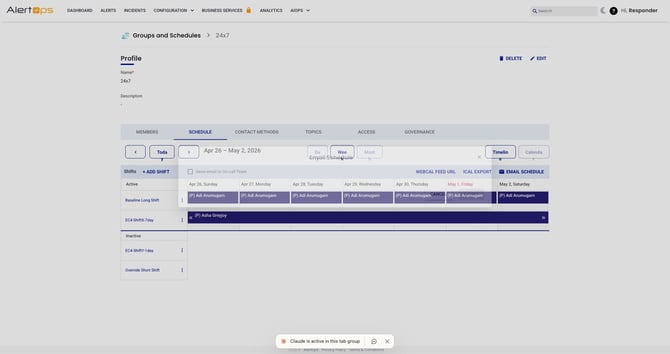
Figure 2. The default Email Schedule dialog. Until you tick the checkbox, the rest of the form does not appear.
- Tick the Send email to On-call Team checkbox. The dialog expands to show four selectors and the Cancel / Submit buttons.
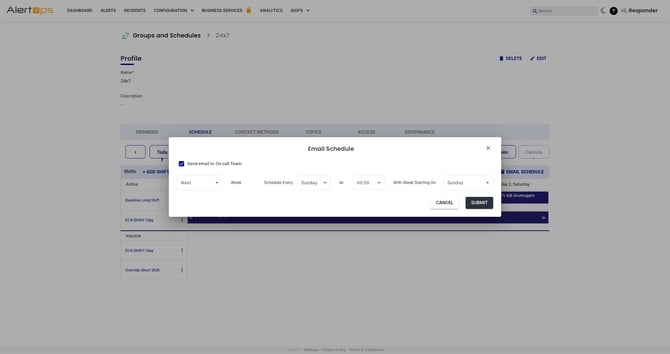
Figure 3. With the checkbox enabled, the form renders as a single horizontal row that reads as a sentence: "[Next] Week, Schedule Every [Sunday], At [00:00], With Week Starting On [Sunday]."
- Configure each selector (see the field reference below). Click SUBMIT to save, or CANCEL to discard.
Field Reference
Relevant for Anyone filling in the dialog
The dialog renders as a single sentence-style row of four selectors. Reading the row left to right:
|
Field |
Default |
Options / Notes |
|
(value-as-label) Week |
Next |
Combobox: Current or Next. Whether the email contains this week's schedule or next week's. There is no explicit field label — the value sits inline before the static word "Week." |
|
Schedule Every |
Sunday |
Combobox: Sunday through Saturday. The day of the week the reminder email is sent. |
|
At |
00:00 |
Combobox: 00:00 through 23:00, hourly only. The hour the reminder is sent. Half-hour or minute precision is not available. |
|
With Week Starting On |
Sunday |
Combobox: Sunday through Saturday. The day the schedule in the email is anchored to. |
|
Send email to On-call Team |
unchecked |
Master enable. While unchecked the rest of the form is hidden. Untick to disable reminders without deleting their saved configuration. |
|
CANCEL / SUBMIT |
— |
CANCEL closes the dialog without saving; SUBMIT persists the configuration. Both render at the bottom-right. |
|
How the row reads With the defaults the form reads: "Next Week, Schedule Every Sunday, At 00:00, With Week Starting On Sunday." Adjust each selector to change the cadence — for example, "Current Week, Schedule Every Monday, At 08:00, With Week Starting On Monday" emails the on-call team every Monday at 8 AM with that week's schedule starting on Monday. |
Separate from group schedule emails, on-call reminders can also be set as a user preference. From the user's profile, under On Call Reminder, the user can enable an email or push notification reminder ahead of their shift. This is configured per user and is independent of the group's Email Schedule cadence.
