Navigate to Schedules to browse and view your and your group's schedules by clicking schedules on the main menu.
Schedules cannot be added and edited through the mobile app; this can be achieved through the Web UI.
Schedules can be sorted by
- Day: View the schedules for the day
- Week: View the current week schedule
- Month: View the current Month schedule
- Navigate to the menu
 and select Schedule; the following screen opens
- Click the Change option to select the date ranges (By Day, By Week and By Month) to view the schedules.
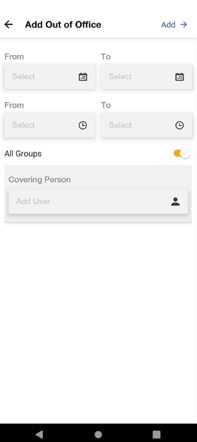
Out of Office
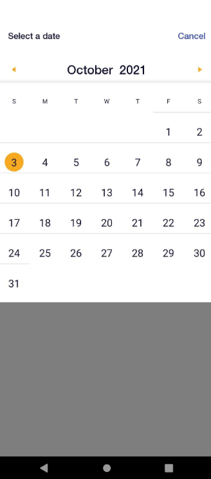
- Enter a start date and end date.
- Enter the Start time and end Time
- You can create entries for entire days or partial days during the out of office period.
For example, for the entire day coverage, set the start time as 00:00 and the end time as 23:59.
- Set the Covering Person.
- You can designate a single covering person for all groups. Or you can assign a covering person for each specific group. You may specify a covering person for each team, or you may choose to select a cover for only some teams. In this case, you will still receive notifications for teams you did not designate a covering person.
- Click Add Out of Office (OOF) details, an email will be sent to the covering person.