
In this guide, we will set up a Zoom Outbound Integration that triggers a Zoom meeting in response to incoming alerts received by AlertOps.
Zoom Configuration
To get started, create a Zoom Developer account. You must have a Zoom Video SDK account to build with the Video SDK.
To create a Zoom Video SDK account, go to Video SDK, click Buy Now, and follow the steps to create your account.
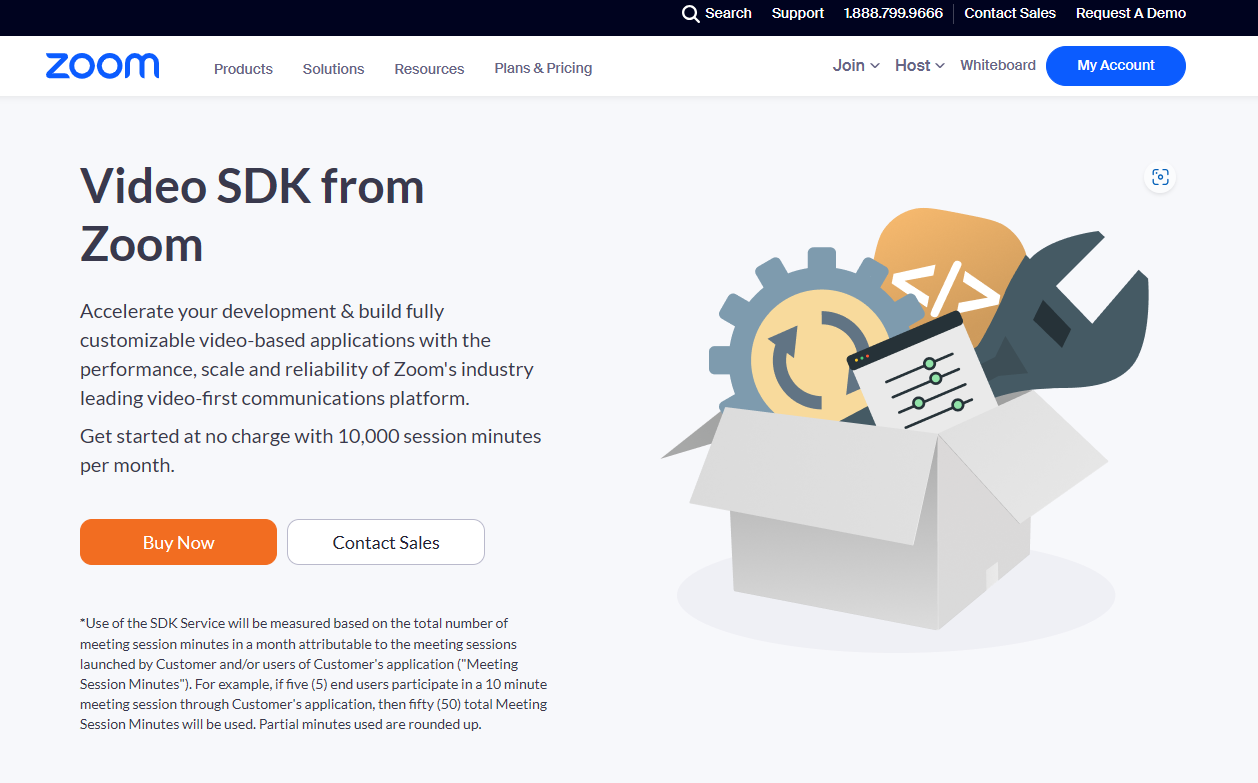
When you create a Zoom Video SDK account, you'll automatically get a free trial to start building with the Video SDK.
To get Video SDK credentials, go to the Zoom App Marketplace and sign in with your Zoom Video SDK account.
Click Develop and choose Build App. 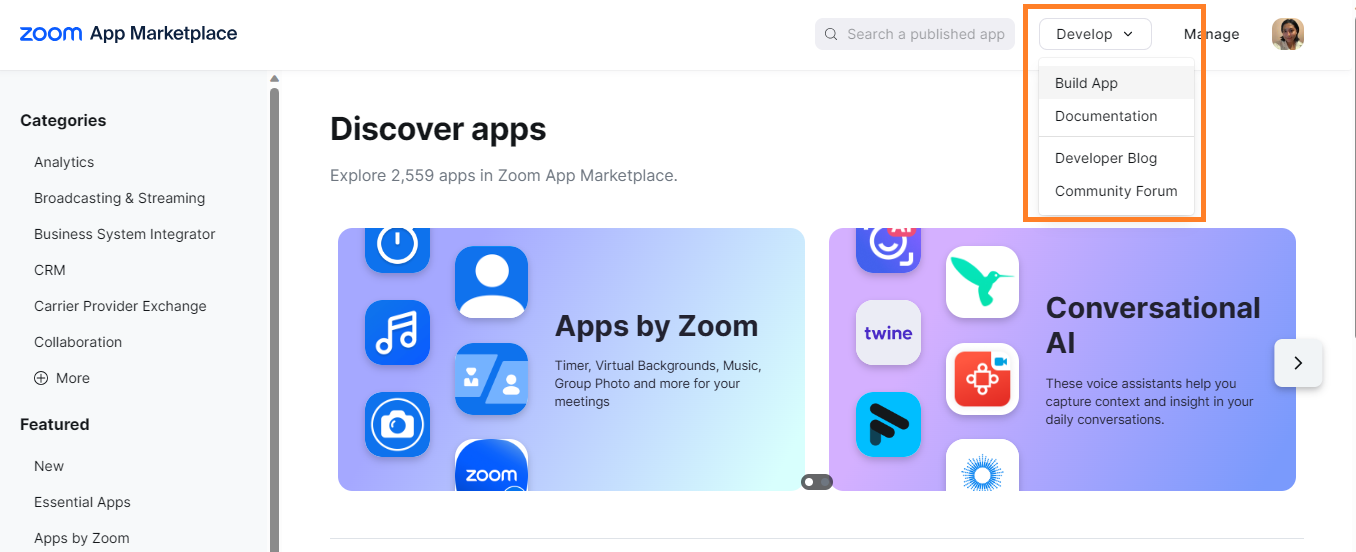
From the selection of Video SDK app types, select Server-to-Server OAuth and click Create.
Name your Zoom Application.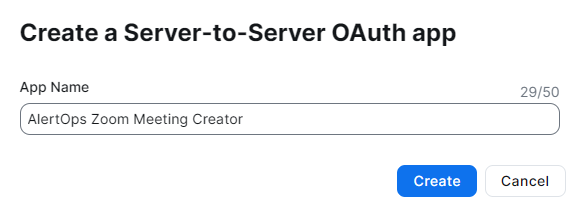
Add Scopes for your application. In this example, the following scopes were used:
meeting:master
meeting:write:admin
user:write:admin
After completing the Video SDK app setup and activating your app, go to App Credentials to find your Video SDK credentials. These will be used for Authorization in the next steps. 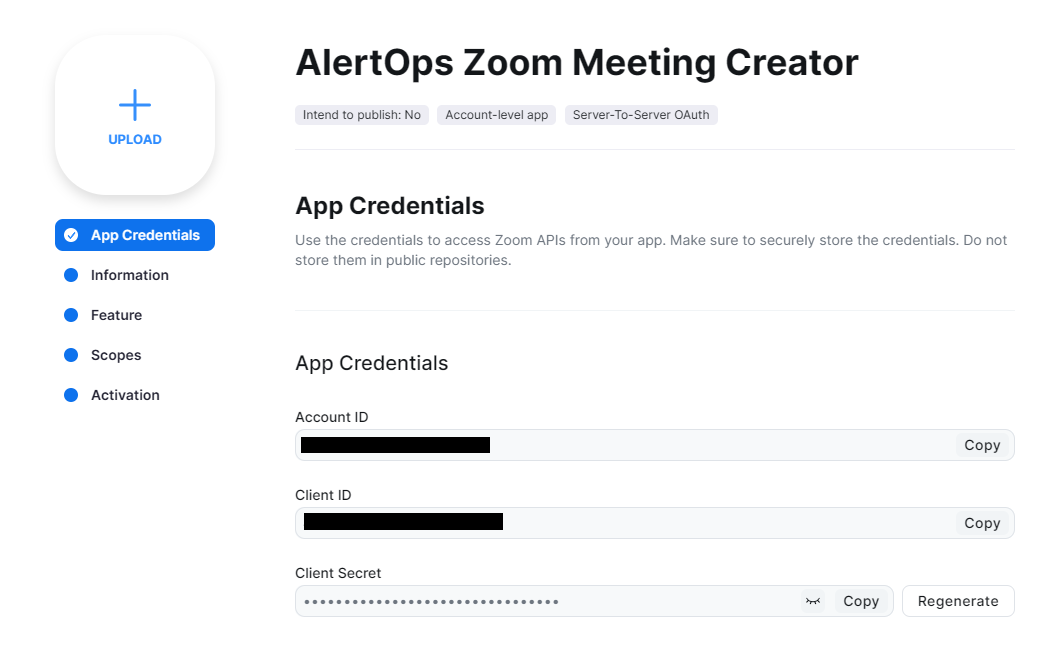
AlertOps Configuration
Now that we have completed the integration set up in Zoom, we need to make some changes in our AlertOps environment to prepare for the integration.
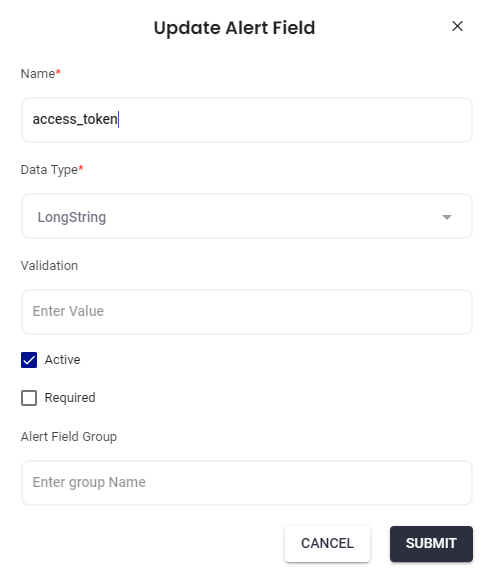
Add Custom Fields
In AlertOps, a Template is used to create custom attributes. In most cases, where only a small number of Attributes are created, extending the Standard Template is sufficient, though you can create a new one if you choose.
In order to capture fields from the Zoom Outbound Integration JSON data, add a custom attributes for the following:
Outbound Integration Configuration
To create the outbound integration in AlertOps:
Click Configuration on the main menu and select Integrations menu.
In the Outbound Integrations section, click the Add Outbound button.
Name the Outbound Integration, in this example we have named it Zoom Outbound Integration.
Click the Submit button to save.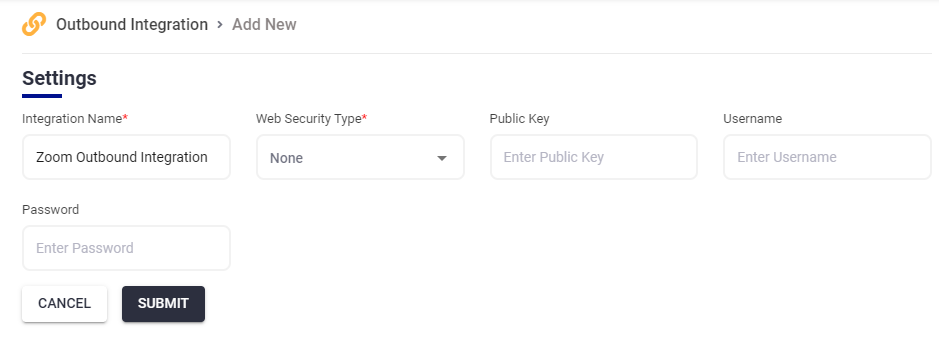
Create Methods
Once your integration has been created, we need to add some Methods that will trigger when this integration is used in a Workflow.
Create Zoom Access Token Method
This method is going to generate an API call to procure an access token for our Zoom app.
From the Zoom Outbound Integration page, scroll down to the Methods section and click the Add Method button.
Name this Method Create Zoom Access Token Method.
For Type, select REST. For Alert Type select Standard Alert, and set Request and Response Type as JSON.
Select POST for the Request Method.
Input the following for the URI, but edit it to include your Zoom App Account ID:
https://zoom.us/oauth/token?grant_type=account_credentials&account_id=YourZoomAppAccountID
Plain text
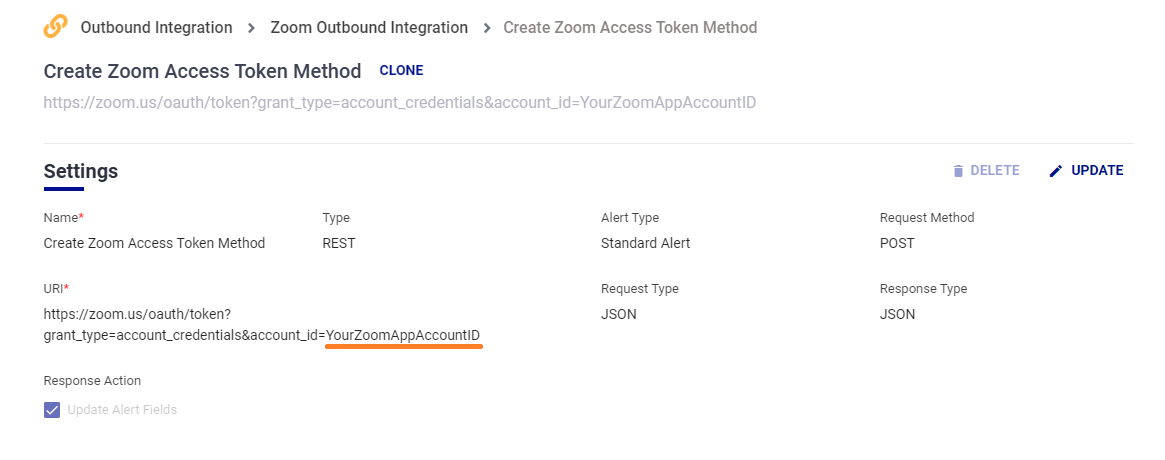
Check the Update Alert Fields box.
Input the following into the Response Data box. NOTE: the variable for "<
{"access_token":"<
JSON
Finally, add an Authorization Header, edited with the Base64 clientID:clientSecret from your Zoom App.
Authorization: Basic Base64Encoder(clientId:clientSecret)
Plain text

Create a Meeting Method
This method is going to generate an API call to create a Zoom Meeting.
From the Zoom Outbound Integration page, scroll down to the Methods section and click the Add Method button.
Name this Method Create a Zoom Meeting.
For Type, select REST. For Alert Type select Standard Alert, and set Request and Response Type as JSON.
Select POST for the Request Method.
Input the following for the URI, but edit to include your Zoom App Account ID:
https://zoom.us/v2/users/yourZoomUserId/meetings
Plain text
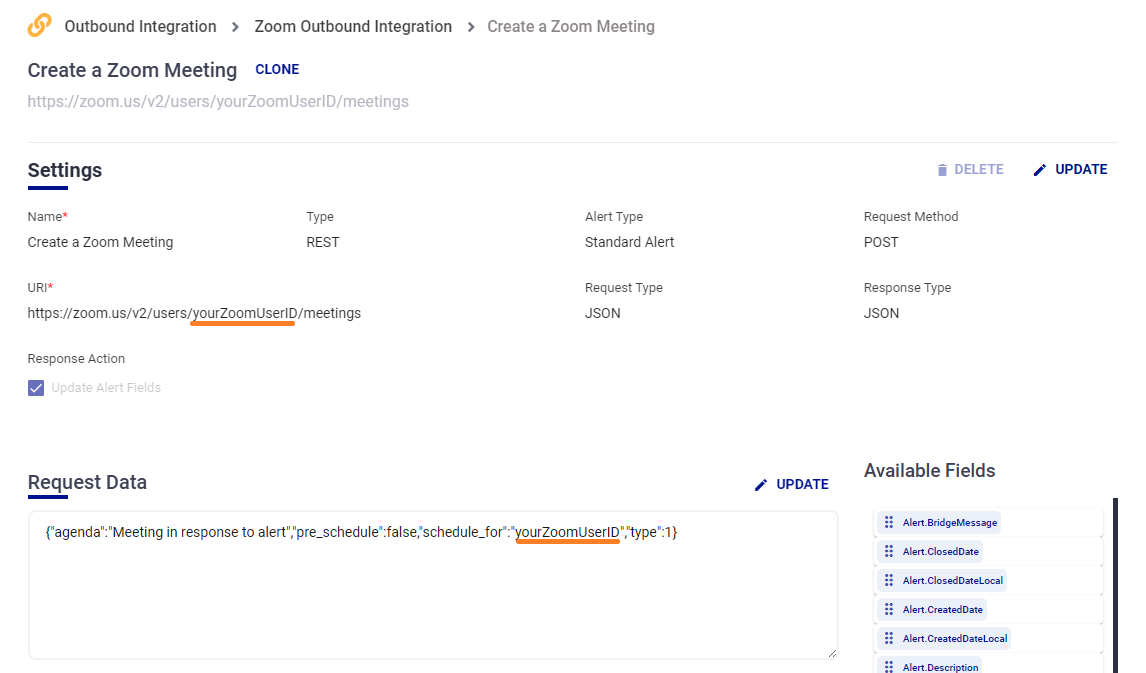
Input the following into the Request Data box and edit to include your Zoom user id. Click Submit to save.
{"agenda":"Meeting in response to alert","pre_schedule":false,"schedule_for":"yourZoomUserID","type":1}
JSON
Update Create Meeting Header Method
This method is going to update the headers for the Create a Zoom Meeting Method to include the value for the access token.
From the Zoom Outbound Integration page, scroll down to the Methods section and click the Add Method button.
Name this Method Update Create Meeting Header Method.
For Type, select REST. For Alert Type select Standard Alert, and set Request and Response Type as JSON.
Select PUT for the Request Method.
Check the Update Alert Fields box.
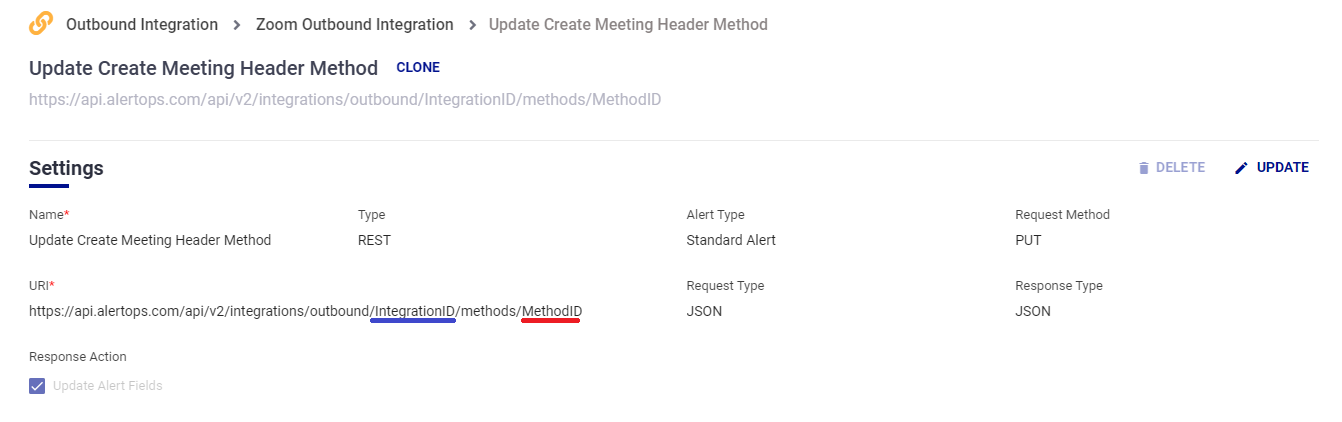
Input the following for the URI, but edit to include the Zoom Outbound Integration ID and Method ID for the Create a Zoom Meeting Method.
https://api.alertops.com/api/v2/integrations/outbound/IntegrationID/methods/MethodID
Plain text
Note: The values for Integration ID(shown below underlined blue) and Method ID(shown below underlined red) can be found in the URL for the Create a Zoom Meeting Method in AlertOps. 
Input the following into the Request Data box, edited to include your Zoom User ID.
{"method_name":"Create a Zoom Meeting","is_used":true,"method_type":{"type":"REST","uri":"https://zoom.us/v2/users/yourZoomUserID/meetings","request_type":"JSON","web_method":"POST","response_data_type":"JSON","request_data":"{\"agenda\":\"Meeting in response to alert\",\"pre_schedule\":false,\"schedule_for\":\"yourZoomUserID\",\"type\":1}","response_data":"","headers":"{\"Authorization\":\"Bearer <
JSON

Finally, add the following Header, edited to include your AlertOps User API key which can be found in your AlertOps user profile.
api-key: yourAlertOpsUserAPIKey
Plain text

Create Workflows
Now that the methods have been created, we need to create two Workflows to trigger the methods based on an Alert's Escalation Policy.
Create Token and Update Method Workflow
Click Configuration on the main menu and select Workflows from the dropdown menu.
From the Workflows page, click the Add Workflow button.
For Type, select Alert.
Name the Workflow. In this example we have named the workflow Create Zoom Access Token and Update Method Workflow.
For Alert Type, select Standard Alert
Click the Submit button to save.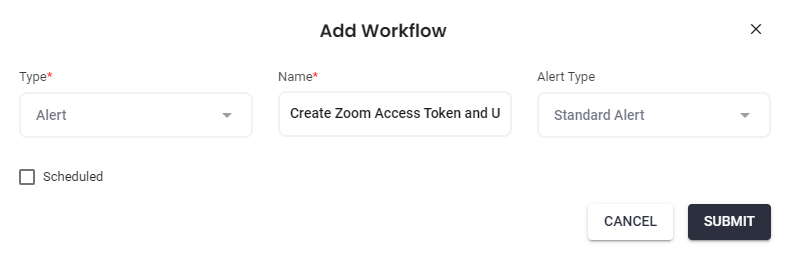
Start Conditions
Under the Start Conditions section, click the Add button for Match All Conditions.
Select the TimeFromBeginning(Minutes) condition.
Set 'is' as the operator, and '0' as the value.
Click the green checkmark to save this condition.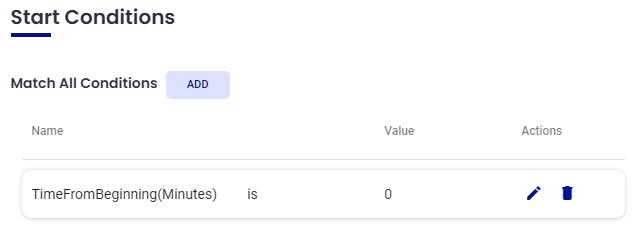
Actions
For this Workflow we will be adding two Actions:
Under the Actions section, click the Add Action button.
For Action select Outbound Service Notification.
For the Web Method select Zoom Outbound Integration - Create Zoom Access Token Method
Click Submit to save.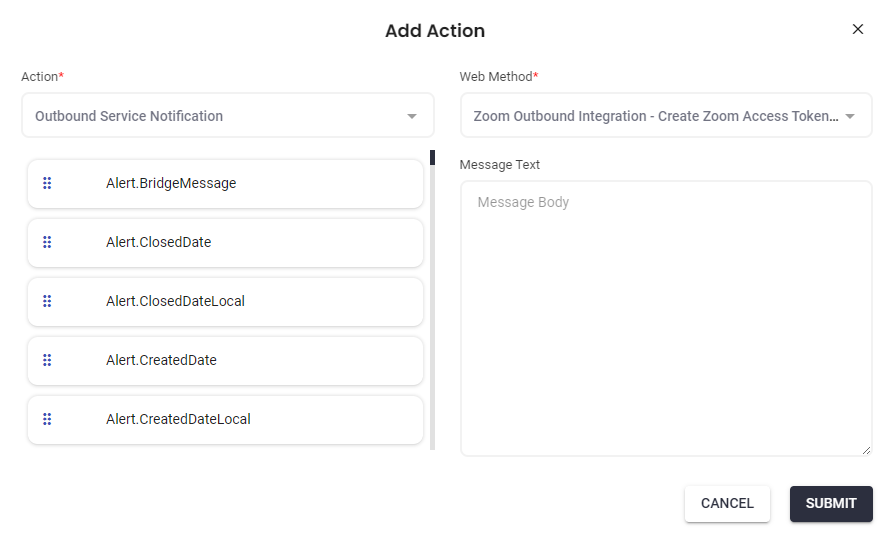
Once saved, click the Add Action button again.
For Action select Outbound Service Notification.
For the Web Method select Zoom Outbound Integration - Update Create Meeting Header Method
Click Submit to save.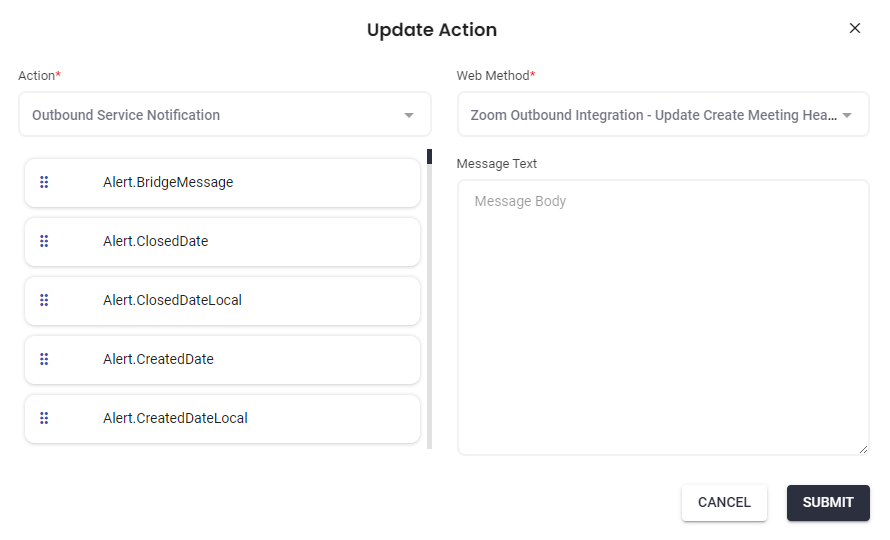
Create Meeting Workflow
Start Conditions
Actions
Escalation Policy
Once the Workflows have been created, they can be associated with an Escalation Policy to be used to guide Alerts.
Click Configuration on the main menu and select Escalation Policies from the dropdown menu.
From the Escalation Policies page, select an Escalation.
From the Escalation detail page, expand the Automation tab.
On the right, click the Add Workflow button.
Check the box next to the workflows we just created and use the right arrow to move them to Selected Workflows.
Click Submit to save.
Now that the workflows have been associated with this Escalation Policy, they will trigger methods according to the escalation rules.