For Inbound Integration Specification related to the Marketplace Application refer to this LINK
Modify the Standard Alert Template
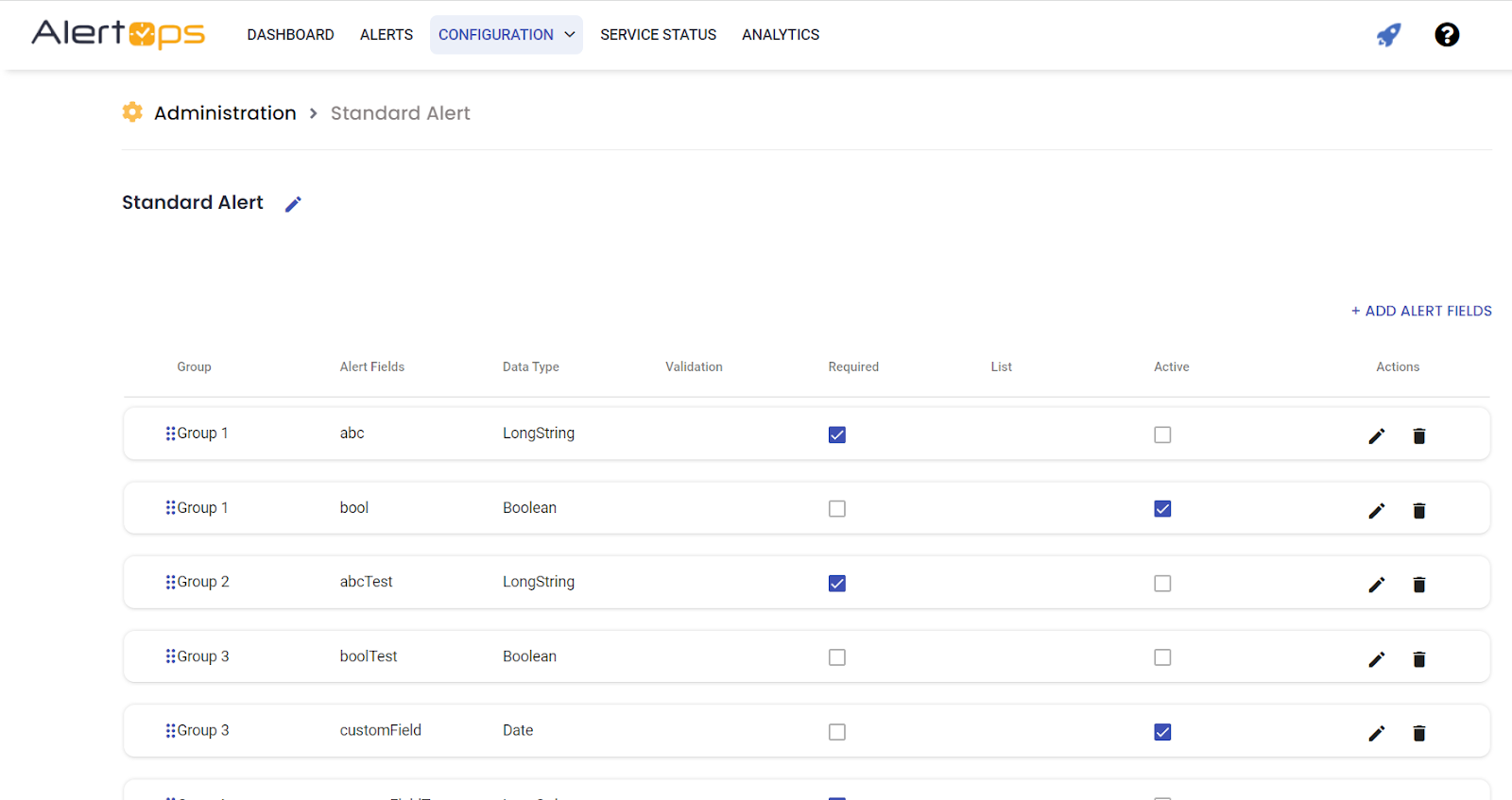
Administration Templates and select Standard Alert.
Add the following Attributes:
Name: ServiceNow_sys_id
DataType: Long String
Active: true
Name: ServiceNowID
DataType: Short String
Active: true
Create the Outbound Service Detail
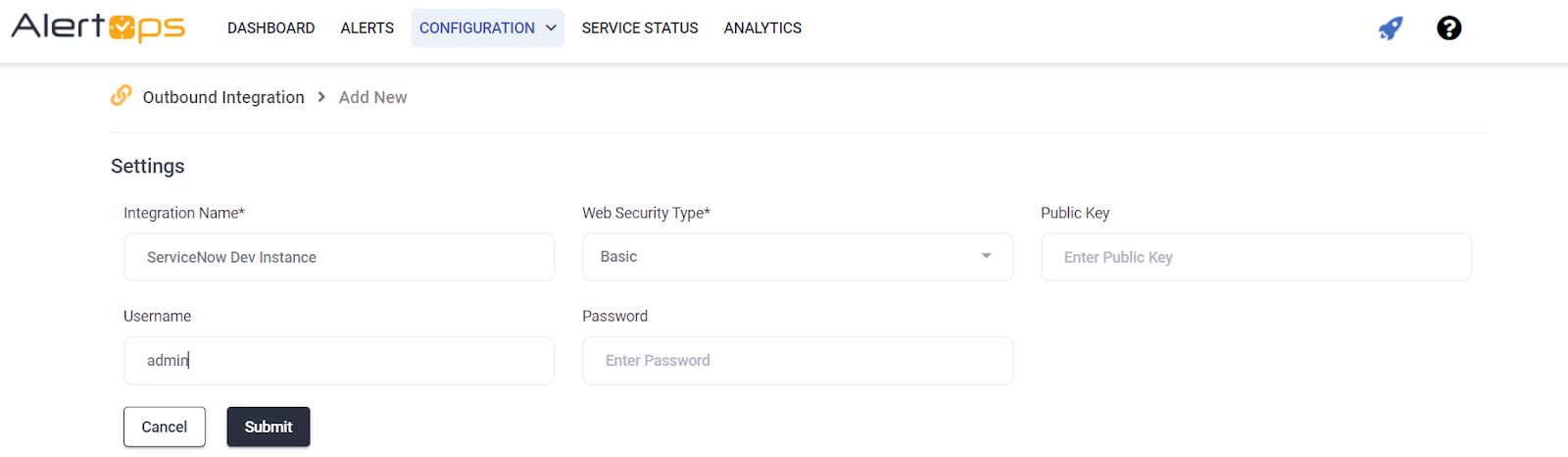
Service Name: Service Now
Web Security Type: Basic
UserName: (your ServiceNow username)
Password: (your ServiceNow user password)
Create the Create Incident Action
Method Name: ServiceNow Create Incident
Service Type: REST
Template Type: Standard Alert
URI: https://(your servicenow sub domain)/api/now/table/incident
Content Type: JSON
Web Method: POST
Response Data Type: JSON
Response Action: Update Alert Fields = true
Content Data:
{
“impact”: “3”,
“urgency”: “3”,
“priority”: “5”,
“active”: “true”,
“knowledge”: “false”,
“comments_and_work_notes”: “”,
“short_description”: “<
Response Data
{“result”:{“sys_id”: “<

Create the Close Incident Action
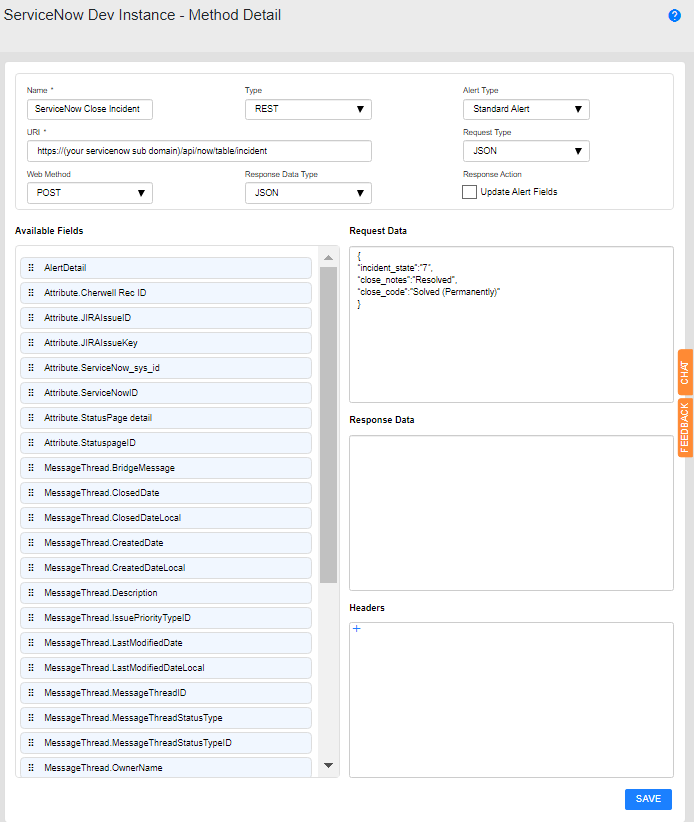
Method Name: ServiceNow Close Incident
Service Type: REST
Template Type: Standard Alert
URI: https://(your servicenow sub domain)/api/now/v1/table/incident/<
Content Type: JSON
Web Method: PUT
Response Data Type: JSON
Response Action: Update Alert Fields = false
Content Data:
{
“incident_state”:”7″,
“close_notes”:”Resolved”,
“close_code”:”Solved (Permanently)”
}
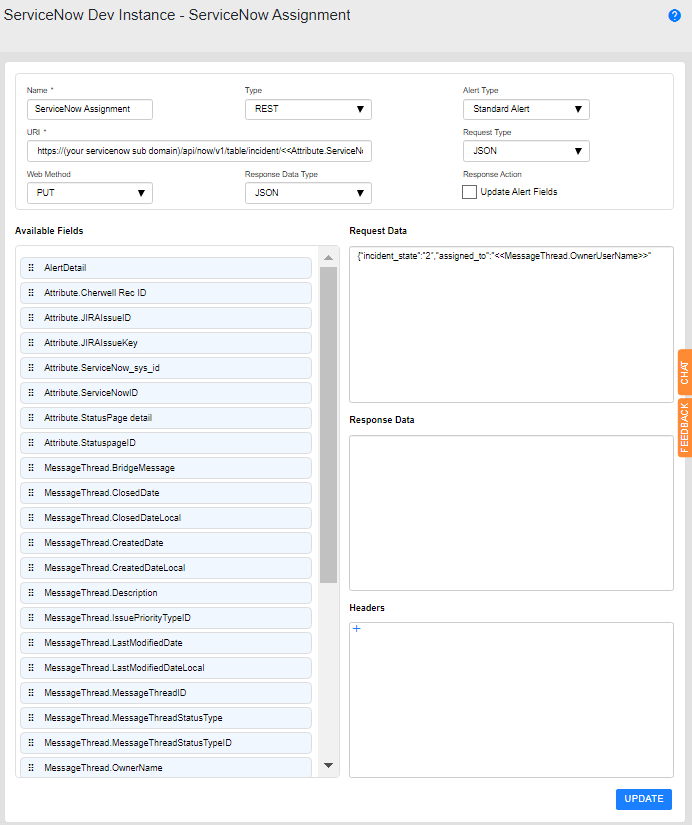
Create the Assignment Action
Method Name: ServiceNow Assignment
Service Type: REST
Template Type: Standard Alert
URI: https://(your servicenow sub domain)/api/now/v1/table/incident/<
Content Type: JSON
Web Method: PUT
Response Data Type: JSON
Response Action: Update Alert Fields = false
Content Data:
{“incident_state”:”2″,”assigned_to”:”<
Create the Generic Put Action
Method Name: ServiceNow Generic PUT
Service Type: REST
Template Type: Standard Alert
URI: https://(your servicenow sub domain)/api/now/v1/table/incident/<
Content Type: JSON
Web Method: PUT
Response Data Type: JSON
Response Action: Update Alert Fields = false

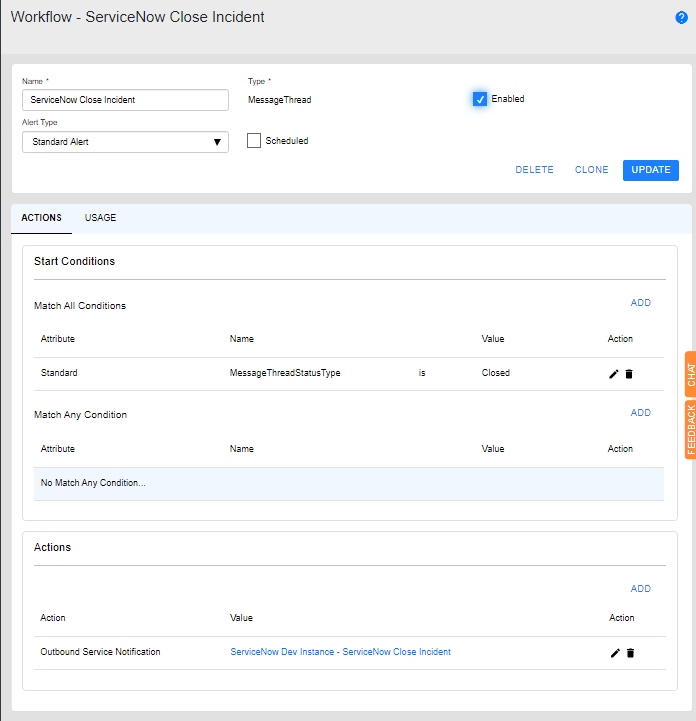
Create the Close Incident Workflow
Workflow Name: ServiceNow Close Incident
Workflow Type: Message Thread
Template: Standard Alert
Scheduled: false
Enabled: true
Start Conditions:
MessageThreadStatusType = Closed AND
Actions:
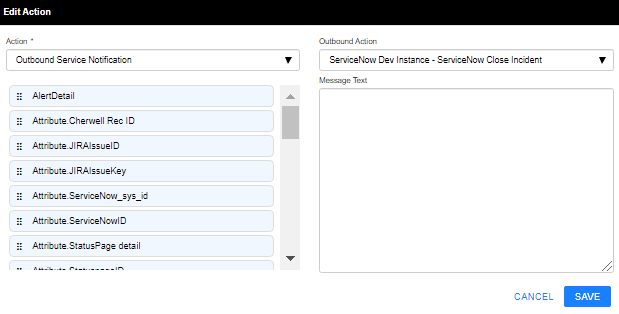
Action: Outbound Service Notification
Outbound Action: Service Now – ServiceNow Close Incident
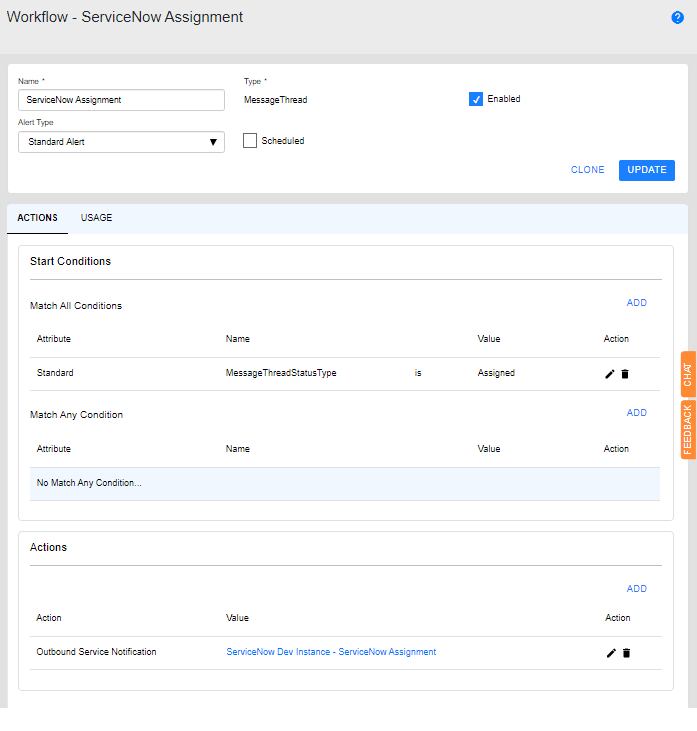
Create the Service Now Assignment Workflow
Workflow Name: ServiceNow Assignment
Workflow Type: Message Thread
Template: Standard Alert
Scheduled: false
Enabled: true
Start Conditions:
MessageThreadStatusType = Assigned AND
Actions:
Action: Outbound Service Notification
Outbound Action: Service Now – ServiceNow Assignment

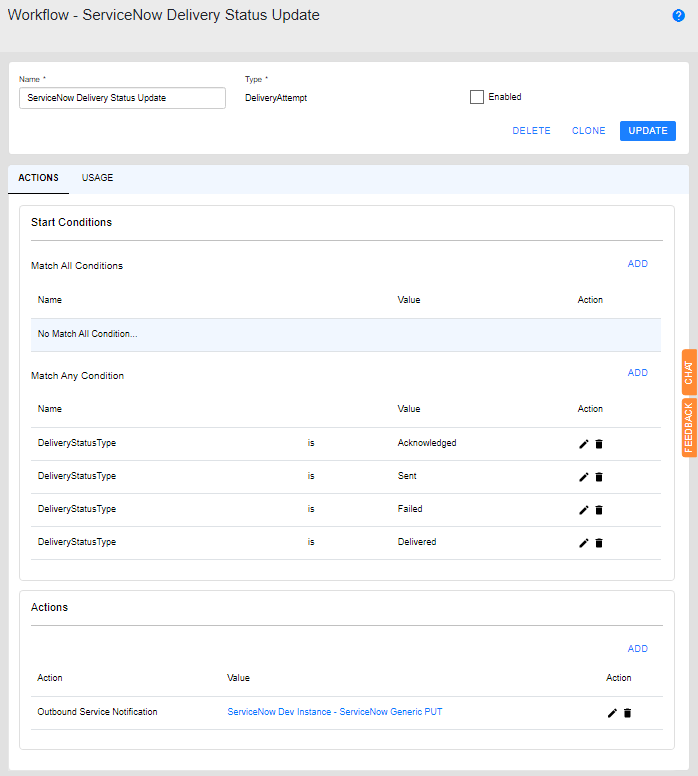
Create the ServiceNow Delivery Status Update Workflow
Workflow Name: ServiceNow Delivery Status Update
Workflow Type: Delivery Attempt
Scheduled: false
Enabled: true
Start Conditions:
DeliveryStatusType = Acknowledged OR
DeliveryStatusType = Sent OR
DeliveryStatusType = Failed OR
DeliveryStatusType = Delivered OR
Actions:
Action: Outbound Service Notification
Outbound Action: Service Now – ServiceNow Generic PUT
Message Text:
{
“comments”: “AlertOps ID <
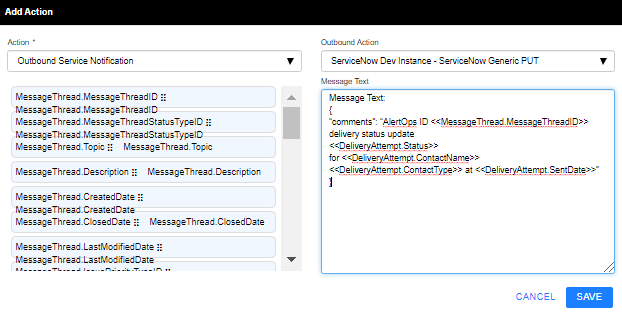
Create the ServiceNow Incident Escalation Rule
ServiceNow Incident Escalation Rule
Detail tab:
Rule Name: ServiceNow Incident
Description: Creates ServiceNow Incident.
Assigns user to Incident.
Closes Incident.
Adds Delivery Status updates to Incident Notes.
Priority: Critical
Enabled: true
Workflows tab:
Message Thread types
ServiceNow Close Incident
ServiceNow Assignment
ServiceNow Delivery Status Update
Services tab:
Service: Aervice Now
Actions: ServiceNow Create Incident
OPEN SITE
HELP
3
KS
Site builderTry site 2.0
Content tools
Categories & Articles
Set Up Live Call Routing
Preview
This article has no listed contributor. Please assign one.
Set Up Call Routing
In this section, we will review all the features included in the Call Routing Detail screen.
To access call routing, click Configurations on the menu bar and select Call Routing. Select the phone number/line you'd like to configure within your environment.
To block unwanted calls, send a list of unwanted caller numbers to Support@AlertOps.com.
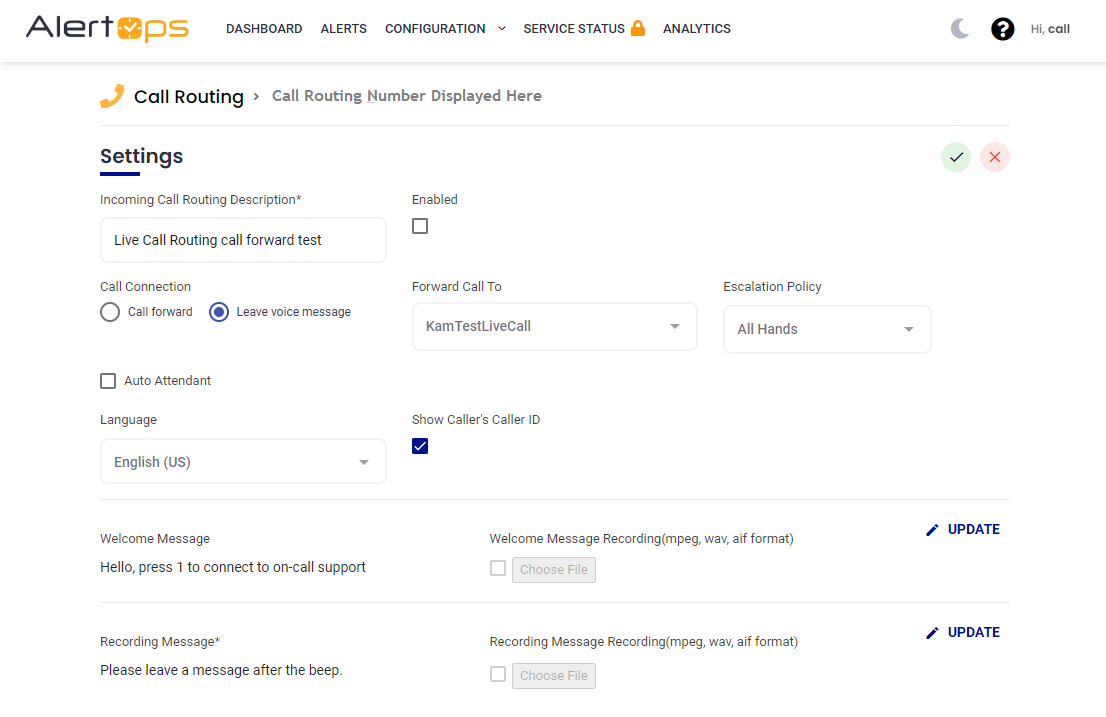
- Enter an Incoming Call Routing Description to name your Call Routing number. This will be used as the Source for Alerts generated by calls.
- Check Enabled to enable this line. Uncheck to disable.
- For Call Connection, toggle between Call Forward or Leave Voice Message.
- Check Auto Attendant to enable callers to navigate between teams using a digit/key. Use Routing Key Assignment to assign a unique digit/key for each Team/Group.

- Or, if you are not using Auto Attendant, next to Forward Call To, select a Group for the calls to be forwarded to.

- Select an Escalation Policy for calls
- Select a preferred Language from the drop-down menu. This will cause the message to be read in the chosen language. Note, for best results, type the message in the chosen language, to avoid any translation issues.
- Check Show Caller ID to see a caller ID when receiving a call. Uncheck to disable Caller ID. When disabled, the Routing Number will be displayed in the Caller ID, allowing for easy identification by team members.
- Under Welcome Message enter a customized greeting to play for the caller. Or, upload a Custom Recording (MPEG, wav, or aif format) to play a pre-recorded welcome message for the caller.
- Enter a Recording Message or upload a Custom Recording to prompt the caller to leave a message.
- Click the green checkmark to save changes.
View Call Activity
- Click Configurations on the menu bar and select Call Routing.
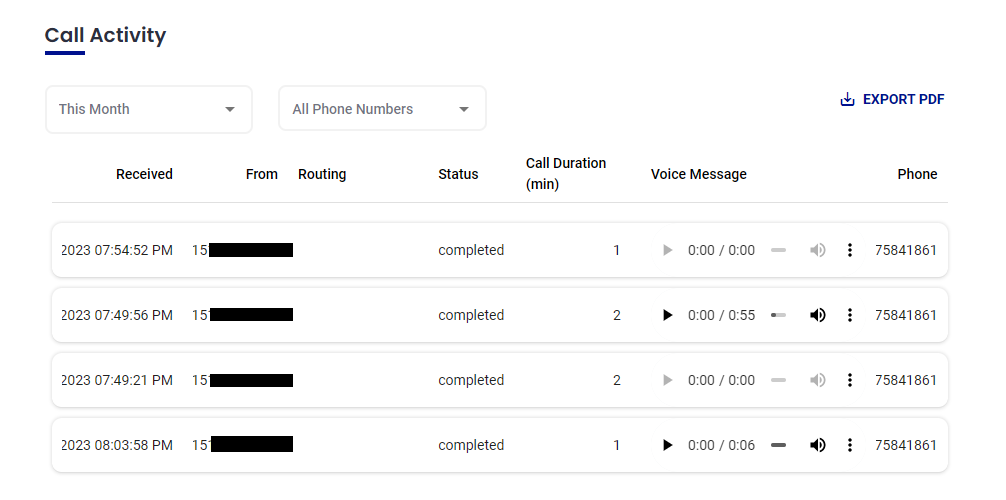
- Scroll down to the Call Activity Section to view call activity by date by selecting dates using the dropdown menus.
Each attempted transfer is recorded, and time-stamped. Any voicemail can be played from this screen.