
Purpose: Ask Ada to make changes for you, and stay in control with approval before anything changes.
How approval works
When you ask Ada to change something, it doesn't act right away. It shows an approval card with exactly what it will do.
- Click Approve to go ahead.
- Click Deny to cancel. Ada asks what you'd like to change.
- The card expires after about five minutes. The countdown is on the card.
Nothing changes until you approve.
Assign an alert
"Assign alert 216712 to Jordan Ellis"
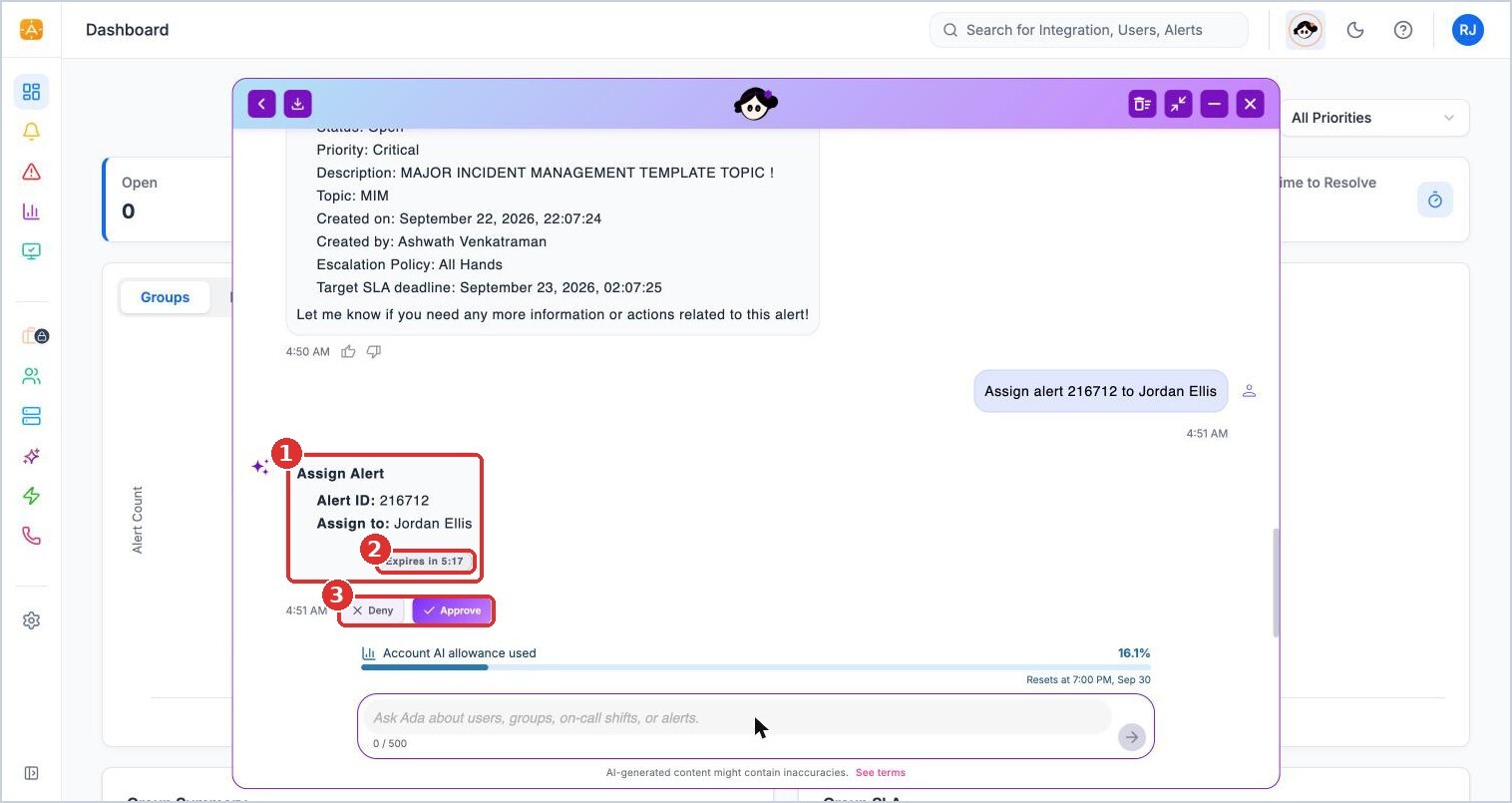
(1) the Assign Alert card with the alert and assignee, (2) time left to decide, (3) Deny or Approve
After you approve, confirm it anytime by asking:
"Who owns alert 216712 and what is its status?"
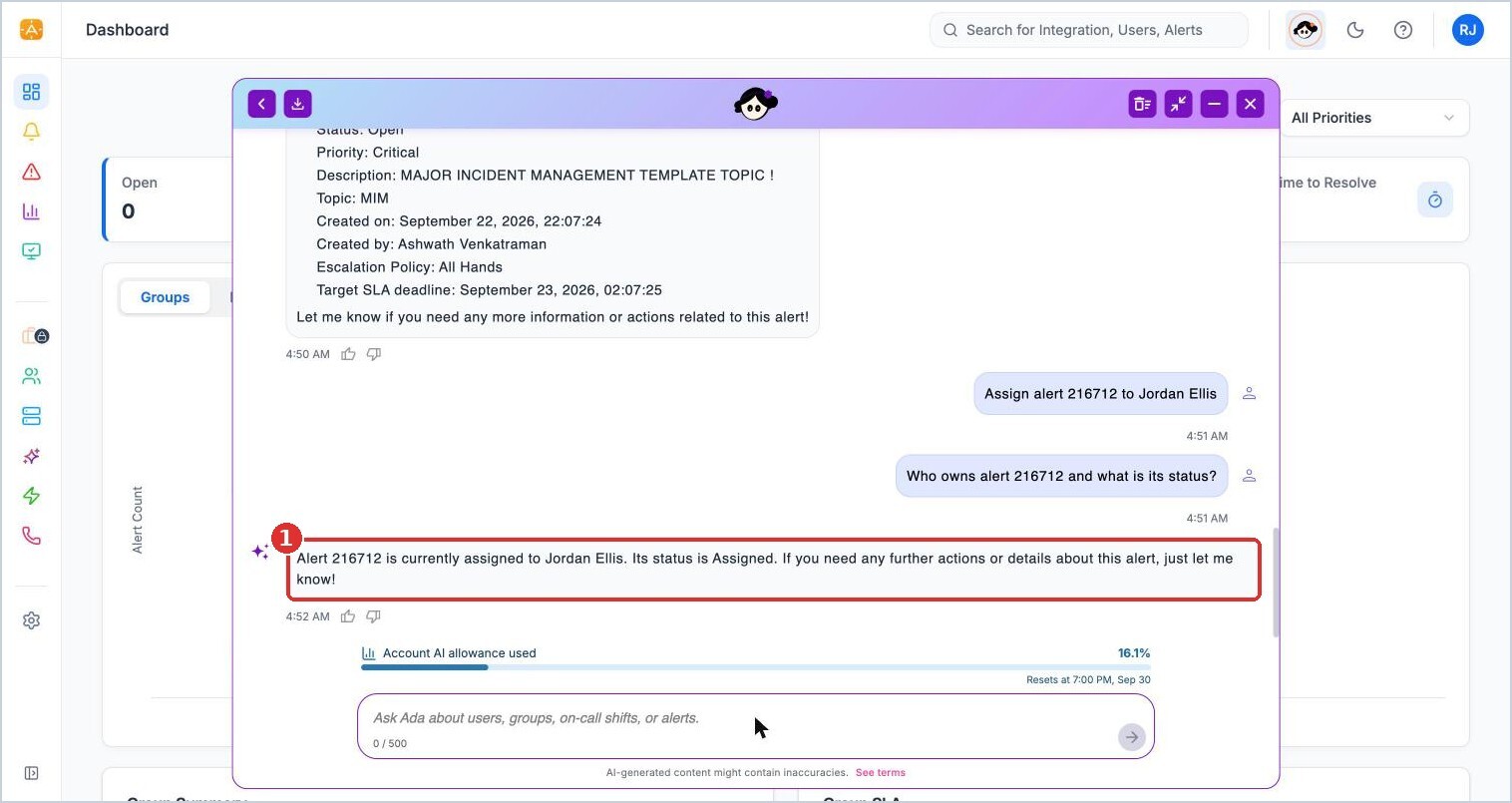
(1) Ada confirms the alert is Assigned to Jordan Ellis
Close an alert with a resolution
"Close alert 216712 with resolution: duplicate of the MIM test alert, no action needed"
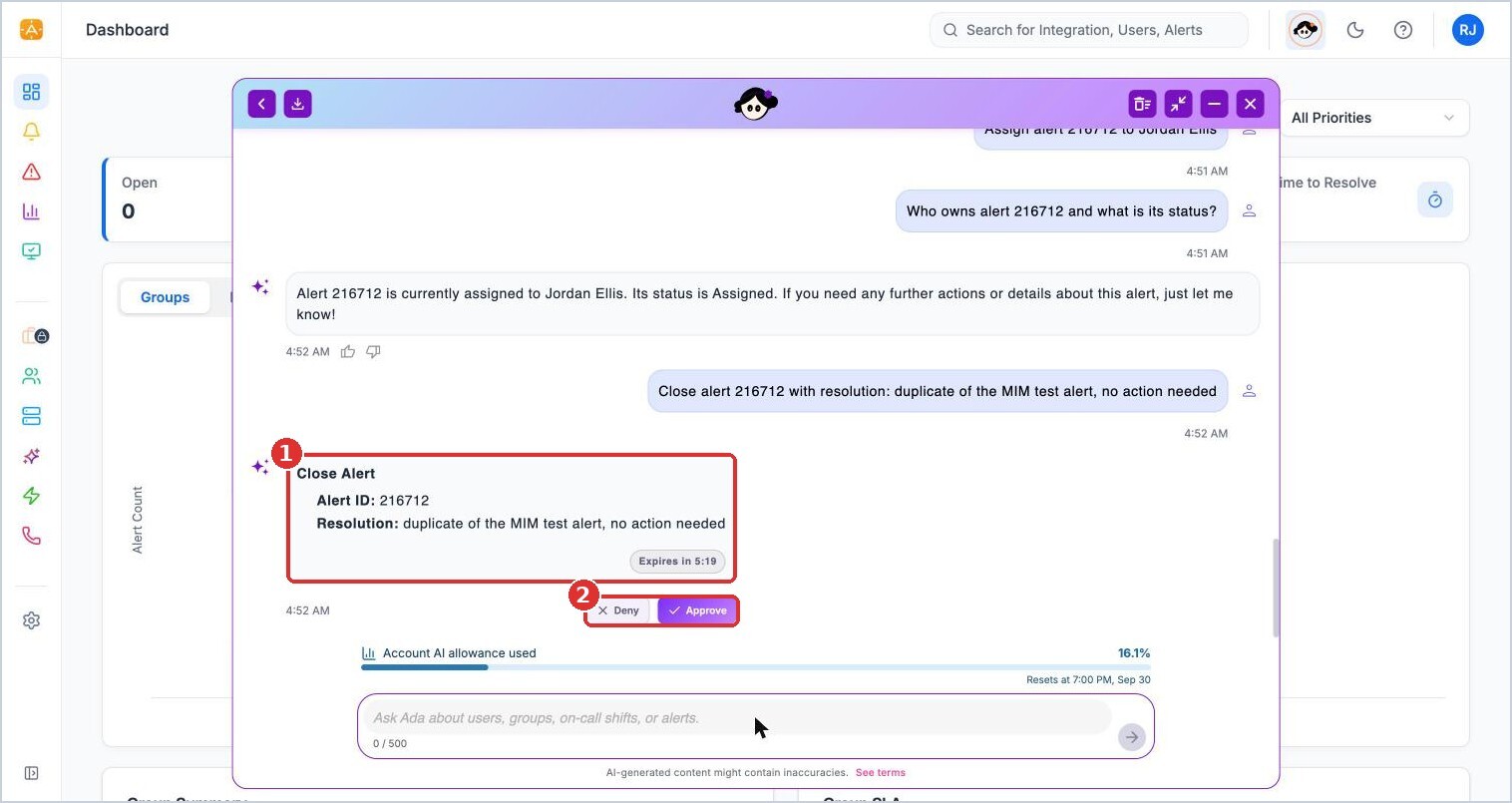
(1) the Close Alert card with the resolution, (2) Deny or Approve
If you choose Deny, Ada cancels and asks what to change.
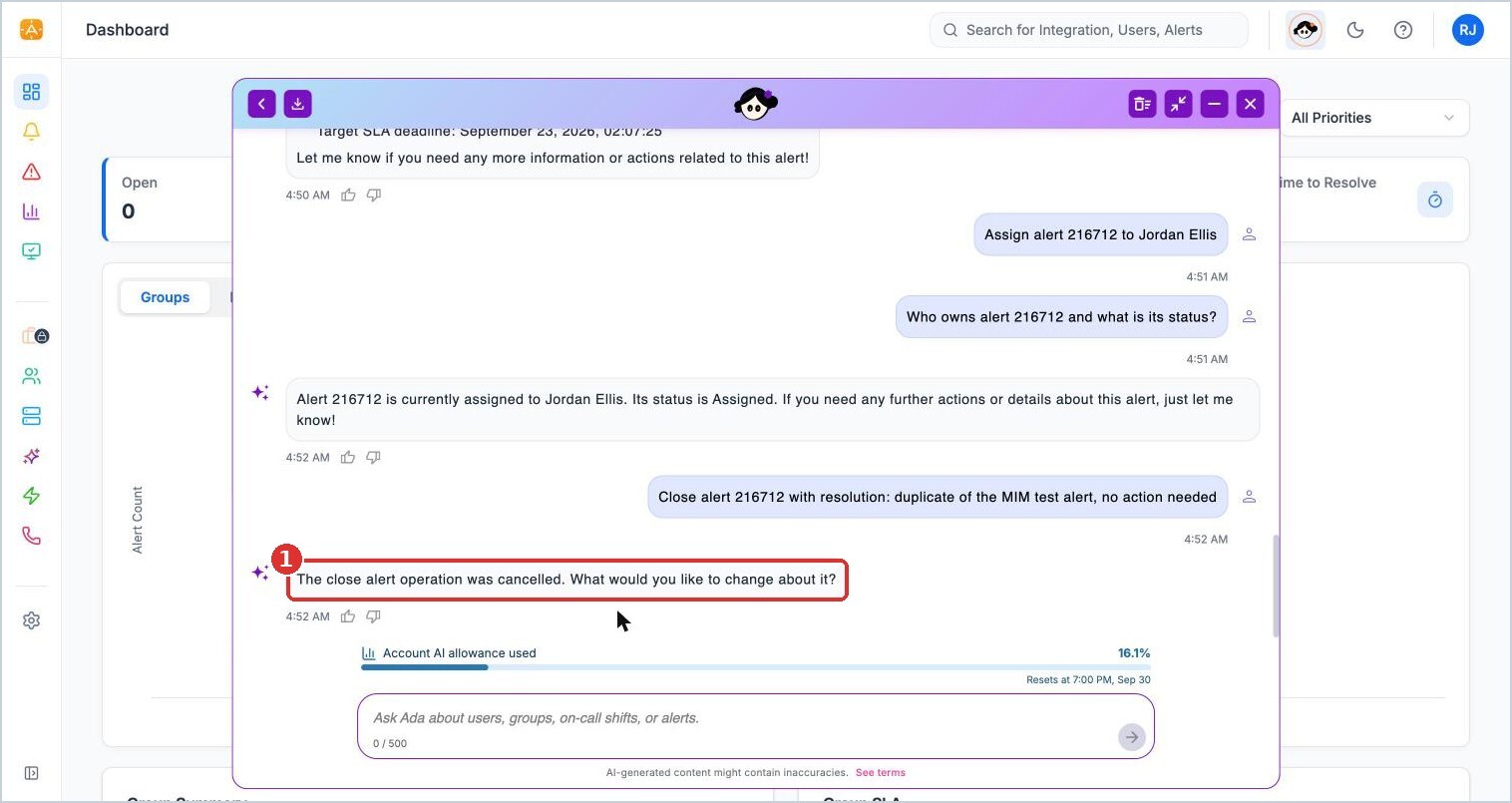
(1) Ada cancels the action and asks what to change
Add an out-of-office entry
"Add out of office for Jordan Ellis from October 5 to October 7, with Maya Chen covering for Platform Operations"
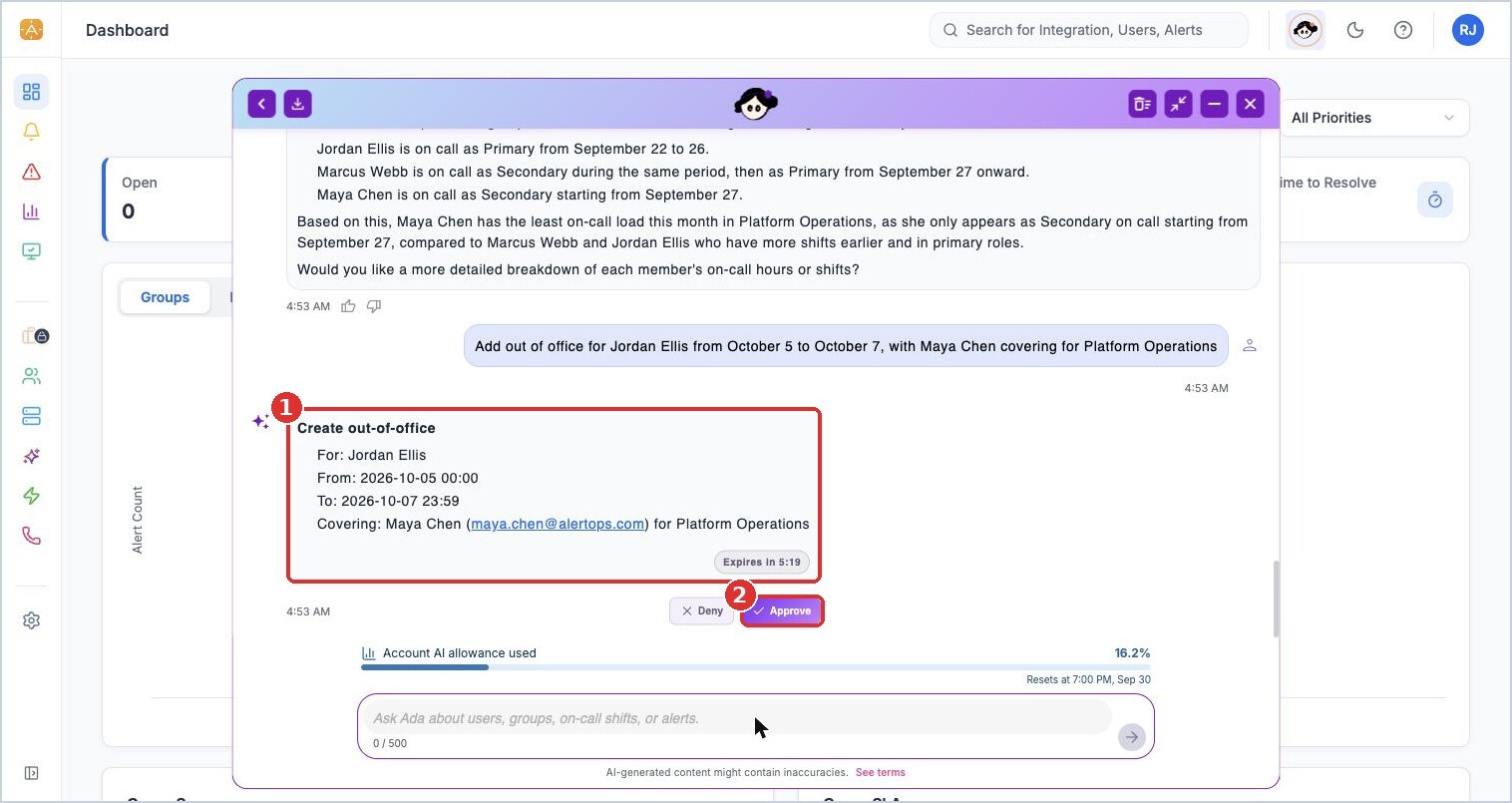
(1) Ada fills in full-day times and the covering person, (2) Approve
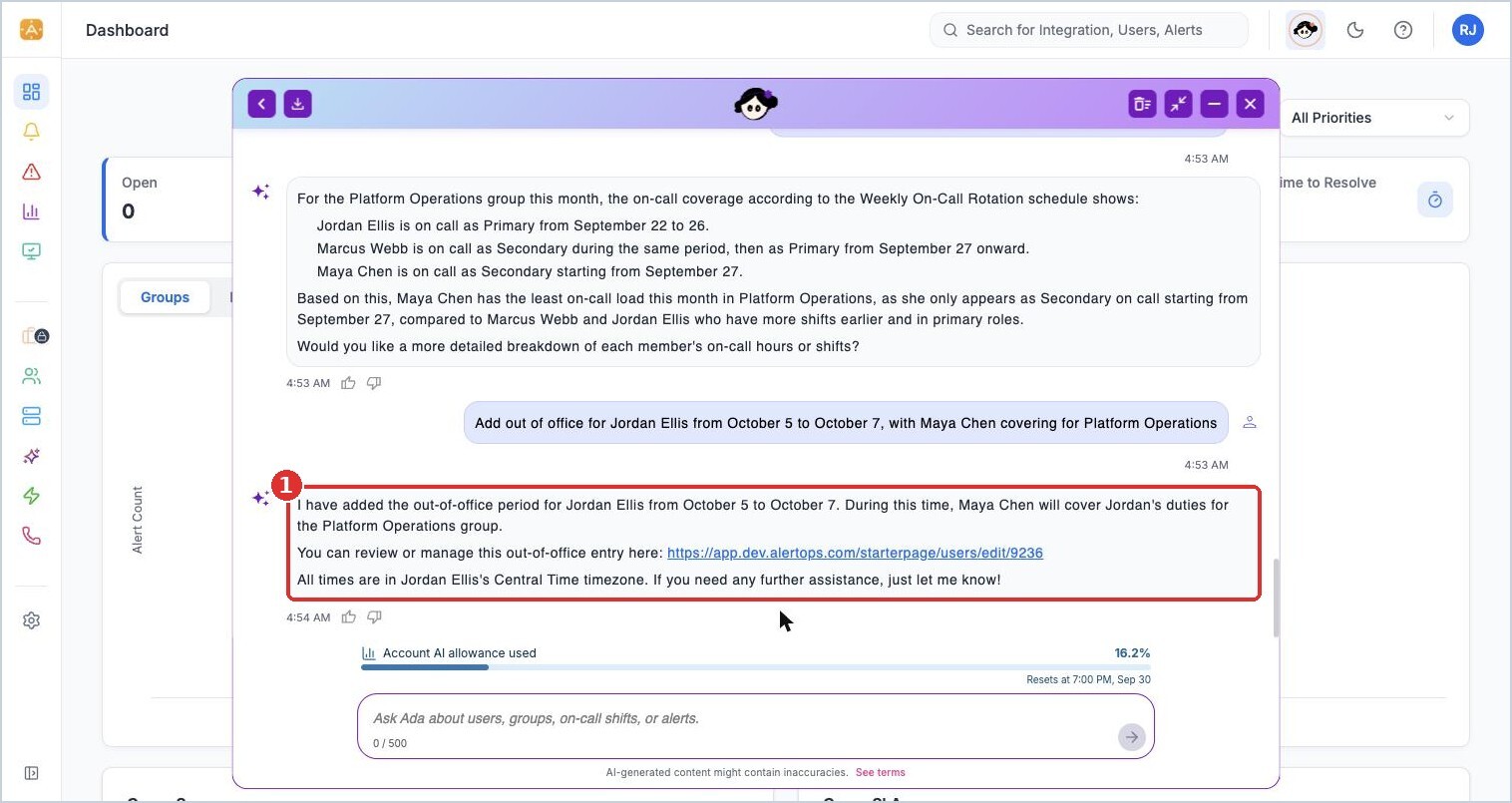
(1) Ada confirms and links to the user's profile, and notes the time zone used
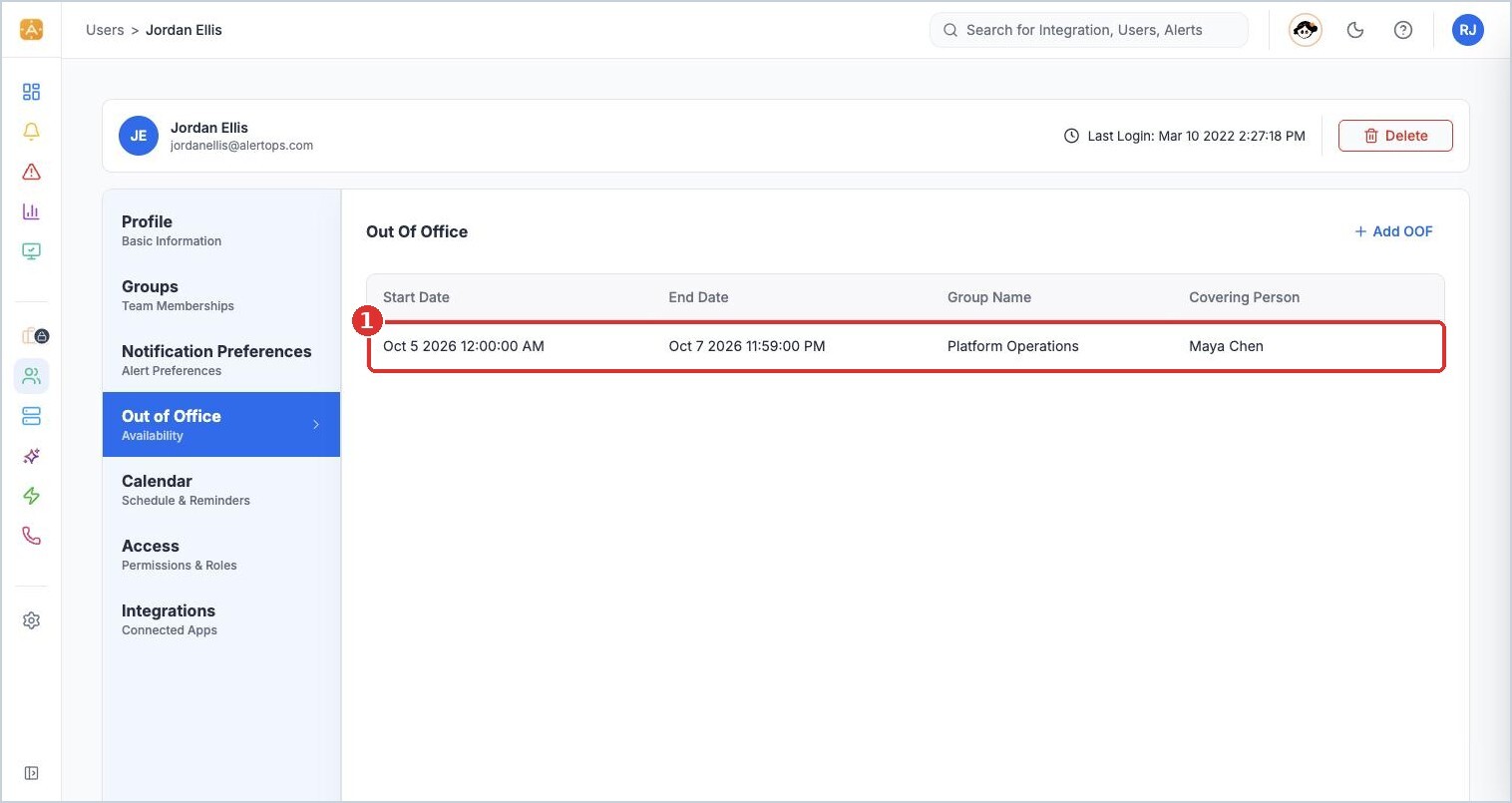
The entry on Jordan Ellis's profile: (1) dates, group, and covering person
Create an escalation policy
"Create a new escalation policy called Platform Ops - Low"
If Ada needs more information, it asks before building the approval card.
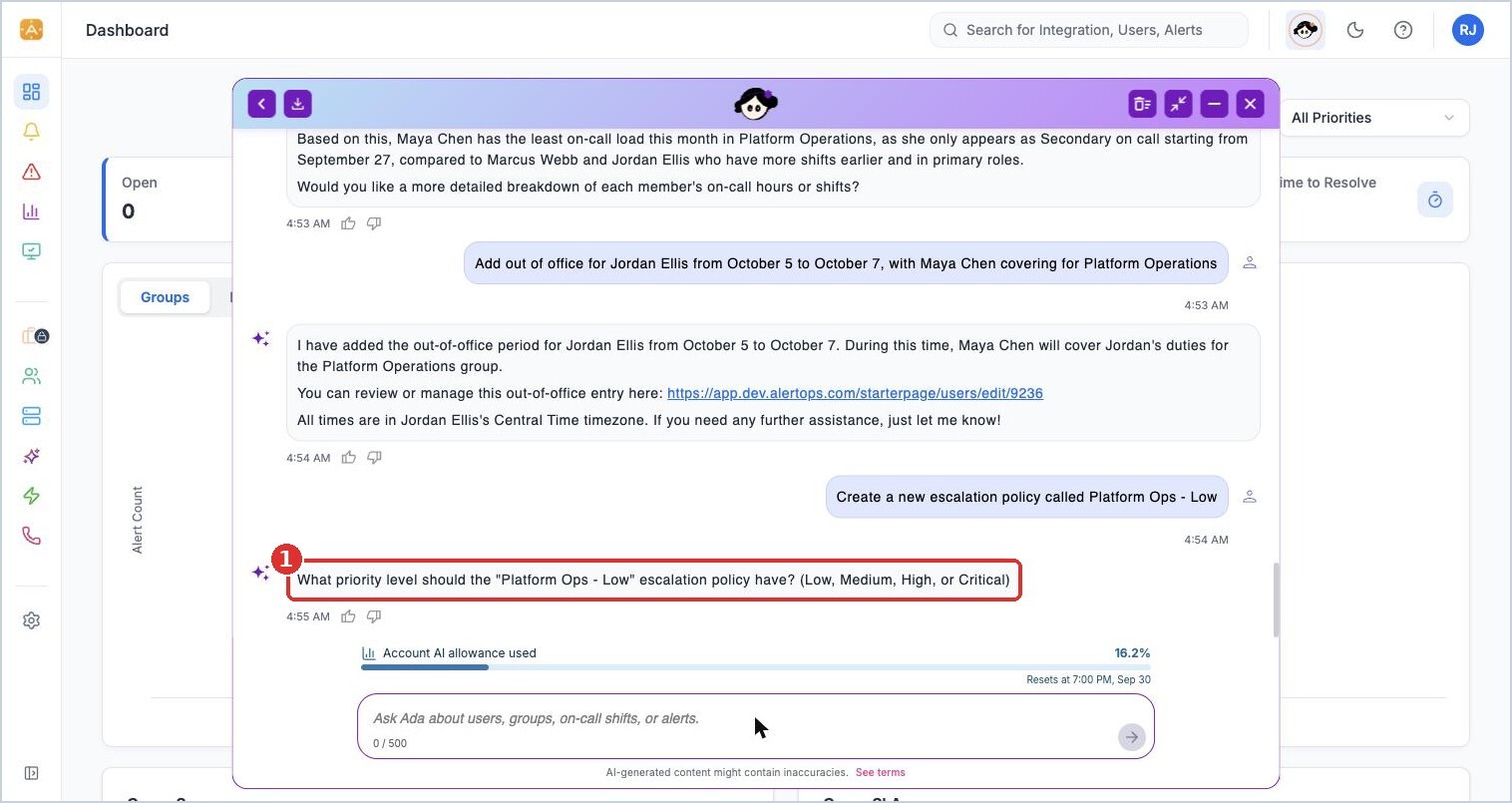
(1) Ada asks for the priority
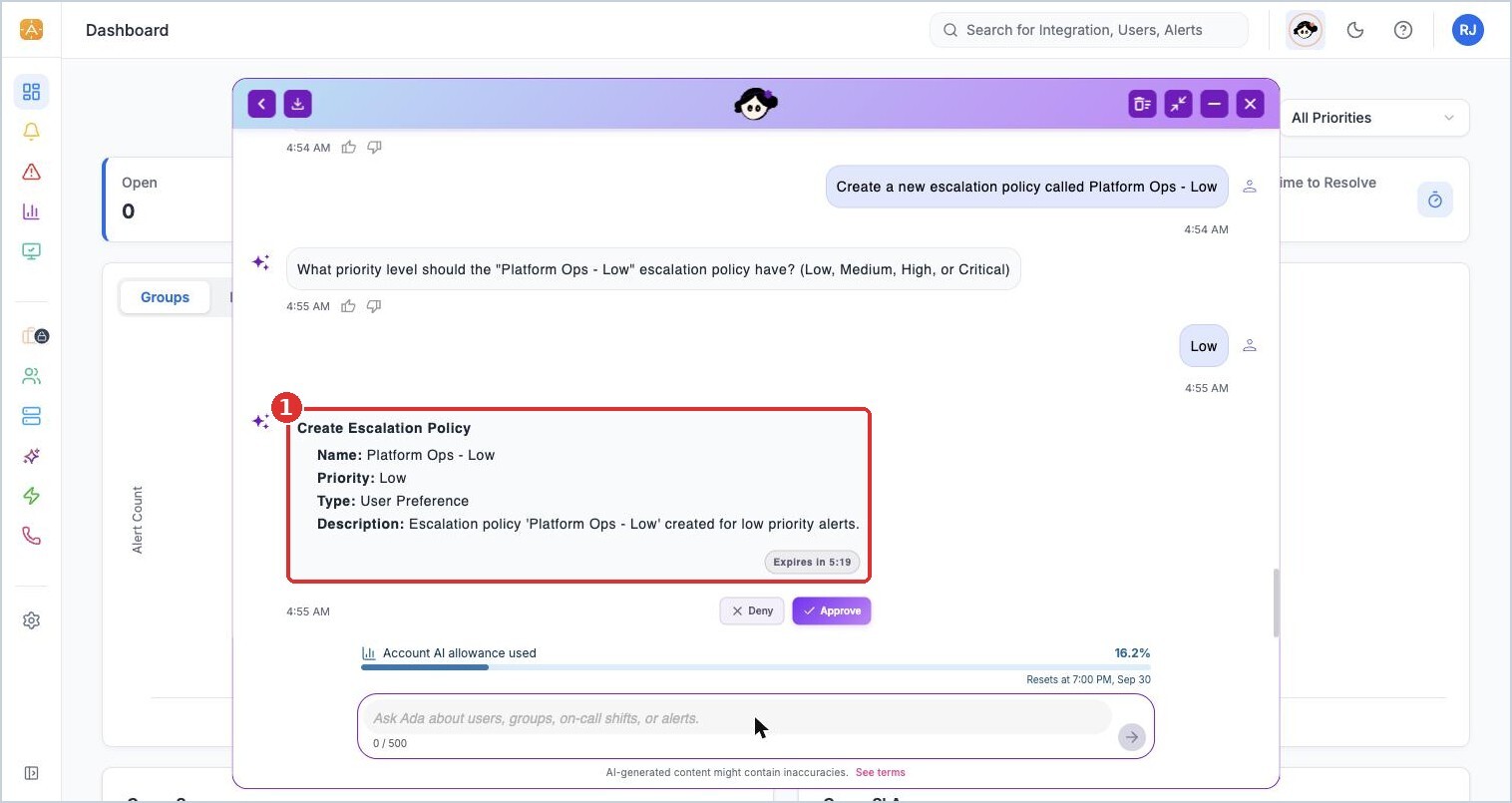
(1) the Create Escalation Policy card: name, priority, type, and description
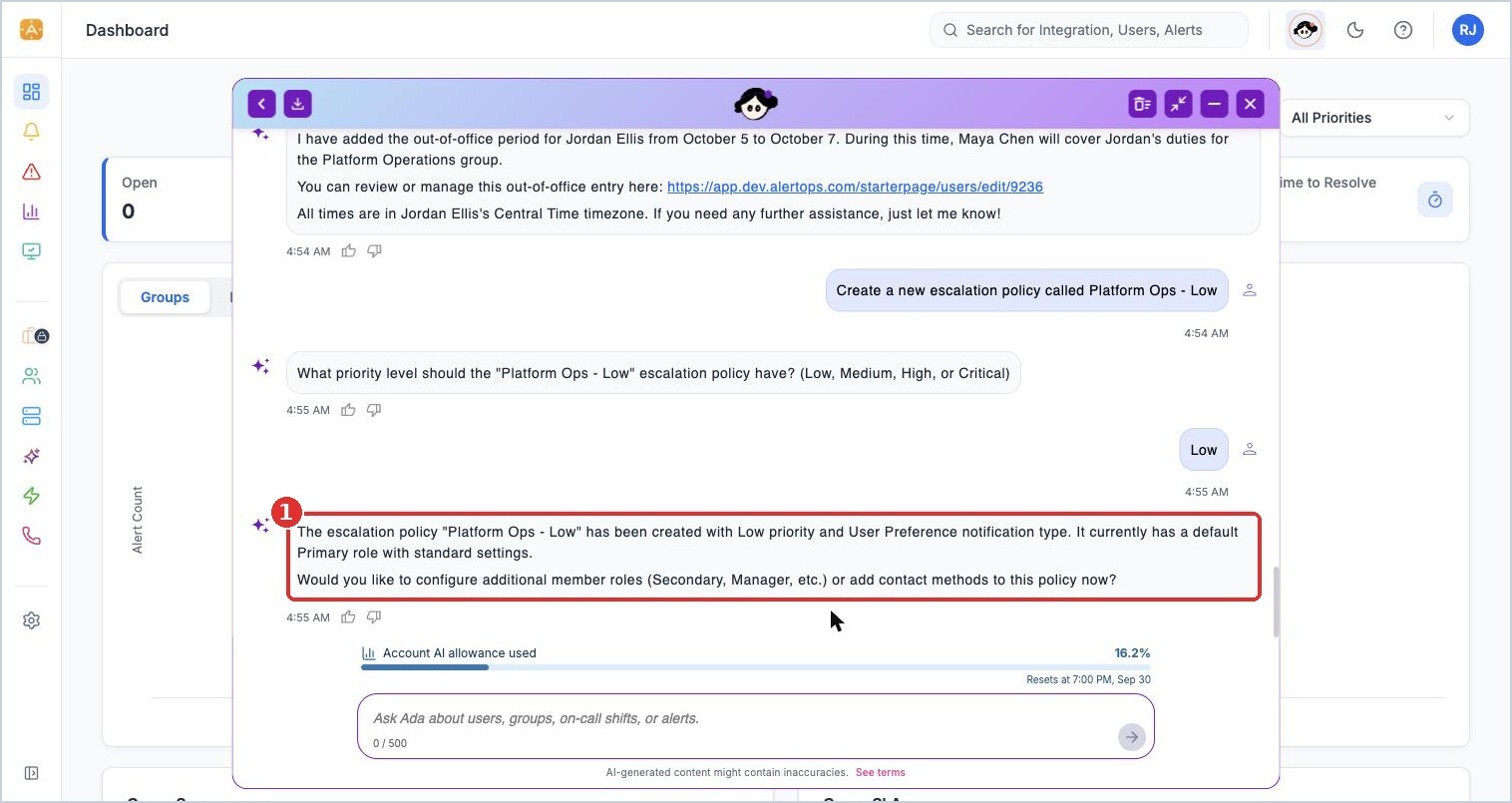
(1) the policy is created with a default Primary role, and Ada offers next steps
Finish configuring the new policy's roles and timing in Response Orchestration > Escalation Policies.
Things to know
- Ada uses times in the affected user's time zone and tells you which one it used.
- Ada can only make changes your role allows.
- Double-check actions on the right item. Include the alert ID or the person's full name.