
Purpose
AlertOps tracks three independent time zones — Account, User, and Schedule. Getting any one of them wrong can delay an alert by hours or page the wrong person in the middle of their night. This article explains what each one does, which one wins in a conflict, and how to configure each correctly.
Audience
Relevant for Owners, App Admins, and Basic users
Everyone who uses AlertOps has a time zone that affects them. Account Owners (read-only view, change via support) and App Admins configure the Account Time Zone and Schedule Time Zones; every user — including Basic users — manages their own personal time zone on their Profile.
Prerequisites
An active AlertOps account. No special permissions are required to set your own User Time Zone. App Admin permissions are required to change a schedule's time zone. The Account Time Zone is read-only in the product.
|
Do this on your first login Set your User Time Zone the first time you sign in to AlertOps. If you do not, AlertOps falls back to the Account Time Zone for every alert timestamp, schedule view, and calendar export you see. Most users are not in the Account Time Zone. |
The Three Time Zones at a Glance
|
Type |
What it controls |
Who sets it |
|
Account |
Organization-wide default; used only as the fallback when a user has not set their own. |
Read-only in the product. Account Owners must email support@alertops.com to change it. |
|
User |
Your personal display time zone. How alert timestamps and schedules appear to you. |
Each user on their own Profile (Profile → Edit → Time Zone). |
|
Schedule |
The time zone that governs when a specific shift is active. Independent of Account and User. |
Admins when creating or editing a shift. |
Precedence — Which Time Zone Wins?
|
Rule If a User Time Zone is set, it overrides the Account Time Zone. If no User Time Zone is set, AlertOps uses the Account Time Zone. Schedule Time Zones are independent of both and govern when shifts are active. |
In practice: everything you see in the web app or mobile app is rendered in your User Time Zone when one is set. Shifts configured in a different Schedule Time Zone are translated to your User Time Zone on display.
Set or Update Your User Time Zone
Relevant for every AlertOps user
- In the top-right corner of the AlertOps web app, click your greeting chip (for example, Hi, IncidentManager) to open the user menu.
- Select Profile from the dropdown. AlertOps opens your own user record at /users/edit/<id>.
- Click Edit at the top-right of the Profile section (not on Preferences, On Call Reminder, or any of the other cards).
- Click the Time Zone field. A dropdown opens with every supported zone, listed by UTC offset (for example, "(UTC-05:00) Eastern Time (US & Canada)").
- Select your time zone.
- Click the green check-mark (✓) icon to save. Navigating away without clicking it discards the edit.
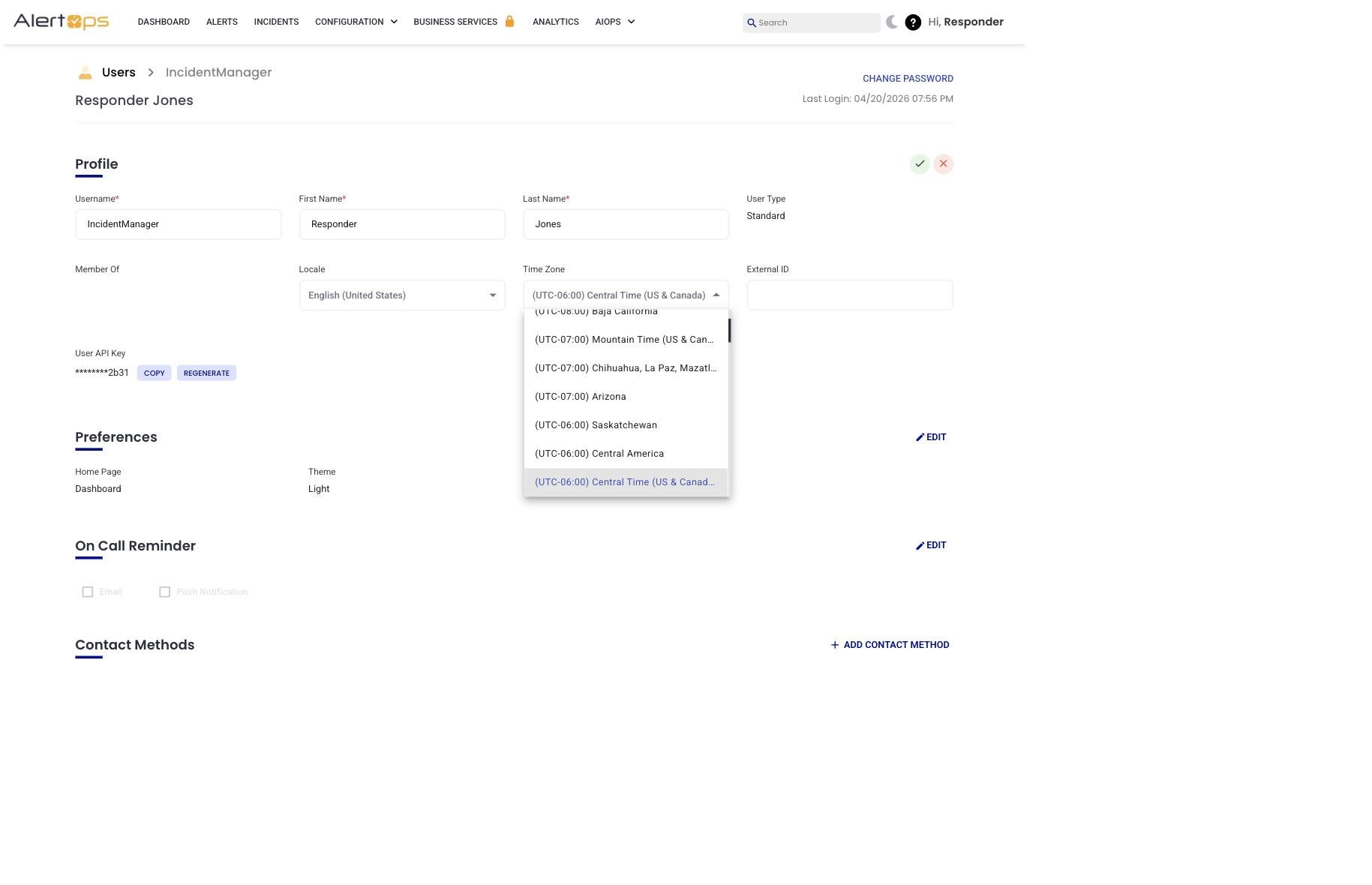
Figure 1. The Profile → Edit form with the Time Zone dropdown open. The current value sits at the top; the dropdown below shows available UTC-offset options.
Result. All alert timestamps, calendars, and schedule views are now displayed in your chosen time zone. Shifts configured in a different time zone are translated to yours on-the-fly — for example, a schedule set to 9am–5pm Central Time appears to a user in Eastern Time as 10am–6pm.
Troubleshooting. If the Time Zone field reverts after you save, refresh the page and try again. If no User Time Zone is set, AlertOps falls back to the Account Time Zone.
Set or Update a Schedule's Time Zone
Relevant for App Admins
There are two entry points to a shift's Time Zone: creating a new shift (which goes through a template picker), and editing an existing shift (which goes straight to the shift editor). Both are covered below.
New shift (includes template-picker step)
- Go to Configuration → Groups and Schedules and open the relevant group.
- Click the Schedule tab.
- Click + Add Shift. AlertOps opens a template-picker page with four categories: Rotating, Fixed with all users, Fixed with selected users, and Others. Each category has named cards (Weekdays After-Hours, Weekends, Business Hours, and so on).
- Click the template card that best matches the pattern you need. The shift editor opens with the template's name and defaults pre-filled.
- In the shift editor, click the Time Zone field (it sits between the Name field and the Color picker) and select the zone the shift operates in. Pick the zone where coverage physically sits (for example, a Mumbai-based rotation should use "(UTC+05:30) Chennai, Kolkata, Mumbai, New Delhi").
- Fill in the remaining shift fields: Shift Interval (start/end day and time), Shift Duration (start and end dates — when the shift template is in effect), Rotation (Fixed or Rotating), Shift Days, and Members in Shift.
- Click Submit.
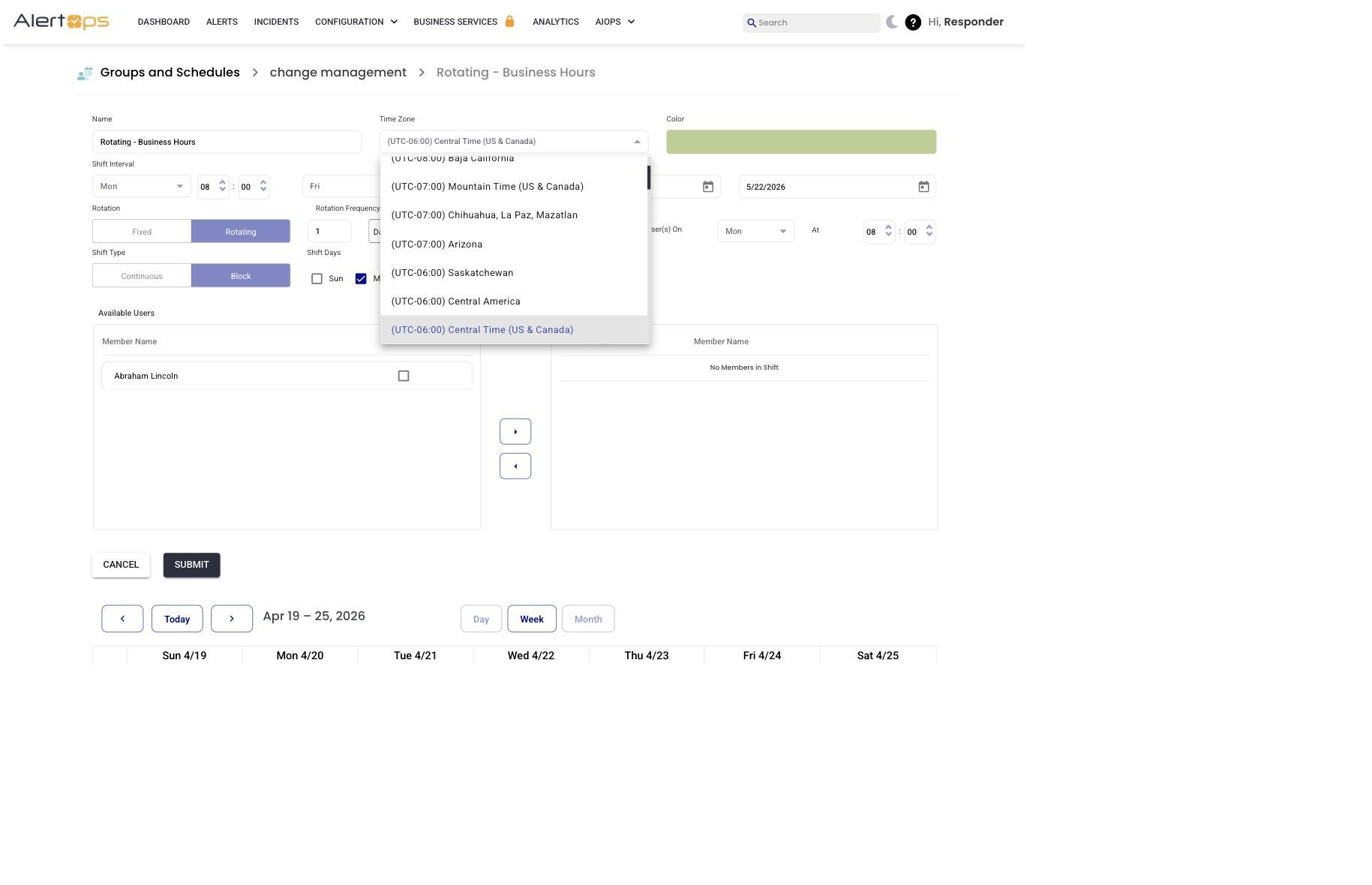
Figure 2. The shift editor's Time Zone field with the dropdown open. Each shift picks its own zone, independent of the Account or any user.
Edit an existing shift
- Go to Configuration → Groups and Schedules and open the group.
- On the Schedule tab, find the shift row. Click the kebab (more-options) icon on the row and choose Edit Shift. The shift editor opens directly — no template picker.
- Click the Time Zone field, pick a new zone, and click Submit.
Result. The shift is anchored to the selected time zone. Users whose User Time Zone differs will see the shift translated into their local time on schedule views and calendar exports.
Troubleshooting. You need Owner or App Admin permissions to edit a schedule's time zone. If the Submit button is disabled, your role does not have those rights — ask your Account Owner.
Change the Account Time Zone
Relevant for Account Owners only
The Account Time Zone is displayed on the Account Settings page as a read-only value in the Summary section. There is no in-product control to change it — no Edit button, no pencil icon. To change it, the Account Owner must email support@alertops.com with the account name and the new time zone they want. The change takes effect immediately once support applies it, and every user who has not set a personal time zone will see timestamps shift accordingly.
Use Cases
Global teams with regional on-call coverage
- Goal: Each on-call responder sees and is paged in their local time.
- Setup: Every user sets their own User Time Zone on first login. Each schedule uses the time zone of the region it covers.
- Result: A 9am–5pm shift defined in Central Time pages the Central-based primary. A responder in Eastern Time sees the shift as 10am–6pm in their own calendar.
Single organization, multiple shifts
- Goal: Keep one organization-wide time zone but run shifts across multiple zones.
- Setup: Leave the Account Time Zone on the HQ zone. Vary the Schedule Time Zone per shift. Users who travel still see everything in their personal time zone.
- Result: Predictable shift anchor points that do not drift if users change their personal time zone.
Best Practices
Do
- Set your User Time Zone on your very first login. This is the single biggest cause of "my alerts arrive at weird times" reports.
- Use the Schedule Time Zone to reflect where coverage actually sits, not the user's convenience.
- When a user moves (new office, travel), remind them to update their User Time Zone.
Don't
- Don't rely on the Account Time Zone as the source of truth for global teams — most of your users probably live in a different zone.
- Don't change a live schedule's time zone without double-checking shift impacts; it will shift every existing shift by the offset difference.