
Purpose
AlertOps uses a role-based security model. Each user is assigned one or more roles, and each role grants a specific set of entitlements — what the user can see and do in the product. This article covers the built-in roles, how to change a user's role, and (on Enterprise plans) how to edit role entitlements or create custom roles.
Audience
Relevant for App Admins and Account Owners
Assigning roles and editing entitlements are admin actions. Everyone else can see their own role on their Profile (under the Roles section).
|
Role vs. Type — don't confuse them User Type (Standard User, Stakeholder, Billing Admin) is permanent — set at user creation. User Role (App Admin, Basic, Integrations Admin, etc.) is changeable and controls what the user can configure across the platform. A Stakeholder or Billing Admin does not use the Role concept — their Type already determines what they can do. See User Types Overview. |
The Built-in Roles
AlertOps ships with seven built-in roles in Configuration → Administration → Roles. Users can hold multiple roles; the effective entitlement set is the union of the assigned roles.
|
Role |
What it grants |
|
Owner |
Every entitlement in AlertOps, including billing. One per account. Transferred only via support@alertops.com — the role is not assignable to additional users the way the others are. |
|
App Admin |
Every entitlement except billing. The role for anyone who configures the platform day-to-day. |
|
Billing Admin |
Access to Account Settings (billing, subscription, company info) only. Cannot see or act on operational configuration. Does not consume a regular user license. Note: Billing Admin appears as both a User Type (on Add User) and a Role (in the Users filter and the Administration Roles list) — see User Types Overview for the distinction. |
|
Integrations Admin |
View all groups; configure Inbound and Outbound integrations; send messages to and view messages for the user's groups; view and update the user's own profile. |
|
Basic |
View the groups the user belongs to; view group messages; view and update the user's own profile; view other members' profiles within shared groups. |
|
Send Message |
Send messages to groups the user belongs to; view messages where the user is either recipient or sender. |
|
System Viewer |
Read-only visibility across the platform — cannot change configuration. Useful for auditors, observers, or read-only monitoring integrations. |
|
Where each role shows up Administration → Roles is the source of truth — all 7 roles appear there. Configuration → Users role filter shows 6 of them (omits Owner, because Owner is an account-level status rather than an assignable role). The User Type dropdown on Add User shows only Standard User and Billing Admin as types on this tenant (and Stakeholder on packages that include it) — the overlap between Billing Admin as a Type and as a Role is real and package-dependent. |
Where You See a User's Role
Roles show up in four places in the product: the Role column on the Users list, the Role filter at the top of the Users list, the Roles section on any user's Profile (with live toggles), and the Roles section on the Administration page where the roles themselves are defined.
Assign a Role to a User
Relevant for App Admins
There are two paths to role assignment. Use whichever fits your flow.
From Configuration → Administration (recommended for bulk)
- Click Configuration → Administration.
- Scroll to the Roles section and click the role you want to assign.
- On the role's detail page, use the Users Assigned to this Role panel on the right. Click + ASSIGN USERS.
- In the dual-list dialog, tick the users on the Available Users side and click → to move them to Selected Users. Use ← to remove.
- Click Submit to save.
From the user's Profile (one at a time)
The Profile's Roles section is fully interactive — toggling a role on or off here has the same effect as assigning or unassigning the role from Administration → Roles.
- Go to Configuration → Users and open the user's profile.
- Scroll to the Roles section. Every role the user could hold is shown as a toggle.
- Flip the toggles on or off.
- Click the green check-mark (✓) to save.
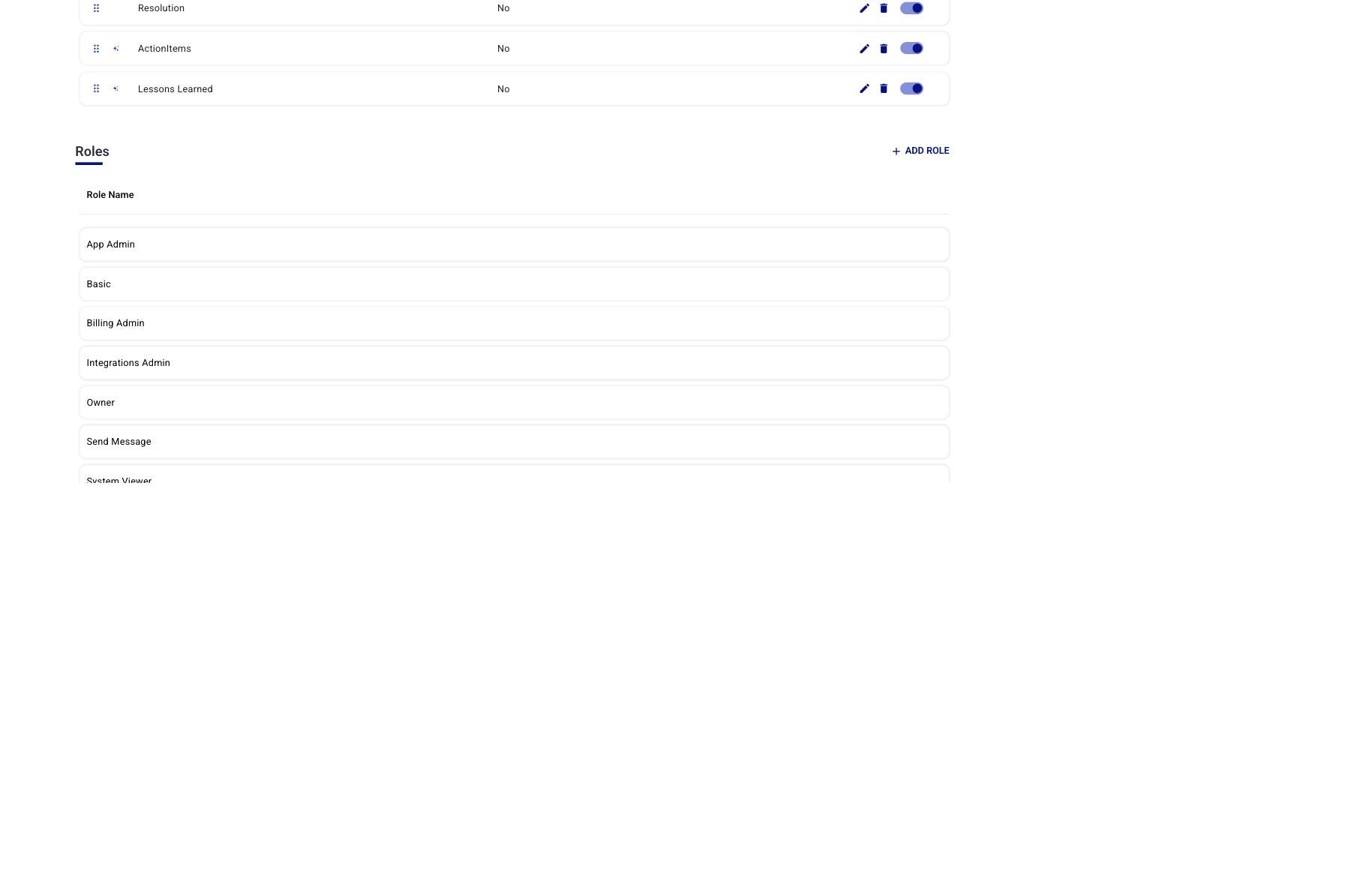
Figure 1. Configuration → Administration → Roles — the authoritative list of all seven built-in roles plus the + ADD ROLE button for custom roles.
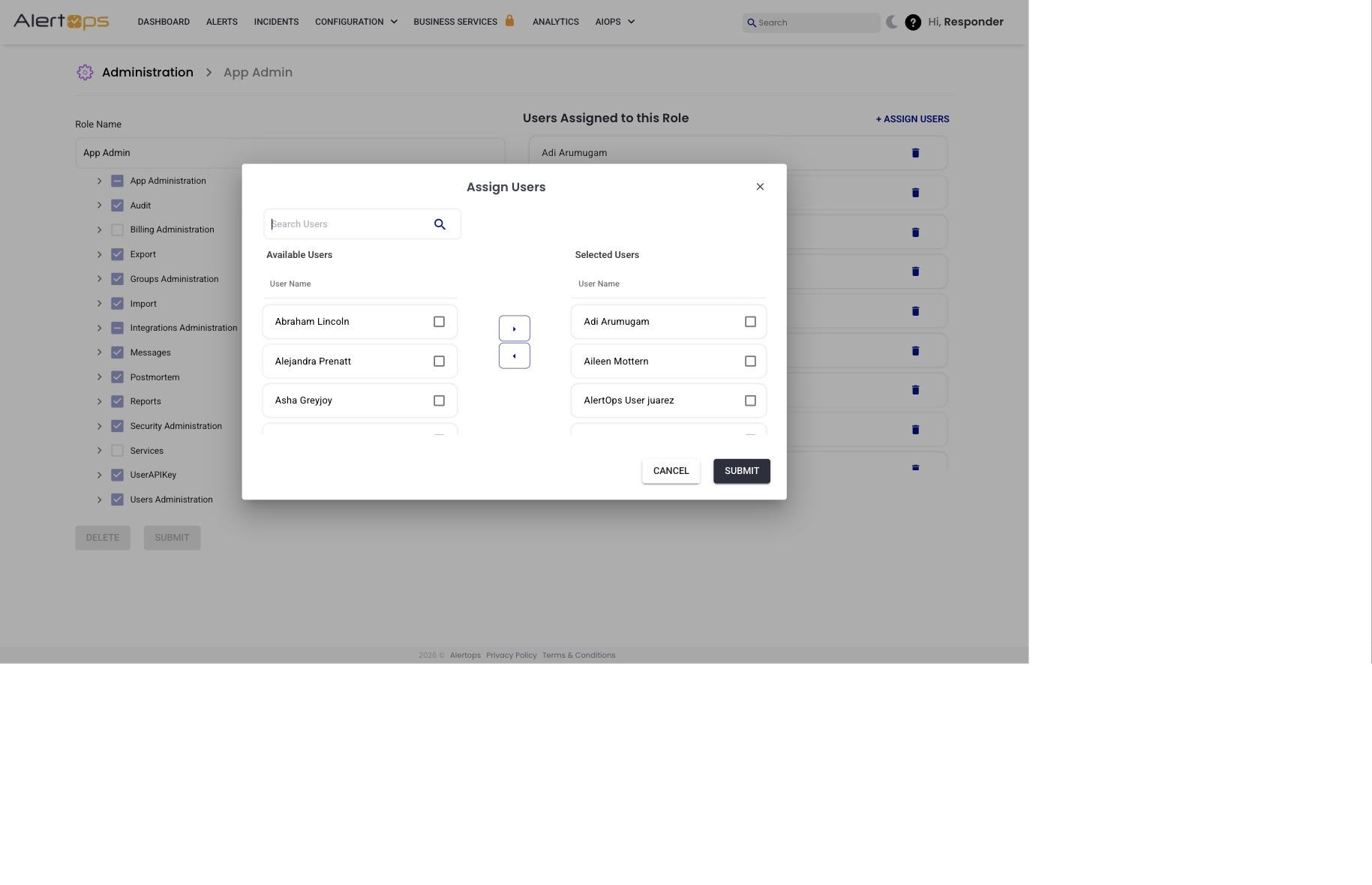
Figure 2. + ASSIGN USERS dialog — tick users on the left, click → to move them to Selected, click ← to remove, then Submit.
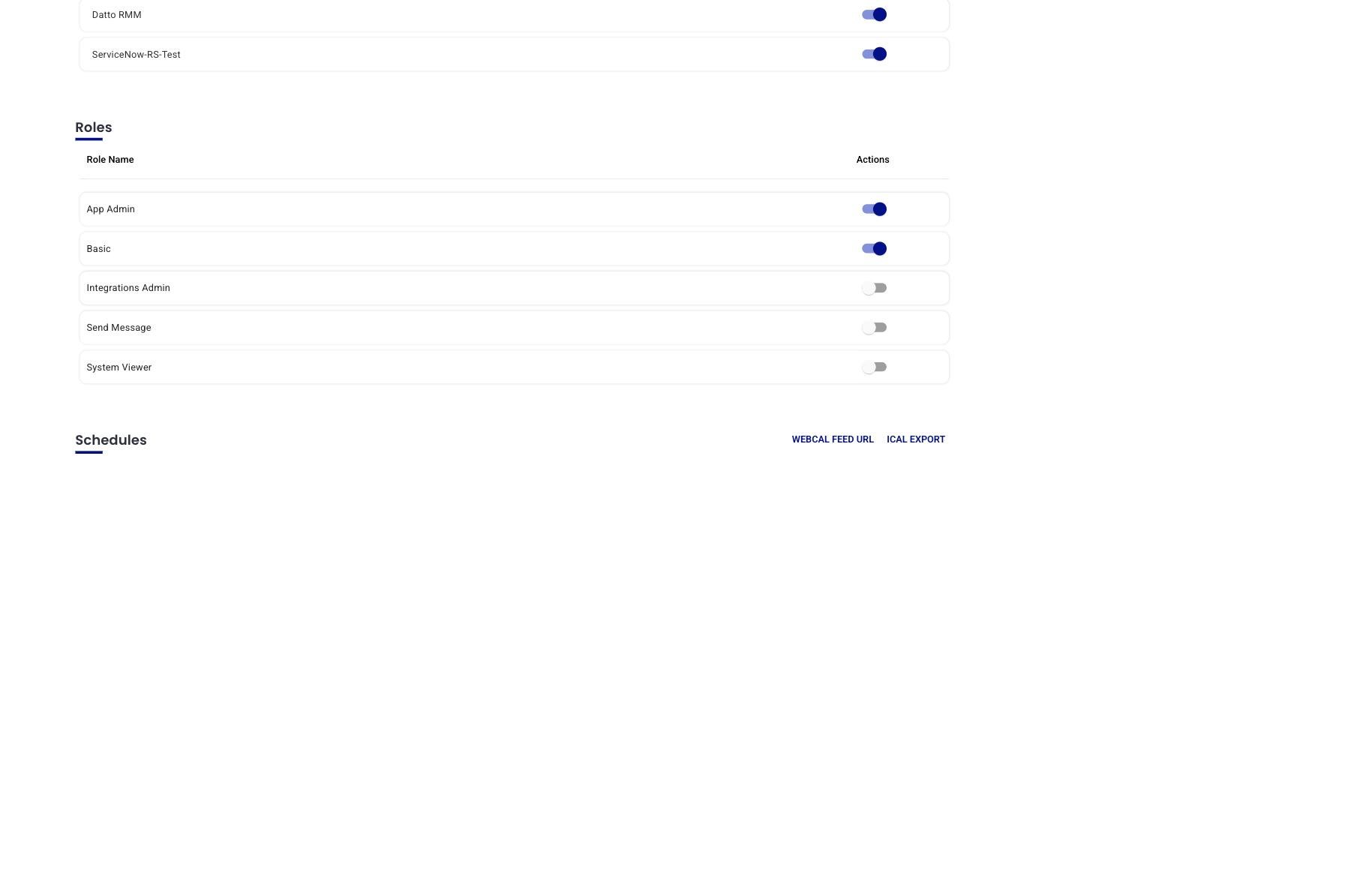
Figure 3. Profile → Roles section — the toggles are live. Flip a role on or off and click the green check-mark to save.
Edit a Role's Entitlements
Relevant for App Admins on Enterprise plans
Changing which entitlements a built-in role grants is an Enterprise-tier feature. On lower tiers, the built-in role entitlements are fixed.
- Click Configuration → Administration.
- Scroll to the Roles section and click the role you want to edit.
- The entitlement tree groups permissions into 14 top-level categories: App Administration, Audit, Billing Administration, Export, Groups Administration, Import, Integrations Administration, Messages, Postmortem, Reports, Security Administration, Services, UserAPIKey, Users Administration. Click a chevron to expand a category and see its sub-entitlements.
- Check or uncheck entitlements to grant or revoke.
- Click Submit to save.
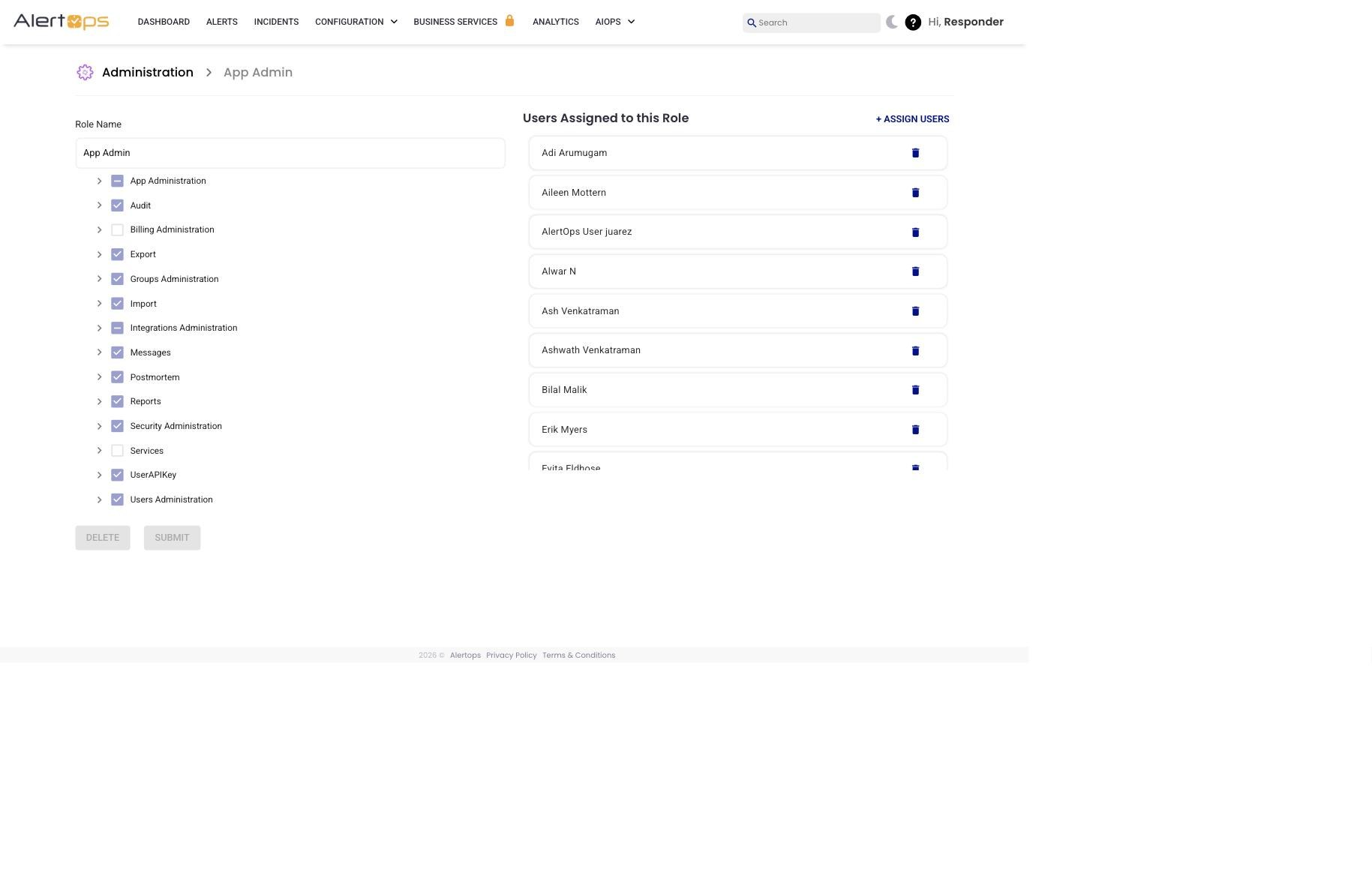
Figure 4. Role edit page — left side shows the entitlement tree grouped by category; right side shows the Users Assigned to this Role panel with + ASSIGN USERS.
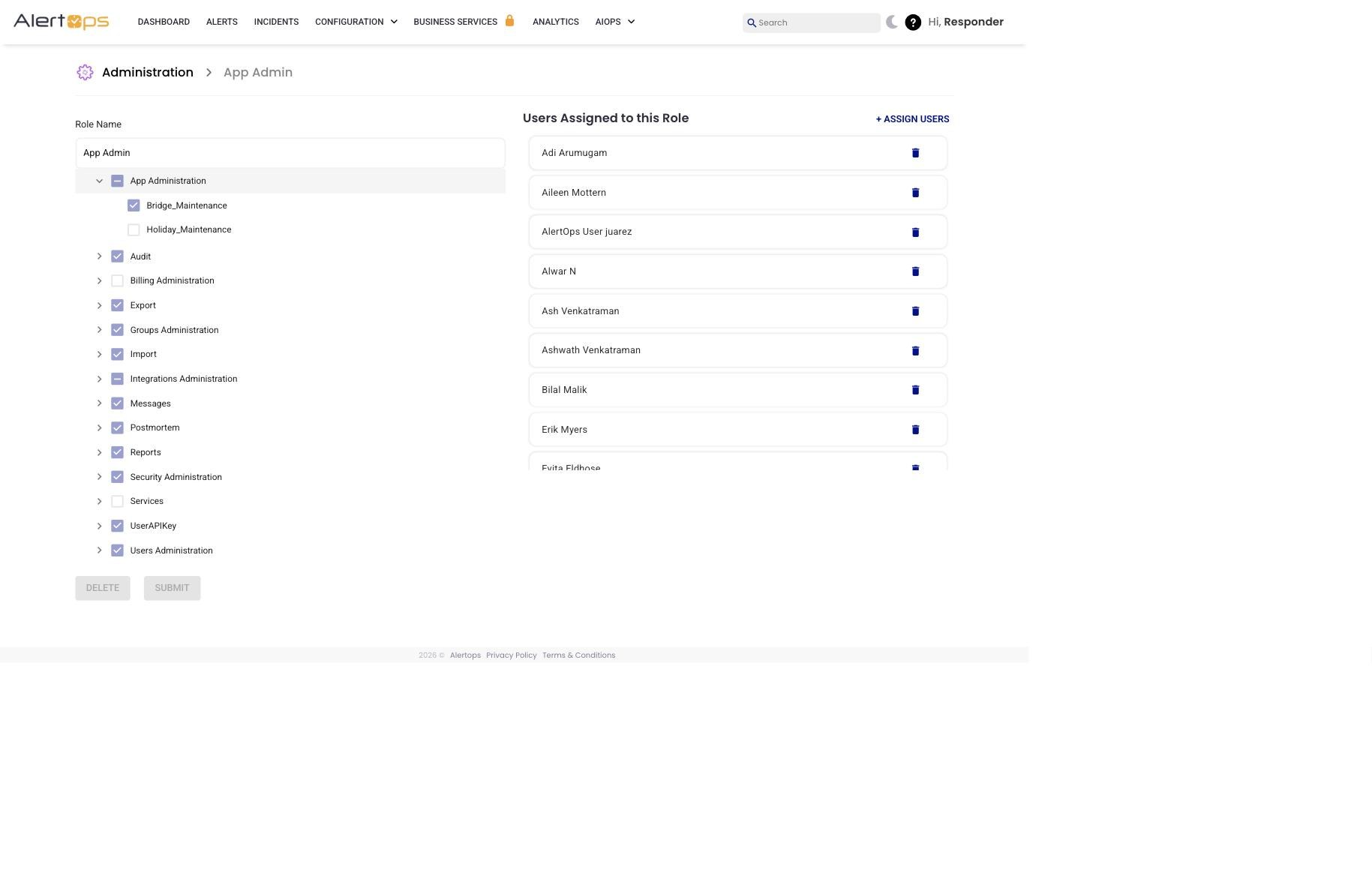
Figure 5. Expanded categories show sub-entitlements (for example, App Administration contains Bridge_Maintenance and Holiday_Maintenance).
|
Impact Changing entitlements on a role takes effect for every user currently assigned to that role. If you remove an entitlement, anyone holding the role loses it immediately on their next page load. |
Create a Custom Role
Relevant for App Admins on Enterprise plans
On Enterprise plans, you can create a role from scratch with any combination of entitlements. Use this when none of the built-in roles fit your policy.
- Click Configuration → Administration.
- Scroll to the Roles section and click Add Role.
- Enter a clear Role Description (this is the name users will see; make it describe the responsibility — e.g., "Integrations-only, no messaging").
- Check the entitlements you want to include.
- Click Submit to save the role. It is now available in the Role dropdown on Add User and the Profile → Roles edit view.
Common Questions
Can one user have more than one role?
Yes. A user can hold multiple roles. Entitlements from all assigned roles combine (union). Remove a role to remove its entitlements.
How do I change the Account Owner?
The Owner is not assignable like other roles. There is exactly one Owner per account, and the Owner can only be transferred by emailing support@alertops.com from the current Owner's address.
Why don't I see "Stakeholder" in the Role list?
Stakeholder is a User Type, not a Role. It does not appear in the Role dropdown. See User Types Overview.
Can I see which role a user currently holds without opening their profile?
Yes — Configuration → Users shows a Role column in the list, and you can filter the list by role using the Role dropdown next to the search box.