
Purpose
The User Profile is where you keep your own AlertOps account in good shape: update your name and password, add the phone or email you want to be reached on, set out-of-office coverage, and export your on-call schedule to your personal calendar. Keeping this information current is the single most important thing you can do to make sure you receive alerts reliably.
Audience
Relevant for every AlertOps user
Every user has a User Profile. Admins can view and edit any user's profile; every other user can view and edit only their own.
Prerequisites
- An active AlertOps user account.
- Access to the AlertOps web app (app.alertops.com) or the AlertOps mobile app.
- A valid email address associated with your user.
How to Open Your Profile
Relevant for every AlertOps user
- In the AlertOps web app, click your greeting in the top-right corner (for example, Hi, <Your Name>).
- Select Profile from the dropdown.
AlertOps opens your own user record at /users/edit/<id>. This is the same page an Admin sees when they edit your user — you just cannot edit fields that are Admin-only (for example, the Roles section).
What the Profile Page Contains
The Profile page is organized into eight sections in this order:
|
Section |
What it contains |
|
Profile |
Core identity fields: Username, First Name, Last Name, User Type, Member Of, Locale, Time Zone, External ID, and User API Key. |
|
Preferences |
Home Page (the page you land on after sign-in) and Theme (Light or Dark). |
|
On Call Reminder |
Toggles for Email and Push reminders before your on-call shift starts. See Article — On-Call Reminders for details. |
|
Contact Methods |
Email, SMS, Phone, and Push channels AlertOps uses to reach you. Add, edit, enable, or disable each one. |
|
Out of Office |
Time windows during which your alerts are routed to a covering user. |
|
Integrations |
Per-integration enable/disable list — opt out of notifications from specific integrations. |
|
Roles |
Platform roles granted to your user (for example, App Admin). Editable only by Admins. |
|
Schedules |
A calendar of your on-call shifts, plus WebCal Feed URL and iCal Export for importing into your personal calendar. |
Change Your Name or Username
Relevant for every AlertOps user
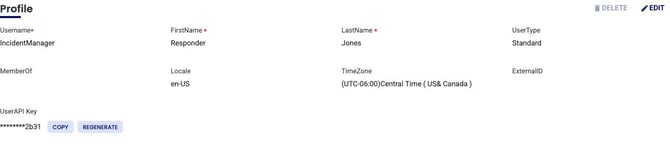
Figure 1. The Profile section with editable identity fields and the User API Key. Edit opens the fields; the green check-mark saves.
- Open your Profile (see "How to Open Your Profile" above).
- In the Profile section, click Edit at the top-right of that section.
- Change your Username, First Name, or Last Name as needed.
- Click the green check-mark to save.
Result. Your updated name or username is saved and displayed across AlertOps (including the top-right greeting).
Troubleshooting. Usernames must be unique across the account — if the save fails, try a different username. If you navigate away without clicking the green check-mark, your edits are discarded.

Figure 2. The Preferences section — Home Page and Theme.

Figure 3. The On Call Reminder section — toggle Email and Push Notification for pre-shift reminders.
Change Your Password
Relevant for every AlertOps user
- Open your Profile.
- Click Change Password at the top-right of the page (next to your Last Login timestamp).
- Enter your current password, then your new password, then re-enter the new password to confirm.
- Click Submit.
Result. Your password is updated. Log out and log back in with the new password to verify.
Troubleshooting. Make sure the new password meets your organization's password policy (length, complexity). If your organization enforces SSO, the local password change may not apply — contact your Admin.
Reset Your Password (If You Forgot It)
Relevant for every AlertOps user
- Go to the AlertOps sign-in page.
- Click Reset Password.
- Enter your username.
- Check the email on file and follow the reset link.
Result. A reset email is sent to the address on your user record. The link expires — use it promptly.
Troubleshooting. Check spam/junk folders. If no email arrives, confirm your username is correct or contact your Admin.
Manage Contact Methods
Relevant for every AlertOps user
Contact methods are the channels AlertOps uses to reach you. Supported channels are:
- SMS (text message)
- Phone (voice call)
- Push (via the AlertOps mobile app)
Each method can also carry a label such as Official or Personal (for example, "Phone-Official").

Figure 4. The Contact Methods section — Add Contact Method, and the four inline controls on each row (time window, edit, delete, enable/disable).
Add a Contact Method
- Open your Profile and scroll to Contact Methods.
- Click + Add Contact Method.
- Choose a method from the Select Contact Method dropdown (for example, Phone-Official).
- Enter the contact value (phone number, email address, etc.).
- Optional: set a Wait Time — how long AlertOps waits before retrying this method.
- Optional: enable the retry toggle and set a retry duration (for example, 10 minutes).
- Click the green check-mark to save.
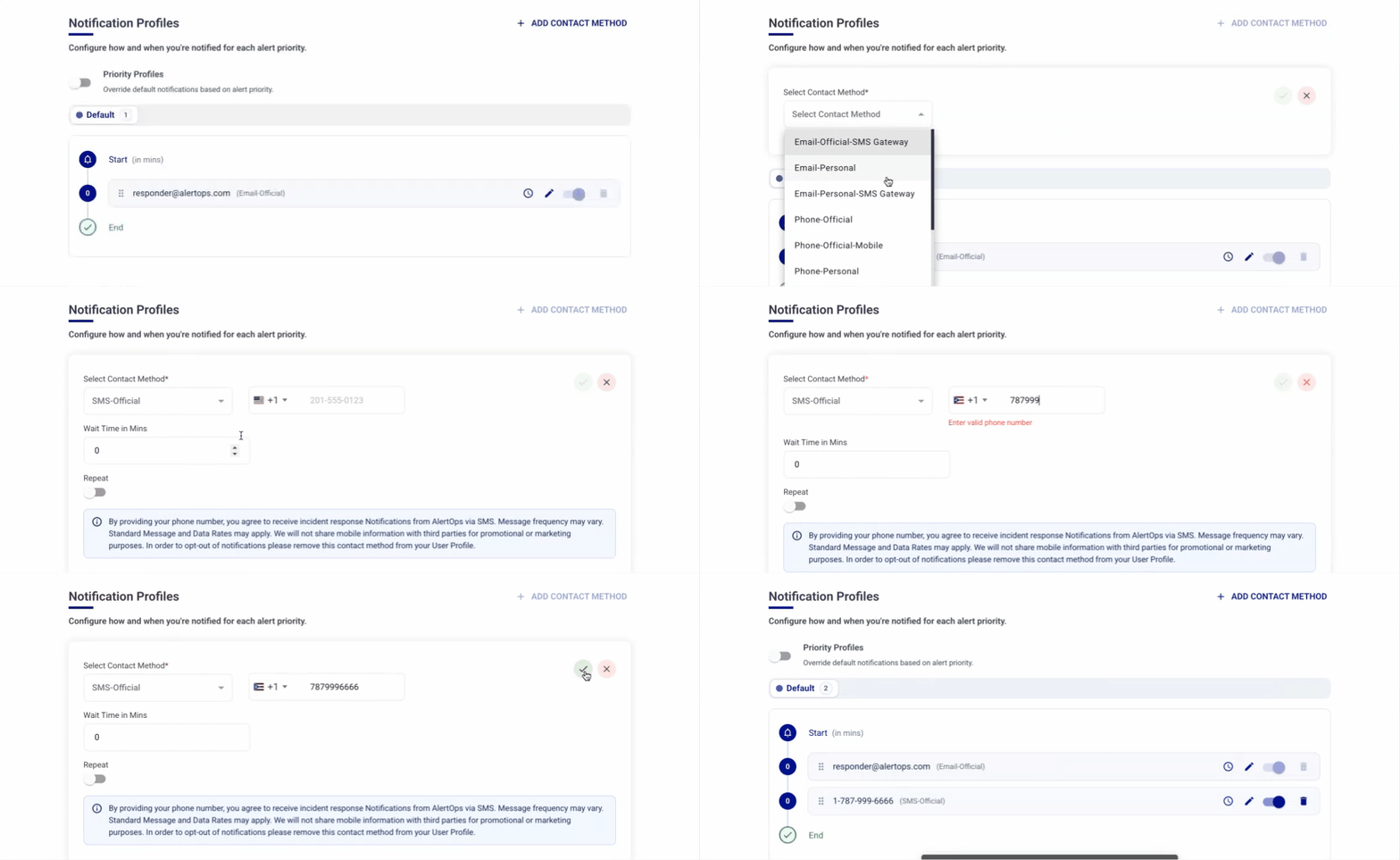
Result. The contact method is added and enabled. AlertOps will use it to reach you according to your escalation policies.
Troubleshooting. Trigger a test alert and confirm you receive it on the new method. Double-check country code on phone numbers.
|
Consent note By adding a contact method, you opt in to receiving AlertOps notifications on that channel. Standard messaging and data rates may apply. Message frequency follows the policies and rules configured on your account. To opt out of notifications on a given channel, delete the contact method from your Profile — turning the toggle off disables it but leaves it on record. |
Edit, Disable, or Delete a Contact Method
Each contact method row has four controls on the right:
- Clock icon — view or set a time window when this method is active.
- Pencil icon — edit the value (for example, change the phone number).
- Trash icon — delete the method entirely.
- Toggle — temporarily enable or disable the method without deleting it.
Configure Out-of-Office Coverage
Relevant for every AlertOps user

Figure 5. The Out of Office section — click Add OOF to create a new coverage entry.
An Out-of-Office (OOF) entry routes alerts that would otherwise come to you to a covering user during a defined date and time range. Use this for vacations, conferences, or any period when someone else should cover your on-call duties.
- Open your Profile and scroll to Out of Office.
- Click + Add OOF.
- Pick a start and end date and time.
- Click Select Covering Person and choose the colleague who will cover for you.
- Optional: uncheck the All Groups toggle if you want a different covering person for each group you belong to.
- Click Submit.
Result. Alerts destined for you during the window are delivered to your covering user. The OOF entry appears in the Out of Office list with its start/end dates, group, and covering person.
Troubleshooting. Double-check the time zone on the date range (it follows your user's Time Zone setting). Make sure the covering user is active and has valid contact methods.
Set Up On-Call Reminders
Relevant for every AlertOps user
AlertOps can send you a reminder before your on-call shift starts so you are not caught off guard. The reminders are controlled on your Profile in the On Call Reminder section.
- Open your Profile and scroll to On Call Reminder.
- Click Edit.
- Enable Email, Push Notification, or both — whichever channels you want the reminder on.
- Save.
For the full On-Call Reminder configuration and timing, see On-Call Reminders.
Manage Which Integrations Can Notify You
Relevant for every AlertOps user
The Integrations section lists every integration configured on your account. You can enable or disable each integration individually for your user — useful when you only want to be notified for a subset of monitoring tools or when responsibilities rotate across teams.
- Turn the toggle next to an integration on to receive notifications from it.
- Turn the toggle off to suppress notifications from that integration for your user.
Integration-level opt-outs are available in both the web app and the AlertOps mobile app.
Review Your Platform Roles
Relevant for every user (view); Admins (edit)

Figure 7. The Roles section — each assigned platform role is shown with a toggle. Only Admins can add or remove roles; every user can view them.
The Roles section on your Profile lists every platform role assigned to your user (for example, App Admin). This controls what you can do across the whole AlertOps account, separate from the group-member roles (Primary/Secondary/Manager) described on individual groups. If a role is missing or you believe you have one you should not, contact your Admin.
View and Export Your On-Call Schedule
Relevant for every AlertOps user
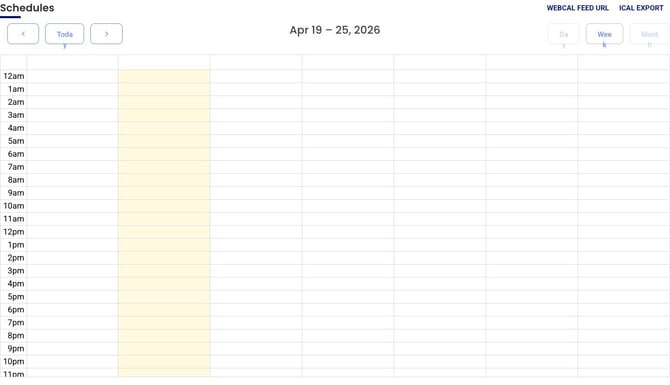
Figure 6. The Schedules section — WebCal Feed URL and iCal Export buttons sit at the top-right; the calendar toggles Day / Week / Month.
At the bottom of your Profile, the Schedules section shows a calendar view of your on-call shifts across all groups you belong to. You can view by Day, Week, or Month. Two buttons at the top-right of the section let you export the schedule to a personal calendar:
- WebCal Feed URL — a live-updating URL. Paste it into Apple Calendar, Outlook (Office 365), Google Calendar, or Yahoo Calendar and it will stay in sync with AlertOps.
- iCal Export — a one-time download of a .ics file. Open it in your calendar app to import a snapshot of the current schedule.
WebCal (live, recommended)
- In Schedules, click WebCal Feed URL. The URL is copied to your clipboard.
- Paste it into your calendar platform's "Add calendar by URL" flow.
- Future schedule changes made in AlertOps will show up automatically.
iCal (one-time snapshot)
- In Schedules, click iCal Export. A .ics file downloads.
- Open the .ics file in your calendar app to import the current schedule.
Troubleshooting. If events are not showing, confirm your calendar platform supports WebCal/iCal URLs. For one-time imports, re-download the .ics if the schedule has changed since the first import — one-time imports do not auto-refresh.
Your User API Key
Relevant for Admins and advanced users
The User API Key is a secret token tied to your user. It is shown in the Profile section (partially masked, for example ********2b31) with two controls:
- Copy — reveal and copy the full key to your clipboard.
- Regenerate — invalidate the current key and issue a new one.
|
Security Treat the User API Key like a password. Only paste it into trusted tools and never commit it to a public code repository. Regenerate the key immediately if you suspect it has leaked — the old key stops working the moment you regenerate. |
Best Practices
Do
- Keep your contact methods current. A single stale phone number can cause a missed page.
- Create Out-of-Office entries before planned absences, not while the alert is already firing.
- Use WebCal (live) rather than iCal (snapshot) unless you specifically want a frozen copy.
- Regenerate your User API Key immediately if you think it may have leaked.
Don't
- Leave outdated contact methods enabled — even a disabled-but-present method is a distraction.
- Share your User API Key with anyone. If two people need API access, issue a dedicated integration or service account.
- Rely on an iCal export you imported months ago without verifying that your schedule has not changed since.