
Purpose
Every AlertOps user has exactly one User Type that determines what they can do with alerts and which parts of the platform they can access. The three types are Standard User, Stakeholder, and Billing Admin. This article explains each one, the rules that apply to all three, and how to pick the right type when creating a user.
Audience
Relevant for Admins creating or managing users
Admins (App Admin or Owner) choose the User Type when creating a user. Everyone else only needs to know which type applies to them — it shows on their own Profile under the "User Type" field.
The One Rule That Matters
|
User Type is permanent You cannot change a user's Type once the user has been created. In the Profile Edit form, the User Type field is rendered as plain read-only text while every other field becomes an editable input. If you need to change someone's Type, you have to delete the user and re-create them with the correct Type. Plan ahead — get it right the first time. By contrast, a user's platform Role (App Admin, Basic, etc.) CAN be changed at any time. Do not confuse the two. |
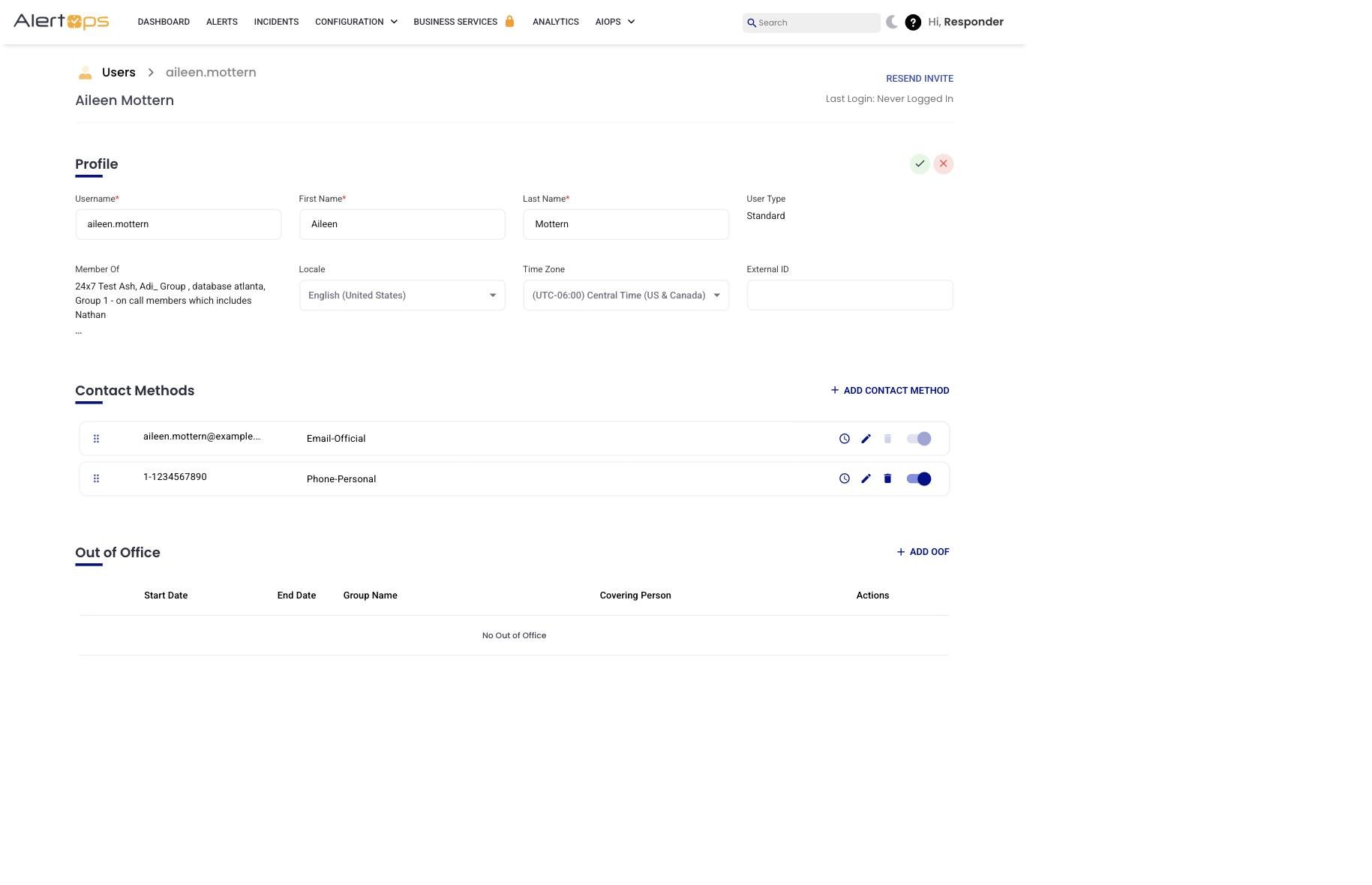
Figure 1. Profile Edit mode — every field is an editable input except User Type, which is locked as plain text.
The Three Types at a Glance
|
Type |
Can receive alerts? |
Can respond / act on alerts? |
Consumes a user license? |
|
Standard User |
Yes — email, SMS, phone, push. |
Yes — acknowledge, assign, resolve, configure. |
Yes. |
|
Stakeholder |
Yes — read-only notifications. |
No — cannot acknowledge, assign, or modify alerts. |
Typically yes (confirm with your plan). |
|
Billing Admin |
No. |
No — access is limited to Account Settings. |
No — does not consume a regular user license. |
Standard User
The default User Type. Use it for anyone who will actually respond to alerts or configure the platform — on-call engineers, SREs, NOC staff, admins, and anyone else who needs to see or act on incidents.
- Can receive notifications on every channel (email, SMS, phone, push).
- Can acknowledge, assign, and resolve alerts.
- Can be assigned any platform Role (App Admin, Basic, Integrations Admin, etc.) to control what configuration they can change.
- Consumes a standard user license.
Stakeholder
A read-only listener. Stakeholders are people who want awareness of alerts without needing to act on them — for example, an executive who wants to see major incidents pass through, or a customer-success lead who wants to know when a customer is affected.
- Can receive notifications.
- Cannot acknowledge, assign, or modify alerts.
- Stakeholders are "non-interactive" — the alert arrives, but there is nothing to click to change its state.
- Because Stakeholders do not interact with alerts, a platform Role is not applicable — the User Role field is not available when you pick this type.
|
Package availability Stakeholder is package-gated. If "Stakeholder" does not appear as an option in your User Type dropdown, your AlertOps package does not include it. Contact sales@alertops.com to check or add it. |
Billing Admin
A finance-facing user. Billing Admins can see and change Account Settings (billing, subscription, company information) without consuming a user license or having any visibility into operational alerts.
- Cannot receive alerts.
- Cannot respond to alerts.
- Can only access Account Settings in the UI — the Configuration, Groups, Schedules, and Integrations areas are not available to them.
- Does not consume a regular user license.
- Like Stakeholder, a platform Role is not applicable for Billing Admin — the User Role field is not available when you pick this type.
Set a User's Type
Relevant for Admins
You choose the User Type only at creation time. You cannot change it afterwards.
- Go to Configuration → Users.
- Click + Add User in the top-right.
- Enter Email, First Name, and Last Name.
- Select the User Type — Standard User (default), Stakeholder, or Billing Admin.
- If you picked Standard User, choose a User Role from the dropdown. For Stakeholder or Billing Admin the User Role field is not available — skip this step.
- Click Submit. The user gets an email with a password-reset link.
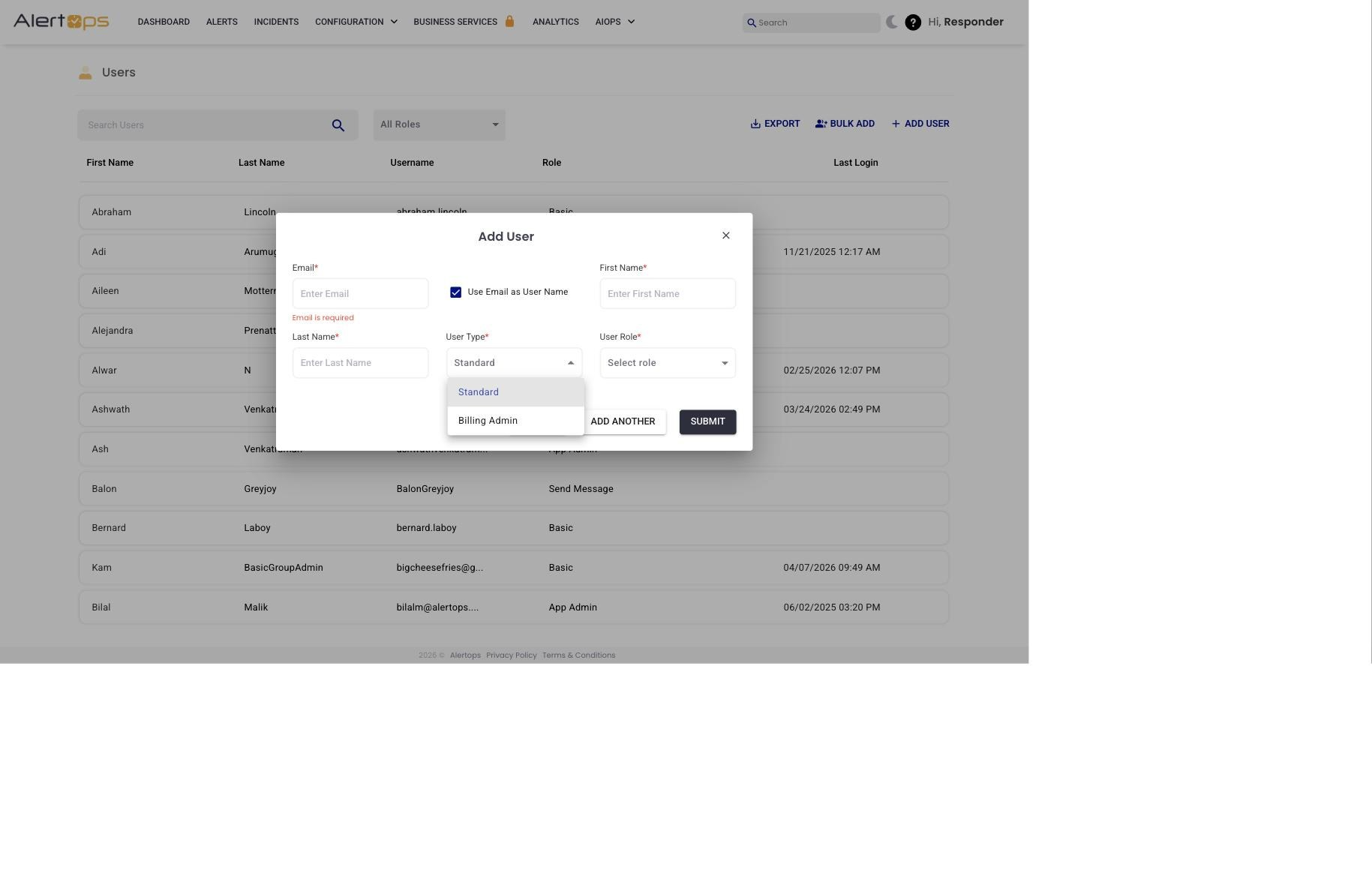
Figure 2. User Type dropdown on the Add User modal — pick once; cannot change later. The dropdown shows the User Type options available on your package.
Type vs. Role — Why Both Exist
User Type and platform Role are two independent knobs on a user:
- User Type — what the user is for (responder vs. read-only listener vs. billing contact). Permanent.
- Platform Role — what they can configure across the platform (App Admin can edit any integration; Basic can only edit their own profile; etc.). Changeable any time by an App Admin.
A Standard User can have any platform Role. A Stakeholder or Billing Admin does not use the platform Role concept — their User Type already pins what they can do. See User Roles for the list of Roles and what each one grants.
Common Questions
I created a user with the wrong type. How do I fix it?
Delete the user and re-create them with the correct type. Before deleting, note their group memberships, contact methods, and schedule assignments so you can restore them after re-creation.
Can a Stakeholder respond "Ack" via email?
No. Stakeholders receive alert notifications but cannot change alert state. Reply-to-acknowledge is a Standard User capability.
Does Billing Admin count as a user for my seat count?
No. Billing Admin does not consume a standard user license — that is the main reason the type exists. Standard User and Stakeholder typically do; confirm with your plan.