
Overview
Relevant for App Admins who forward alert data to other tools
Message.Payload is a system field that stores the complete request body AlertOps received from an inbound integration. Mapped fields such as Alert.Topic or Alert.SourceIdentifier carry only the values you mapped. Message.Payload carries the whole event, including fields you never mapped, nested objects and arrays. You insert it as the token <<Message.Payload>> anywhere AlertOps accepts alert fields, such as workflow messages and outbound request bodies.
Key benefits:
- No re-mapping — Forward the source event to a ticketing tool, chat channel or data store without adding a mapped field for every attribute.
- Full context in notifications — Put the raw event in a workflow email or custom notification so responders see everything the monitoring tool sent.
- Structure preserved — The payload keeps its JSON structure, data types and escape sequences, so a downstream system can parse it.
- Safe to template — Any <<...>> tokens inside the inbound payload are not expanded, so a source system can't inject AlertOps field values into your messages.
Where Message.Payload is available
Relevant for Anyone looking for the field in the UI
Message.Payload sits in the alert field picker beside the other Message.* fields:
| Field | Description |
| Message.Payload | The complete inbound request body, as received. |
| Message.MessageText | The message text AlertOps built from the mapped fields (for example "srv-uat-03 is DOWN"). |
| Message.ShortText | The short version of the message text. |
You can insert it in:
- Outbound Integrations — The Request Body of an outbound method, through Insert Alert Field.
- Workflows — The Subject and Message of a Send Message action, through the { } field button.
Type Message in the picker's search box to filter the list.
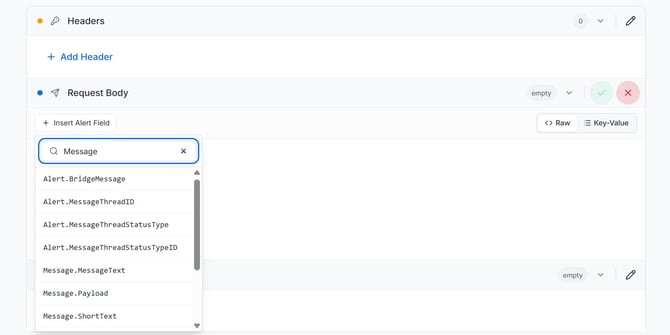
Figure 1. The Insert Alert Field picker in an outbound method's Request Body, filtered by "Message". Message.Payload appears between Message.MessageText and Message.ShortText.
Forward the payload in an outbound request
Relevant for App Admins sending alert data to an external system
Use an outbound method to pass the original event on to another system, such as an ITSM tool, a data lake or a custom webhook receiver.
- Go to Services + Integrations > Outbound Integrations and open your outbound integration.
- Open the method that should send the payload, or add a method.
- Select Edit, and set Request Type to JSON.
- In Request Body, select Raw.
- Place the cursor where the payload should go and select Insert Alert Field.
- Search for Message and select Message.Payload. The editor inserts <<Message.Payload>>.
- Save the request body with the green check mark, then save the method.
In an outbound request body, AlertOps escapes the payload (quotes, backslashes and line breaks) so it can sit inside a JSON string. Put the token inside quotes, as the value of a field in your own JSON:
{
  "source_id": "<<Alert.SourceIdentifier>>",
  "topic": "<<Alert.Topic>>",
  "raw_event": "<<Message.Payload>>"
}
The receiver gets raw_event as one string that holds the original event. Parse that string as JSON on the receiving side to read individual attributes.
You can also make <<Message.Payload>> the whole request body, as in Figure 2. Check what your endpoint receives before you rely on this form.
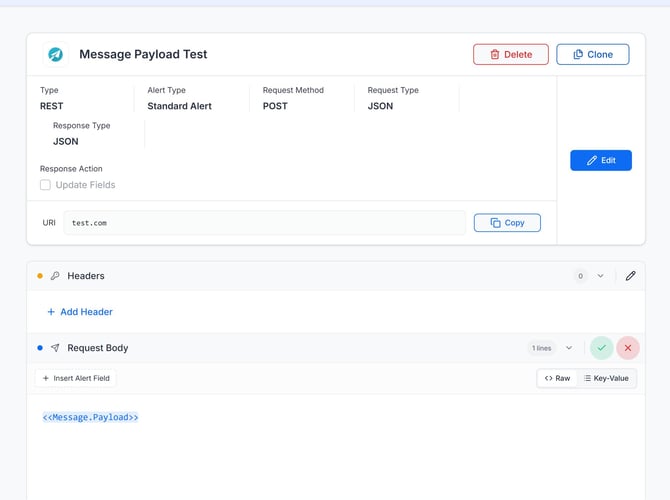
Figure 2. An outbound REST method (POST, JSON) whose Request Body is the single token <<Message.Payload>>.
Test with a non-production endpoint first
An outbound method sends the payload as soon as its trigger fires. Point a new method at a test URL or a request-capture service, open a test alert, and check what arrives before you switch the URI to production.
Include the payload in a workflow message
Relevant for App Admins building custom notifications
Use a workflow to put the raw event in an email or other notification, for example for a team that needs every attribute the monitoring tool sent.
- Go to Response Orchestration > Workflows and open or add an Alert workflow.
- Select Edit.
- Add a Send Message action, or open the existing one.
- In Message, place the cursor where the payload should appear.
- Select { } and choose Message.Payload, or type <<Message.Payload>>.
- Select Submit, then save the workflow.
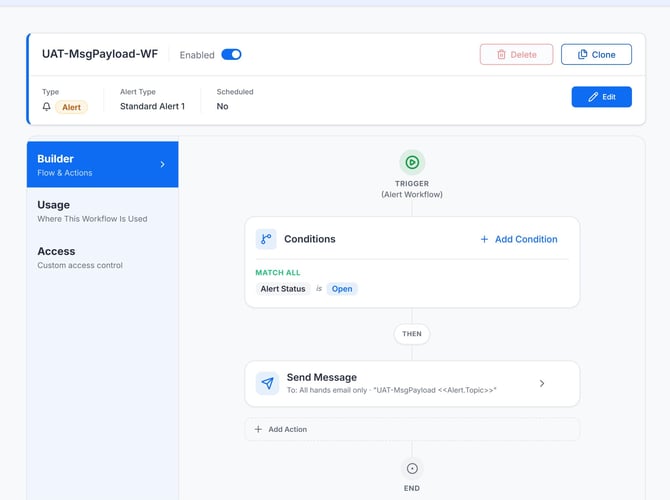
Figure 3. A workflow that runs when Alert Status is Open and then runs a Send Message action. The action's summary line shows the subject it will send.
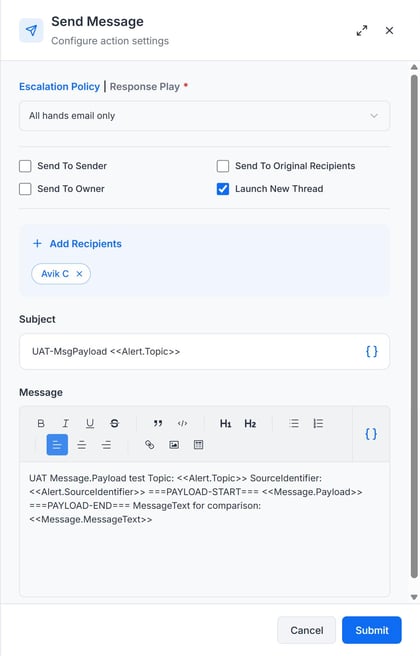
Figure 4. The Send Message action settings. The Message body places <<Message.Payload>> between two marker lines, next to <<Message.MessageText>> for comparison.
What the reader receives
In a workflow message, the token resolves to the payload as readable, indented JSON. This is the resolved body of a test message whose workflow used the template in Figure 4:
UAT Message.Payload test

Topic: UAT-MsgPayload T3 tags on srv-uat-03
SourceIdentifier: UAT-MP3-1793827254897

===PAYLOAD-START===
{
  "event_id": "UAT-MP3-1793827254897",
  "status": "DOWN",
  "title": "UAT-MsgPayload T3 tags",
  "host": "srv-uat-03",
  "before": "BEFORE-OK",
  "template_injection": "",
  "after_injection": "AFTER-INJECTION-OK",
  "bold_tag": "<b>bold</b>",
  "after_bold": "AFTER-BOLD-OK",
  "title_tag": "x <title> y",
  "after_title": "AFTER-TITLE-OK",
  "zz_end_marker": "T3-TAIL-OK"
}
===PAYLOAD-END===

MessageText for comparison: UAT-MsgPayload T3 tags on srv-uat-03 is DOWN
How the payload is rendered
Relevant for Developers parsing the payload downstream
The workflow behaviors below were checked against test alerts sent to an API inbound integration on November 4, 2026. In an outbound JSON body, the same content is additionally escaped so it fits inside a JSON string.
| Input in the inbound payload | What <<Message.Payload>> produces in a workflow message |
| Nested objects and arrays | Kept, with their structure. Output is indented with 2 spaces. |
| Numbers, booleans and null | Kept as JSON types (2, 2.5, true, null), not converted to strings. |
| Escape sequences (\", \\, \t, \n) | Kept as escape sequences, so the output stays valid JSON. |
| HTML such as <b>bold</b> or <script> | Kept as literal text. It isn't removed or encoded. |
| A complete AlertOps token such as <<Alert.Topic>> | Replaced with an empty string. It isn't expanded. |
| An unclosed token such as <<unclosed | Kept as literal text. |
| A large payload (about 8 KB tested) | Delivered whole. Fields after the large value arrived intact. |
Treat the payload as untrusted input
HTML and script tags from the source are passed through as literal text. If a downstream system renders the payload as HTML, escape it there, or send it in a plain-text field.
Non-ASCII characters
In testing, accented letters and emoji in the inbound payload arrived as ? characters. If your source sends non-ASCII text, test it end to end before you rely on it.
Best Practices
Relevant for Anyone running Message.Payload in production
Choose the right field
- Use mapped fields (Alert.Topic, Alert.SourceIdentifier) for the values you route, filter or report on.
- Use Message.Payload when the receiver needs the full original event, or when you can't predict which attributes it will need.
- Use Message.MessageText when a human needs one readable line instead of raw JSON.
Keep requests valid
- Set the outbound Request Type to JSON when you forward a JSON payload.
- Put <<Message.Payload>> inside quotes as a string value, and parse that string on the receiving side.
- Check that the receiving system accepts your payload size. Monitoring tools can send several kilobytes per event.
Protect people and systems
- Test new outbound methods and workflows against a test URL or a test recipient first.
- Don't send payloads that contain secrets or personal data to systems that shouldn't store them. The payload includes every field the source sent.
- Escape the payload in any downstream tool that renders HTML.
Configuration Examples
Relevant for Starting templates for common setups
Example 1 — Raw event inside your own JSON
| Field | Value |
| Type | REST |
| Request Method | POST |
| Request Type | JSON |
| Request Body | {"source_id": "<<Alert.SourceIdentifier>>", "topic": "<<Alert.Topic>>", "raw_event": "<<Message.Payload>>"} |
Example 2 — Payload as the whole body
| Field | Value |
| Type | REST |
| Request Method | POST |
| Request Type | JSON |
| Request Body | <<Message.Payload>> |
Example 3 — Raw event in a workflow email
| Field | Value |
| Workflow type | Alert |
| Condition | Alert Status is Open |
| Action | Send Message |
| Subject | Raw event: <<Alert.Topic>> |
| Message | <<Message.MessageText>>, a blank line, then <<Message.Payload>> |
Troubleshooting
Relevant for Anyone debugging Message.Payload
The payload is empty
- The alert didn't come in through an inbound integration → Message.Payload is filled from the inbound message, so check how the alert was created.
- The inbound request had no body → Check the request in Services + Integrations > Inbound Log.
The receiver gets a string instead of an object
- This is expected in an outbound body → The payload is escaped to fit inside a JSON string. Parse the field value (for example raw_event) as JSON on the receiving side.
The receiver rejects the request as invalid JSON
- The token is placed as a bare value, as in "raw_event": <<Message.Payload>> → Wrap it in quotes: "raw_event": "<<Message.Payload>>".
- The method's Request Type isn't JSON → Edit the method and set Request Type to JSON.
Tokens inside the source event are blank
- This is expected → AlertOps doesn't expand <<...>> tokens that come from the inbound payload. It replaces them with an empty string to prevent template injection.
The token appears literally in the output
- The token is misspelled or the wrong case → Insert it from the field picker instead of typing it. The exact spelling is <<Message.Payload>>.
Related Articles
- Outbound Integrations Overview
- Workflows Overview
- Integration Overview
- Inbound Log - Mapping Statuses
Need help?
Email support@alertops.com