
Permissions
The following entitlements are required to make changes to integrations:
- InboundIntegrations_GlobalAccess — create, update, and delete inbound E-mail, API, and Chat Integration templates in your environment.
- OutboundIntegrations_GlobalAccess — create, update, and delete Outbound API Integrations and methods in your environment.
The user roles with access to these integration entitlements are Owner, App Admin, and Integrations Admin.
OverviewRelevant for Anyone connecting AlertOps to another system
AlertOps is highly flexible when it comes to both inbound and outbound integrations. Creating an integration and getting the most out of your monitoring stack takes just a matter of minutes.
AlertOps comes with several pre-built integrations across the most popular DevOps, SecOps, ITSM, Monitoring, and a wide range of other tools. Unlike most platforms, you are not limited to the pre-templated integrations — AlertOps also provides plug-and-play / custom Open REST APIs and Open Email that let you integrate with virtually any tool or system in your stack, even if it's homegrown.
When you add an inbound integration, AlertOps presents a gallery of pre-built templates. Pick the tile that matches your source system, or choose Custom to build your own from scratch.
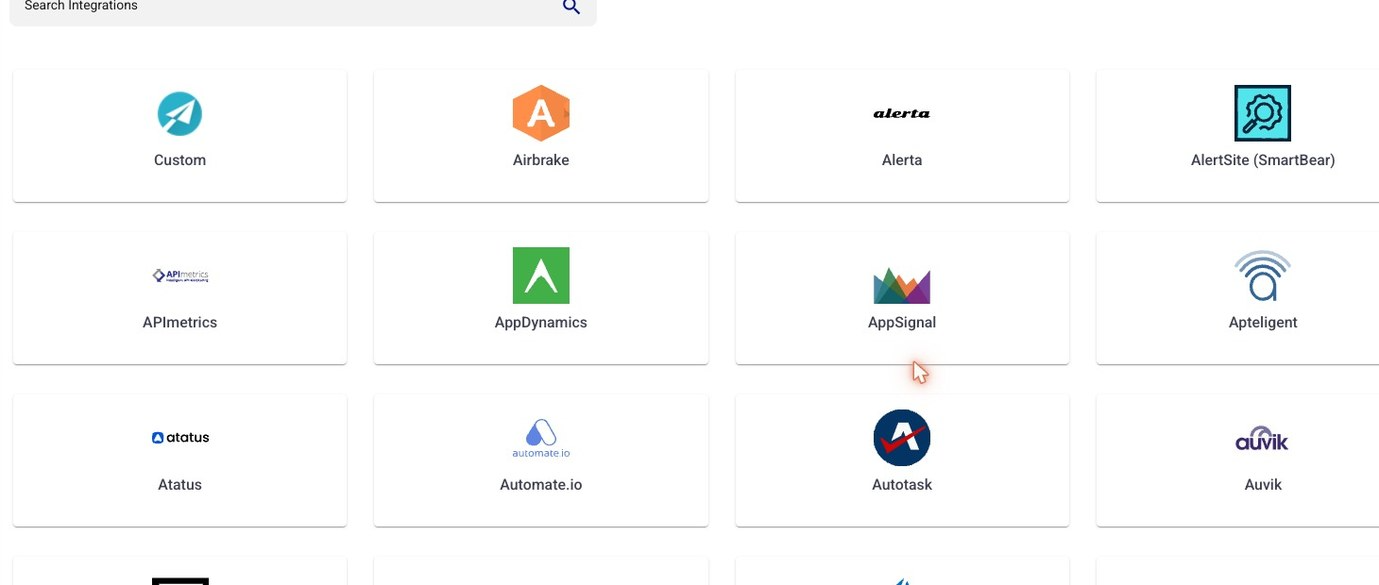
Figure 2. The pre-built integration gallery shown when adding an inbound integration. The first tile, Custom, builds an integration from scratch; the remaining tiles (Airbrake, Alerta, AppDynamics, AWS, Autotask, and many more) are ready-made templates.
When an integrated system detects an issue, AlertOps executes predetermined notifications such as voice calls, messages, or emails to the appropriate personnel or customers. AlertOps also escalates through multiple devices and personnel until someone accepts the alert and resolves the issue.
All integration management lives under Configuration → Integrations. The page is organized into Technical Services, Inbound Integrations, Outbound Integrations, Maintenance Windows, and Inbound Log.
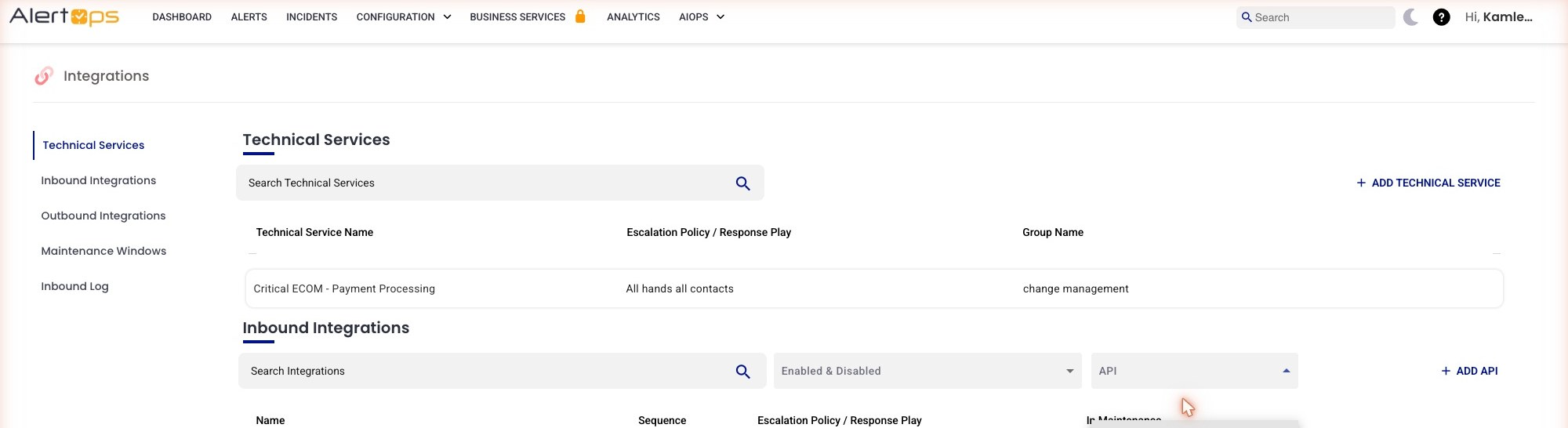
Figure 1. The Integrations page. The left-hand menu lists Technical Services, Inbound Integrations, Outbound Integrations, Maintenance Windows, and Inbound Log. The Inbound Integrations list has a status filter (Enabled & Disabled), an integration-type filter, and an Add button.
Integration TypesRelevant for Anyone choosing how to connect a new system
AlertOps supports four inbound integration types. The right one depends on what the source system can produce. On the Inbound Integrations list, the integration-type drop-down switches between them — API, Email, Chat, and Heartbeat:
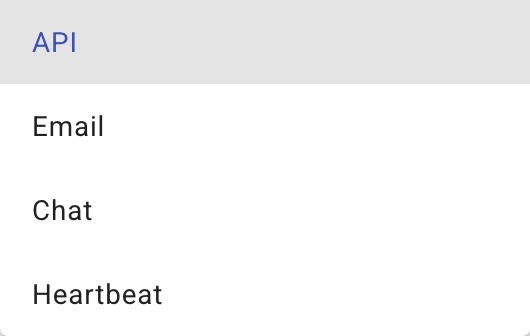
Figure 3. The inbound integration-type drop-down: API, Email, Chat, and Heartbeat. Selecting a type filters the list and sets what the Add button creates.
API Integrations
AlertOps is capable of ingesting data from any tool capable of interacting with a REST API. AlertOps provides REST APIs to integrate with virtually any software that can make HTTP requests.
Use this when the sender supports outbound webhooks. See Configuring API Integration and Custom API Integration.
Email Integrations
Email Integrations define the processing rules for creating AlertOps alerts from inbound emails. AlertOps can be integrated with any service capable of sending email alerts. Alerts are sent to the corresponding email address from monitoring tools — when AlertOps receives an email at this integration address, it executes an alert.
Use this when the sender only supports email. See Custom Email Integrations and Prebuilt Email Integrations.
Chat Integrations
Microsoft Teams provides collaboration tools for business teams; the Microsoft Teams integration with AlertOps connects to your group channels to resolve issues as a team.
Slack is another team communication tool which can be integrated with AlertOps to provide notification to group channels for collaborative resolutions.
Heartbeat Integrations
A Heartbeat Integration monitors signal activity coming from external sources. If there is no active signal — for example, a system going down — the heartbeat is interrupted and an alert is sent. Heartbeats are the inverse of the other three types: instead of alerting when something bad arrives, they alert when an expected signal stops arriving (silence detection).
- Only one alert is sent for a Heartbeat alert.
- When heartbeat pulses resume for an open Heartbeat alert, the alert is closed automatically.
- You can create multiple Heartbeat Monitors; each one is tracked separately.
See AlertOps Heartbeat Monitoring for setup.
Choosing the Right Integration Type
Pick the inbound type based on what the source system can do, not on a preference. In practice the decision usually falls out like this:
- The tool can POST a webhook (Datadog, Prometheus Alertmanager, CloudWatch, Grafana, custom scripts) → API Integration. This is the richest path — you get full field mapping, filtering, and auto-close.
- The tool can only send email (older appliances, some SaaS alerts, vendor notifications) → Email Integration. AlertOps turns inbound mail at a dedicated address into alerts.
- You want the team to triage and resolve from their chat tool → Chat Integration (Microsoft Teams or Slack) for collaborative response in a channel.
- You need to know when something STOPS (a cron job, backup, or scheduled pipeline that should run on time) → Heartbeat Integration for silence detection.
If a system can do more than one of these, prefer API — it gives you the most control over how the alert is shaped and routed.
What Happens When an Alert Comes In
Once an inbound integration is connected, the flow is the same regardless of type: the source system sends a signal (webhook, email, chat event, or heartbeat) to the integration's endpoint; AlertOps maps that signal into an alert using the integration's rules; the alert is routed to the Escalation Policy and recipients on the integration; and AlertOps notifies people across their chosen channels — voice, SMS, push, email — escalating through devices and people until someone acknowledges and resolves it. Outbound integrations can then push that alert outward to create a ticket, run a remediation action, or update a status page.
Inbound vs. OutboundRelevant for Anyone choosing the direction of a new integration
Both directions are supported and most production tenants run both:
|
|
Inbound |
Outbound |
|
Direction |
Another system → AlertOps |
AlertOps → another system |
|
Entitlement |
InboundIntegrations_GlobalAccess |
OutboundIntegrations_GlobalAccess |
|
Use when |
A monitoring tool, ticketing system, or script needs to raise an alert in AlertOps. API, Email, Chat, and Heartbeat are all inbound types. |
An AlertOps alert needs to create a ticket, post to chat, or update a status page in another system. |
|
Typical examples |
Datadog, Splunk, New Relic, CloudWatch, Slack/Teams chat, custom scripts, heartbeats from cron jobs. |
ServiceNow, Zendesk, Jira, FreshDesk, Salesforce, Status Pages, Zoom. |
Inbound and Outbound integrations live in separate sections of the Integrations page. Outbound integrations have their own list and + ADD OUTBOUND button.
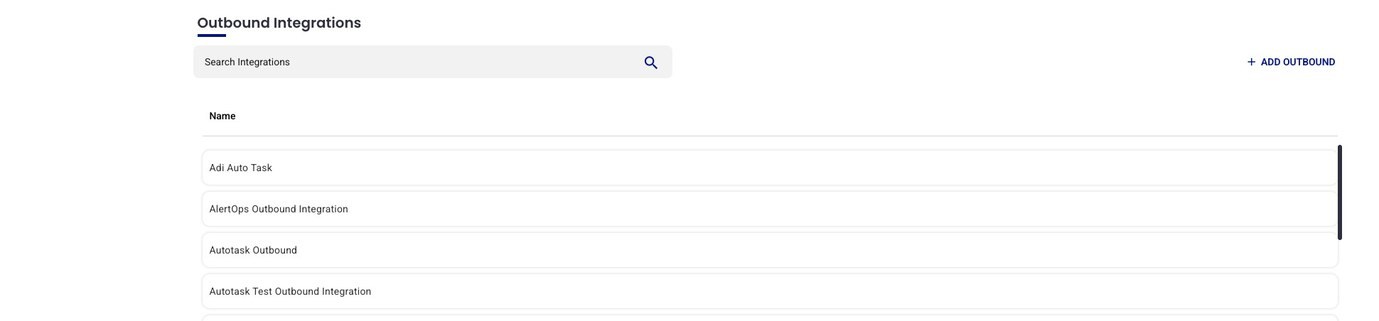
Figure 4. The Outbound Integrations section, where AlertOps pushes alerts out to other systems (ticketing, chat, status pages). It has its own list and + ADD OUTBOUND button, separate from Inbound Integrations.