
Purpose
Four concrete scenarios that show how AlertOps chooses whom to notify based on shift type, member role, and rotation configuration. Use these as templates when designing schedules for your own teams — pick the pattern that most closely matches your coverage model and adapt it.
Audience
Relevant for App Admins and Group Managers designing on-call schedules
You will get the most out of this article if you have already read Scheduling Basics and Group Member Roles. This one is less about how to configure and more about what the configuration actually does at runtime.
Prerequisites
- Familiarity with Scheduling Basics and Group Member Roles.
- A group you can experiment with — a demo group without live integrations is ideal.
How Notification Order Is Decided
When an alert routes to a group during an active shift, AlertOps pages members in this order:
- Primary members first, from the top of the shift's list to the bottom. Multi-Primary is supported — when two or more users are at Primary they page at the same time for the shift's full interval.
- Secondary members next, only if no Primary acknowledges within the escalation policy's wait window.
- Rotating (standby) members are never paged on the current cycle — they are on the bench until they cycle in.
- Manager (group-level) is the final escalation tier. Note: Manager is set on the group's Members tab, not on the shift — the shift editor's role picker offers only Primary, Secondary, and Rotating.
|
How role defaults behave when you add members The first user moved from Available Users into Members in Shift is automatically assigned the Primary role. Every subsequent user defaults to Rotating — including the second one. You need to change the role on the member row to make someone a Secondary. Several of the examples below assume specific role assignments; do not rely on the defaults alone. |
|
Rotation frequency used in these examples All of the Rotating examples below use AlertOps' out-of-the-box rotation defaults: Rotation Frequency = once every 1 Week, Rotate = 1 member per rotation, User(s) On = Sunday, At = 00:00 — the exact defaults you see when you open the Custom template in the shift editor. Change any of these in the shift editor under Rotation Frequency. Rotations do not necessarily start on the next Sunday. The schedule begins on the shift's Start Date; rotation ticks only fire on the configured day/time after that point. A shift saved on a Tuesday with User(s) On = Sunday runs Tue–Sat with the Week 1 lineup, then advances at Sunday 00:00. |
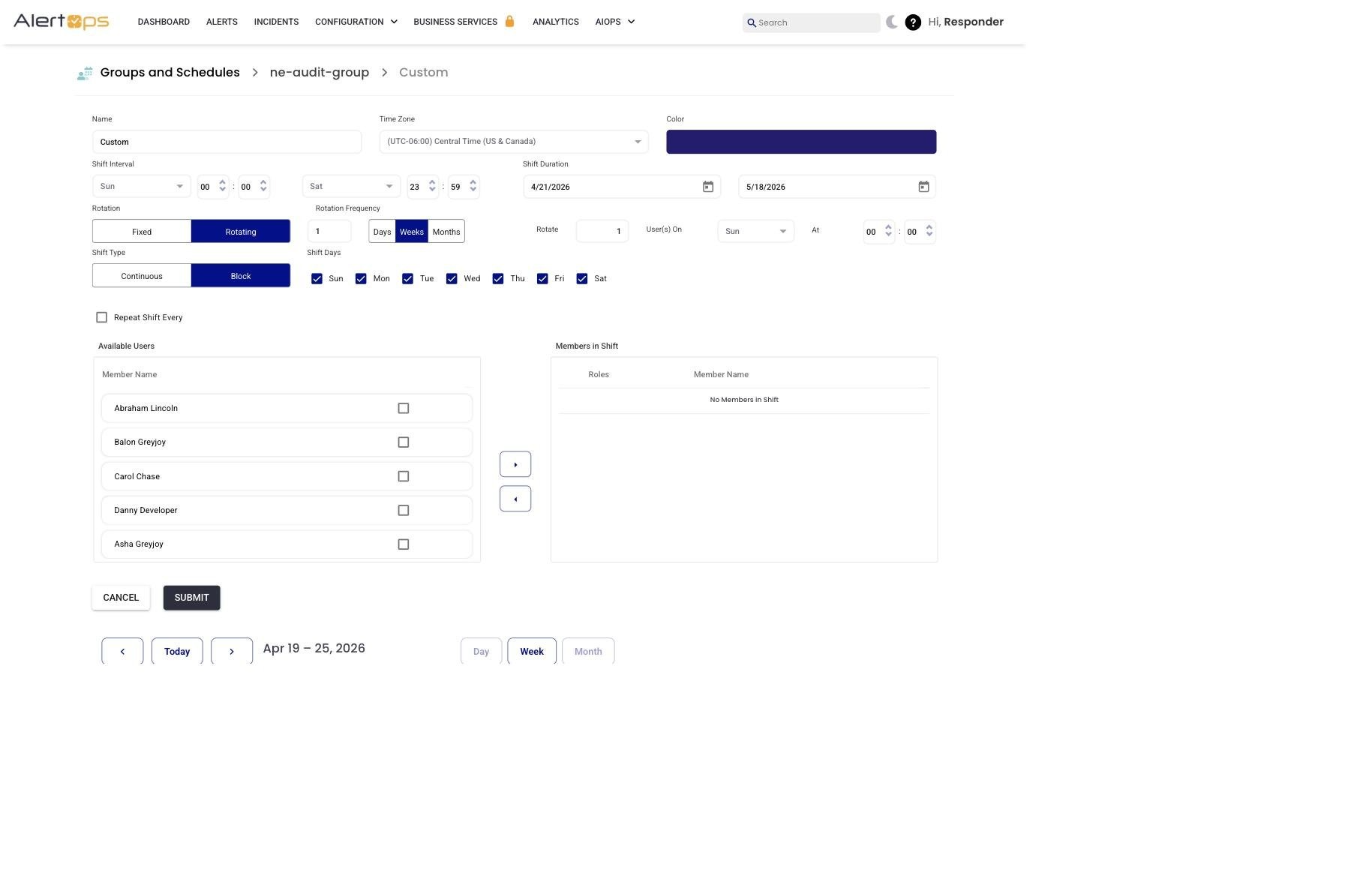
Figure 1. The Rotation Frequency row on the Custom shift template — the values you see here (1 Week, Rotate 1, Sun 00:00) are the defaults used by every Rotating example in this article.
Example 1 — Fixed shift with two Primary users and one Secondary
Configuration: Fixed shift, Shift Type = Continuous. Three members on the shift — two with the Primary role, one with the Secondary role.
|
Member |
Role |
Paged first? |
|
Ellen Ripley |
Primary |
1st |
|
Kate Bush |
Primary |
2nd |
|
James Kirk |
Secondary |
3rd — only if no Primary acknowledges |
Because this is a Fixed shift, nobody cycles. Ellen is paged first, Kate second (both receive the channels defined for Primary). James is paged last, only if no Primary acknowledges — he receives the channels defined for Secondary. There is no rotating configuration.
Example 2 — Rotating shift with one Primary and two Rotating members
Configuration: Rotating shift. Three members — one starts as Primary, two sit in the Rotating (standby) pool. When Rotation Frequency fires, the Primary moves to the bottom of the Rotating pool and the first standby member becomes the new Primary.
|
Week |
Primary |
Rotating (standby) |
|
Week 1 |
Ellen Ripley |
Kate Bush → Jules |
|
Week 2 |
Kate Bush |
Jules → Ellen Ripley |
|
Week 3 |
Jules |
Ellen Ripley → Kate Bush |
|
Week 4 |
Ellen Ripley |
Kate Bush → Jules |
Only the current Primary receives pages. The two Rotating members are standby; they receive nothing until it is their turn.
Example 3 — Rotating shift with one Primary, one Secondary, and one Rotating
Configuration: Rotating shift. Three members — one Primary, one Secondary, one Rotating. Each week the Primary drops into Rotating, the Secondary promotes to Primary, and the Rotating member promotes to Secondary.
|
Week |
Primary |
Secondary |
Rotating |
|
Week 1 |
Ellen Ripley |
Kate Bush |
Jules |
|
Week 2 |
Kate Bush |
Jules |
Ellen Ripley |
|
Week 3 |
Jules |
Ellen Ripley |
Kate Bush |
|
Week 4 |
Ellen Ripley |
Kate Bush |
Jules |
Every member experiences one week as Primary, one week as Secondary, and one week as Rotating (off) per three-week cycle. The Primary is paged first, the Secondary only if the Primary does not acknowledge, and the Rotating member is off the pager.
Example 4 — Rotating shift with multiple Primary and Secondary members
Configuration: Rotating shift. Five members — two start as Primary, two as Secondary, one in Rotating (standby).
|
Week 1 Role |
Members |
Paged |
|
Primary |
Ellen Ripley, Jules |
1st and 2nd, in parallel |
|
Secondary |
Kate Bush, James Kirk |
3rd and 4th — only if no Primary acknowledges |
|
Rotating |
Jonathan |
Not paged this cycle |
Within each tier, both members are paged simultaneously — AlertOps does not serialise multi-Primary or multi-Secondary. Ellen and Jules get the first page at the same moment; Kate and James follow together only if no Primary acknowledges. Jonathan is standby and receives nothing this week.
How the rotation actually moves: when Rotation Frequency fires, every seat advances one position along the ordered sequence P1 → P2 → S1 → S2 → R → back to P1. The top Primary does not simply drop to Secondary — it drops all the way to the Rotating bench. Everyone else shifts up one seat. The full cycle for a 2+2+1 pattern is five weeks; over that cycle each member spends two weeks as Primary (non-consecutive), two weeks as Secondary, and one week off:
|
Week |
P1 |
P2 |
S1 |
S2 |
Rotating |
|
Week 1 |
Ellen |
Jules |
Kate |
James |
Jonathan |
|
Week 2 |
Jules |
Kate |
James |
Jonathan |
Ellen |
|
Week 3 |
Kate |
James |
Jonathan |
Ellen |
Jules |
|
Week 4 |
James |
Jonathan |
Ellen |
Jules |
Kate |
|
Week 5 |
Jonathan |
Ellen |
Jules |
Kate |
James |
|
Week 6 |
Ellen |
Jules |
Kate |
James |
Jonathan |
This is useful for teams that want a "two-on-call, two-backup, one-off" coverage model that spreads load evenly — no one member sits on Primary for long, and everyone gets a predictable week off.
Picking the Right Pattern for Your Team
|
Your situation |
Use this example |
|
Small, stable team; same person is always Primary; backup is always the same person |
Example 1 (Fixed, 2 Primary + 1 Secondary) — or simpler, 1 Primary + 1 Secondary. |
|
Small team, want to rotate Primary but have no Secondary tier |
Example 2 (1 Primary + 2 Rotating). |
|
Team wants every member to experience Primary, Secondary, and an off rotation in sequence |
Example 3 (1 Primary + 1 Secondary + 1 Rotating). |
|
Team of five or more; two on call at once, two backups, one off |
Example 4 (2 Primary + 2 Secondary + 1 Rotating). |
How These Patterns Look on the Schedule Grid
On the group's Schedule tab the active roster depends on which view you are in. The Day view shows every member active for the shift interval with their role prefix, e.g. (P) Ellen Ripley, (P) Jules, (S) Kate Bush, (S) James Kirk. The weekly Timeline view compresses each day band — long shifts show only the first member on a truncated single line. To see the full roster for a shift, click into the shift or switch the view to Day. Do not use the Timeline view alone to verify that a multi-Primary or multi-Secondary shift is configured correctly.
How These Patterns Interact with Escalation Policies
The shift decides WHO is paged and in what order. The escalation policy attached to the group decides:
- How long AlertOps waits before moving from one tier to the next.
- How many retries each member gets.
- Which channels are used (Email, SMS, Voice, Push, or the user's own preference).
Swap the escalation policy to change timing and channels; change the shift configuration to change WHO sits where in the rotation. Combining the two is where most real-world on-call patterns are implemented.
Best Practices
Do
- Start with the simplest pattern that covers your team. You can always evolve into a more complex rotation later.
- When you promote someone from Rotating to Primary for the first time, walk them through one real alert so they know what the paging feels like.
- Align the Rotation Frequency with natural work cadence — weekly handoffs on Sunday are the most common. Match yours to what the team actually does.
- Document the rotation intent in the shift's Name — future team members can read the intent without re-deriving it from the configuration.
Don't
- Don't mix fixed and rotating patterns in a single shift. Add separate shifts for each if you need both.
- Don't assume a team of five automatically needs Example 4. Start from what coverage the business needs, not from what the team size could support.
- Don't rely on Rotating members as an implicit "backup backup." They are standby, not paged. If you need a tertiary tier, configure the group's Manager role or a second group.