
Purpose
An override is a normal shift that happens to overlap an existing, longer shift on the same group. AlertOps uses an implicit precedence rule: during any overlap, the shift with the shorter duration and earlier end date takes priority. When the shorter shift ends, the longer shift resumes automatically — no manual revert required.
This is how you cover a sick day, a vacation week, a holiday swap, or a training period without editing the base rotation. You add a shorter shift with the right members for that window; it wins for the overlap and then quietly steps aside.
Audience
Relevant for Group Managers and App Admins
Anyone responsible for a group's on-call coverage. The person taking the override must already be a member of the group.
Prerequisites
- A group with at least one active shift (fixed or rotating).
- The replacement user is already a member of the group.
- Familiarity with Scheduling Basics — you will use the same shift editor you already know.
- For multi-day absences that affect every group a user belongs to, consider an Out-of-Office entry on the user's profile instead — it covers every group in one place.
How Override Precedence Works
Relevant for Anyone creating or verifying an override
There is no special "Override" shift template in AlertOps. Overrides are an emergent behavior of a single rule:
|
The precedence rule When two shifts on the same group overlap, AlertOps pages the members of the shift with the shorter total duration and earlier end date during the overlap window. Once that shorter shift ends, the longer shift resumes automatically for the remainder of its duration. |
A few consequences of this rule that catch people out:
- Both shifts stay visible on the calendar simultaneously. There is no badge, colour change, tooltip, or active indicator anywhere in the Schedule grid or shift list that tells you which one is winning — the precedence is resolved internally at paging time.
- You do not have to delete or end the longer shift. You simply add the shorter one over the window you need to cover.
- When the shorter shift's end time passes, routing falls back to the longer shift on its own. No manual clean-up is required.
- If you want to undo a planned override before it takes effect, delete the shorter shift. The longer shift was never modified.
- Two shifts with exactly the same duration and the same end date are a true tie — paging is effectively random between them. If you need a specific member to cover, make sure the override shift is shorter (by duration or end date, or both) than the shift it overrides.
|
Verification matters — the UI will not tell you it's working Because both shifts remain visible and there is no override-active label, visual inspection alone does not confirm that an override is resolving correctly. The only reliable check is to trigger a test alert inside the overlap window and confirm the expected member is paged. Bake this into your QA routine whenever coverage is critical. |
When to Use an Override vs. Other Tools
Relevant for Group Managers
Pick the lightest-weight tool for the scope of the change:
|
Situation |
Use |
Why |
|
One person is out for a day / week / month across every group they're in |
Out-of-Office entry on their user profile |
Covers every group at once; no per-group edits. |
|
One group needs a different on-call person for a specific window |
Add a shorter shift over the base rotation (this article) |
Scoped to the group; leaves the base rotation untouched. |
|
Permanent change to who covers a recurring slot |
Edit the underlying shift |
An override would need to be recreated each cycle. |
|
The rotation pattern itself needs to change |
New rotation shift |
Overrides do not reorder rotations — they only cover the overlap window. |
Create an Override by Adding a Shorter Shift
Relevant for Group Managers and App Admins
Step 1 — Open the group's Schedule tab
- Go to Configuration → Groups.
- Click the group whose coverage you want to change.
- Open the Schedule tab.
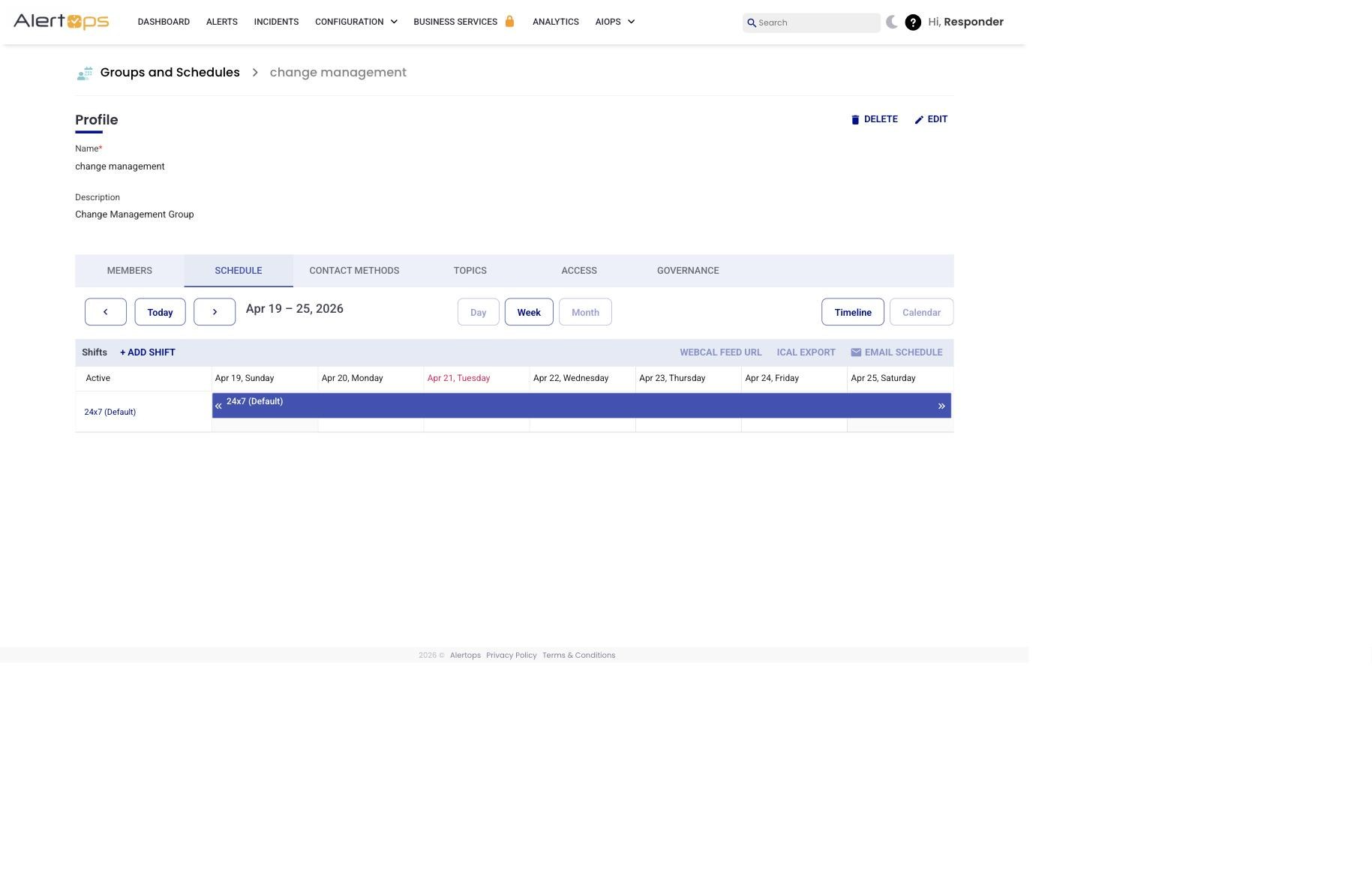
Figure 1 — The Schedule tab is where all of a group's shifts live, including the shorter shift you are about to add to create an override.
Step 2 — Add a new shift
- Click + ADD SHIFT.
- Pick a shift template that suits your override. For a one-time coverage change the simplest choice is a Fixed template ("Fixed With Selected Users - Business Hours" or similar); for a recurring override pattern use a Rotating or Custom template.
- The shift editor opens.
Step 3 — Configure the shift so it is shorter than the base shift
Configure the shift's dates, times, and members exactly as you would a normal shift — the precedence rule does the rest. The important constraint is that the new shift's total duration and end date are both shorter/earlier than the shift it is overriding. A few typical setups:
|
Field |
Value |
|
Shift Name |
A label that makes the override obvious, e.g. "Jane vacation coverage — Aug 12–15." Future admins scanning the shift list will thank you. |
|
Rotation |
Fixed for a one-time override. Rotating only if the override itself cycles. |
|
Time Zone |
The time zone the Start / End times are interpreted in. Keep it consistent with the base shift unless you have a reason to differ. |
|
Shift Interval |
Start and end day/time that define the window you want to cover. |
|
Shift Duration |
No Start Date / No End Date radios — set an explicit End Date for a short-term override so the shift expires on its own. |
|
Members in Shift |
The user(s) who should cover this window. Uncheck All Users In Group so you can assign the specific replacement instead of inheriting every group member. |
|
Role |
Primary (or Secondary, if you are covering a Secondary slot). On a Rotating override, use the standard Primary / Secondary / Rotating picker. |
- Click SAVE. The new shift appears on the schedule grid alongside the base shift. Both remain visible.
Step 4 — Verify by triggering a test alert
- Wait until the override window is active (or set it to start in a minute or two while you test).
- Trigger a test alert to the group — from Alerts → + Create Alert or via whichever integration feeds the group.
- Confirm that the override member, not the base-shift member, is paged.
- If the wrong person is paged, review Troubleshooting below.
Edit or End an Override Early
Relevant for Group Managers and App Admins
Because an override is just a shorter shift, you edit or delete it like any other shift:
- Open the group's Schedule tab.
- In the shift list, click the name of the override shift.
- Edit any field (to extend, shorten, change the member, or change the role) and click SAVE.
- To end the override early, set End Date / Time to a moment in the near future and save. When that moment passes, the base shift resumes automatically.
- To remove the override entirely, delete the shift from the list. The base rotation was never modified and continues as normal.
Common Scenarios
Relevant for Group Managers
Scenario 1 — Single sick day
|
Field |
Value |
|
Use case |
Alex is scheduled on Tue 09:00 – 17:00 but called in sick. Beth will cover. |
|
Override shift |
Fixed, Tue 09:00 → Tue 17:00, Members = Beth (Primary) |
|
Outcome |
For that eight-hour window the override is shorter than Alex's base shift, so Beth is paged. From Wednesday onward the normal rotation continues unchanged. |
Scenario 2 — Week-long vacation swap
|
Field |
Value |
|
Use case |
Alex is on vacation Mon Aug 12 – Fri Aug 16. Beth will cover the whole week. |
|
Override shift |
Fixed, Mon Aug 12 00:00 → Fri Aug 16 23:59, Members = Beth (Primary) |
|
Tip |
If Alex belongs to several groups, an Out-of-Office entry on Alex's profile is usually less work — it covers all groups with one setting. |
Scenario 3 — Weekend hand-off
|
Field |
Value |
|
Use case |
Weekend shift normally held by Alex; Beth trades this one weekend. |
|
Override shift |
Fixed, Sat 00:00 → Sun 23:59, Members = Beth (Primary) |
|
Outcome |
Only this weekend is affected. The next weekend returns to Alex automatically. |
Scenario 4 — Backfill while the Primary is unreachable
|
Field |
Value |
|
Use case |
Alex (normal Primary, Tue 09:00–17:00) is at a site visit with no cell service until 14:00. |
|
Override shift |
Fixed, Tue 09:00 → Tue 14:00, Members = Beth (Primary) |
|
Outcome |
Beth is paged for the first five hours; starting at 14:00 the base shift resumes and Alex is paged again. |
Troubleshooting
Relevant for Group Managers and App Admins
The wrong person is being paged during the override window
- Confirm the override shift is actually shorter in total duration than the base shift it is meant to override. If the base shift is itself short, or perpetual, verify the relative durations. The rule is "shorter + earlier end date" — a longer override will not win.
- Confirm the override's time zone. A window that reads 09:00–17:00 in local time but was saved in UTC will fire at a different wall-clock time.
- Confirm the override member is still a group member and still has an active contact method. A removed user will not be paged.
- Trigger a test alert to confirm (see the Verification step above). Visual inspection is not enough — the UI shows both shifts without marking which is active.
Two shifts look like they overlap but both members are being paged
- Check whether the shifts are actually on the same group. Shifts on different groups do not interact.
- Check that one shift is actually shorter than the other by both duration and end date — if the durations are identical or the end dates are not in the order you think, the precedence rule may not pick the one you expected. When in doubt, make the intended override clearly shorter.
The override keeps firing after it should have ended
- Check the End Date / Time on the override shift. Easy to miscount when the window crosses midnight or a DST boundary.
- Confirm the override's time zone matches what you intended.
I can't tell which shift is active right now
- The UI does not surface this — by design, both overlapping shifts remain visible and the precedence is resolved at paging time. The only reliable way to check is to trigger a test alert and confirm who is paged.
Best Practices
Relevant for Group Managers
- Name override shifts descriptively — "Jane vacation Aug 12–15" is far easier to audit than "Override" or "Temp."
- Always set an explicit End Date on an override. A perpetual override (no end date) defeats the precedence rule — the base shift will never resume.
- After saving an override, trigger a test alert during its window. Because the UI does not mark which shift is active, this is the only reliable verification that your override is actually winning.
- Pick the right tool for the scope — Out-of-Office when a person is out across every group they're in, an override shift when only one group needs a coverage change, a base-shift edit for permanent changes.
- Use contrasting shift colours — it does not affect precedence, but it makes it easier to spot the override visually on the grid.
- Delete stale override shifts periodically. Expired overrides are harmless but they clutter the shift list and make future audits harder.