
When an Alert is sent to multiple teams, the default behavior is to end the delivery when the Alert is assigned to a single user. However, in some cases we need to ensure each team receives the Alert with continued notifications until a user from each team acknowledges. In this example, we will create a Workflow to send additional notifications to the team that has not Acknowledged the Alert.
Alert Acknowledgements
Acknowledge is a temporary state for Alerts and works differently than Close, Assign, or Escalate. By default, Acknowledging an Alert does not change the activity of an Alert; notifications will continue until it is Assigned or Closed.
In this case Acknowledge is useful when multiple Users or Groups are notified of an Alert at the same time. We can set protocol to acknowledge an Alert but not take ownership (Assign).
By using Workflows, the Acknowledge state can serve as a trigger for further actions, and we will use this to build a Workflow that will send reminder notifications to Users who have not Acknowledged the original notification.
In our scenario, two Groups will be notified of a new Alert. Each Group has multiple Users. A User from each Group will need to Acknowledge the Alert to end notifications. Only active User from each Group who have not acknowledged the Alert will continue to receive notifications.
Groups
To begin, the Integration must have two Recipient Groups. In our scenario, an Infrastructure Team and a Dev Team are configured. Company protocol requires the Infrastructure Team to own and resolve the Alert, but the Dev Team must also Acknowledge, so as to be aware and prepared to assist. If the Infrastructure Team assigns themselves the Alert, notification to the Dev Team will continue until Acknowledged.
Create Escalation Policies
Create a new Escalation Policy, in our example we will name this Policy Email Primary.
This policy will email the primary of a group until it is acknowledged and will wait 1 minute until notifying the next group. For the sake of simplicity, we will utilize Centralized notification settings in the Escalation Rule, and this requires consistent contact methods for both Groups. User based notification settings can be applied, but complexity increases accordingly.
-Dec-02-2025-06-05-09-4841-AM-1.png?width=670&height=352&name=GetImage(11)-Dec-02-2025-06-05-09-4841-AM-1.png)
An Escalation Policy used in a Workflow cannot contain a Workflow. Create an additional Escalation Policy to define the behavior of the reminders. We will also use separate options in this rule.
(8)-Dec-02-2025-06-05-11-5730-AM-1.png?width=670&height=362&name=GetImage%20(1)(8)-Dec-02-2025-06-05-11-5730-AM-1.png)
Create Workflow
- Click Configuration from the main menu and select Workflows.
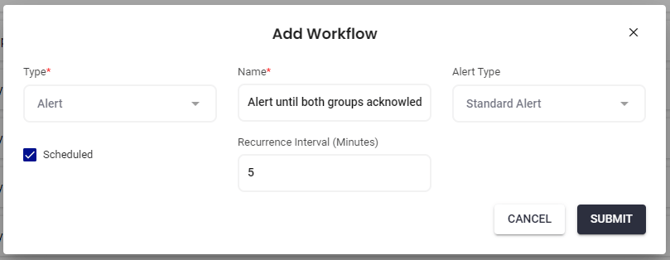
- Press the Add Workflow button.
- Enter a Name for the Workflow.
- Select Alert for Type, and Standard Alert for Alert Type.
- Check the Scheduled box and set an appropriate Recurrence Interval.
- Click Submit to save the Workflow.
Add Start Conditions
Add Stop Conditions
Add Action